Management Tags

CFS

  • Updates and Announcements
    • Function Release Records
    • Product Announcement
      • Announcement on CFS Metric Adjustments
  • Product Description
    • Product Introduction
    • Basic concepts
    • Product features
    • Product specifications
    • Usage Limits and Recommendations
    • Selection Guide
      • How to Choose Between CFS and PFS
      • How to Choose Between CFS, BOS and CDS
    • Application scenarios
  • Product pricing
    • Pay-as-you-go
    • Storage package billing
    • Insufficient balance reminders and debt handling
    • Billing Cases
  • Quick Start
    • Getting Started Overview
    • Quick start (Linux)
    • Quick start (Windows)
  • Operation guide
    • Activate Service
    • Manage File System
      • Create file system
      • Delete a file system
      • View file system details
      • Set File System Capacity Upper Limit
    • Mount and Access
      • Add mount target
      • Mount and Unmount CFS on BCC
        • Mount and Unmount on Linux System
          • Mount and Unmount SMB Protocol CFS on Single BCC
          • Batch mounting and unmounting NFS CFS on multiple BCC
          • Mounting and unmounting NFS CFS on a single BCC
        • Mount and Unmount SMB Protocol CFS on Windows System
        • Mount CFS File System When Purchasing New BCC
      • Using CFS in CCE
    • Permission Group Management
    • Identity and access management
    • Data encryption
    • Management Tags
    • Backup
    • Monitor and Alarm
      • View monitoring
      • Alarm management
      • Metric definition
    • Cloud Audit
  • Typical Practices
    • Set Different User Permissions for Different Directories
    • Using File Systems Across Regions Or Accounts
    • Use SFTP to Upload and Download CFS File System Data
    • Use Rsync to Sync From Old File System to CFS File System
    • Best Practices for Managing CFS with Terraform
    • Performance Testing Methods
      • Linux System Performance Testing Methods
      • Windows System Performance Testing Methods
  • API Reference
    • API Function Update Records
    • API Overview
    • Interface Overview
    • General Description
    • Service domain
    • Error code
    • File System Related Interfaces
      • Create file system
      • Update file system
      • Query file system
      • Query mount client
      • Drop file system
      • Update file system tags
    • mount target Related Interfaces
      • Create mount target
      • Query mount targets
      • Delete mount target
    • Permission Group-related APIs
      • Create Permission Group
      • Update permission group
      • Query Permission Groups
      • Delete permission group
      • Create permission group rules
      • Update permission group rules
      • Query permission group rules
      • Delete permission group rule
    • Data type
  • Go-SDK
    • Overview
    • Initialization
    • File system
    • Mount target
    • Error handling
  • FAQs
    • Common Questions Overview
    • General Problems
    • Billing Problems
    • NFS protocol questions
    • SMB Protocol Issues
  • Service Level Agreement (SLA)
    • CFS Service Level Agreement (SLA)
All documents
menu
No results found, please re-enter

CFS

  • Updates and Announcements
    • Function Release Records
    • Product Announcement
      • Announcement on CFS Metric Adjustments
  • Product Description
    • Product Introduction
    • Basic concepts
    • Product features
    • Product specifications
    • Usage Limits and Recommendations
    • Selection Guide
      • How to Choose Between CFS and PFS
      • How to Choose Between CFS, BOS and CDS
    • Application scenarios
  • Product pricing
    • Pay-as-you-go
    • Storage package billing
    • Insufficient balance reminders and debt handling
    • Billing Cases
  • Quick Start
    • Getting Started Overview
    • Quick start (Linux)
    • Quick start (Windows)
  • Operation guide
    • Activate Service
    • Manage File System
      • Create file system
      • Delete a file system
      • View file system details
      • Set File System Capacity Upper Limit
    • Mount and Access
      • Add mount target
      • Mount and Unmount CFS on BCC
        • Mount and Unmount on Linux System
          • Mount and Unmount SMB Protocol CFS on Single BCC
          • Batch mounting and unmounting NFS CFS on multiple BCC
          • Mounting and unmounting NFS CFS on a single BCC
        • Mount and Unmount SMB Protocol CFS on Windows System
        • Mount CFS File System When Purchasing New BCC
      • Using CFS in CCE
    • Permission Group Management
    • Identity and access management
    • Data encryption
    • Management Tags
    • Backup
    • Monitor and Alarm
      • View monitoring
      • Alarm management
      • Metric definition
    • Cloud Audit
  • Typical Practices
    • Set Different User Permissions for Different Directories
    • Using File Systems Across Regions Or Accounts
    • Use SFTP to Upload and Download CFS File System Data
    • Use Rsync to Sync From Old File System to CFS File System
    • Best Practices for Managing CFS with Terraform
    • Performance Testing Methods
      • Linux System Performance Testing Methods
      • Windows System Performance Testing Methods
  • API Reference
    • API Function Update Records
    • API Overview
    • Interface Overview
    • General Description
    • Service domain
    • Error code
    • File System Related Interfaces
      • Create file system
      • Update file system
      • Query file system
      • Query mount client
      • Drop file system
      • Update file system tags
    • mount target Related Interfaces
      • Create mount target
      • Query mount targets
      • Delete mount target
    • Permission Group-related APIs
      • Create Permission Group
      • Update permission group
      • Query Permission Groups
      • Delete permission group
      • Create permission group rules
      • Update permission group rules
      • Query permission group rules
      • Delete permission group rule
    • Data type
  • Go-SDK
    • Overview
    • Initialization
    • File system
    • Mount target
    • Error handling
  • FAQs
    • Common Questions Overview
    • General Problems
    • Billing Problems
    • NFS protocol questions
    • SMB Protocol Issues
  • Service Level Agreement (SLA)
    • CFS Service Level Agreement (SLA)
  • Document center
  • arrow
  • CFS
  • arrow
  • Operation guide
  • arrow
  • Management Tags
Table of contents on this page
  • Usage restrictions
  • Add tag
  • View tags
  • Edit and delete tags
  • Filter by tag
  • View the resource bill

Management Tags

Updated at:2025-11-11

Baidu AI Cloud offers a tag management feature, enabling quick classification and organization of file systems by attaching tags to CFS file systems. This document outlines the tag usage limitations and provides instructions for adding, viewing, editing, deleting, and filtering tags.

Usage restrictions

Before using tags, master the following restrictions:

  • Tag: Each tag consists of a key and a value, and the tag (key + value) must be unique
  • Each user can create up to 200 tags
  • When adding multiple tags to a file system, tag keys must be unique
  • When editing tags in batches, you may select up to 10 CFS file systems and add a maximum of 100 tags.

Add tag

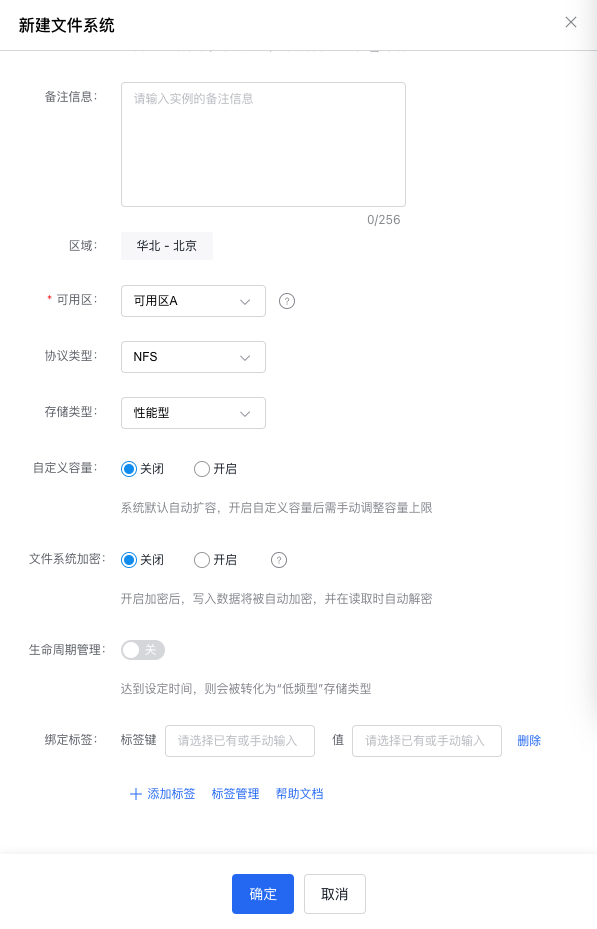
You can follow these steps to add tags to a newly created file system:

  1. Sign in to the CFS console, then click the Create File System button on the file system list page to open the file creation pop-up window.
  2. In the tag binding field, choose from existing tag keys and values or manually input suitable tag keys and values based on your service requirements, and add multiple tags if needed.
  3. Click on Tag Management to navigate to the tag page and create tags as necessary.
02-001.png

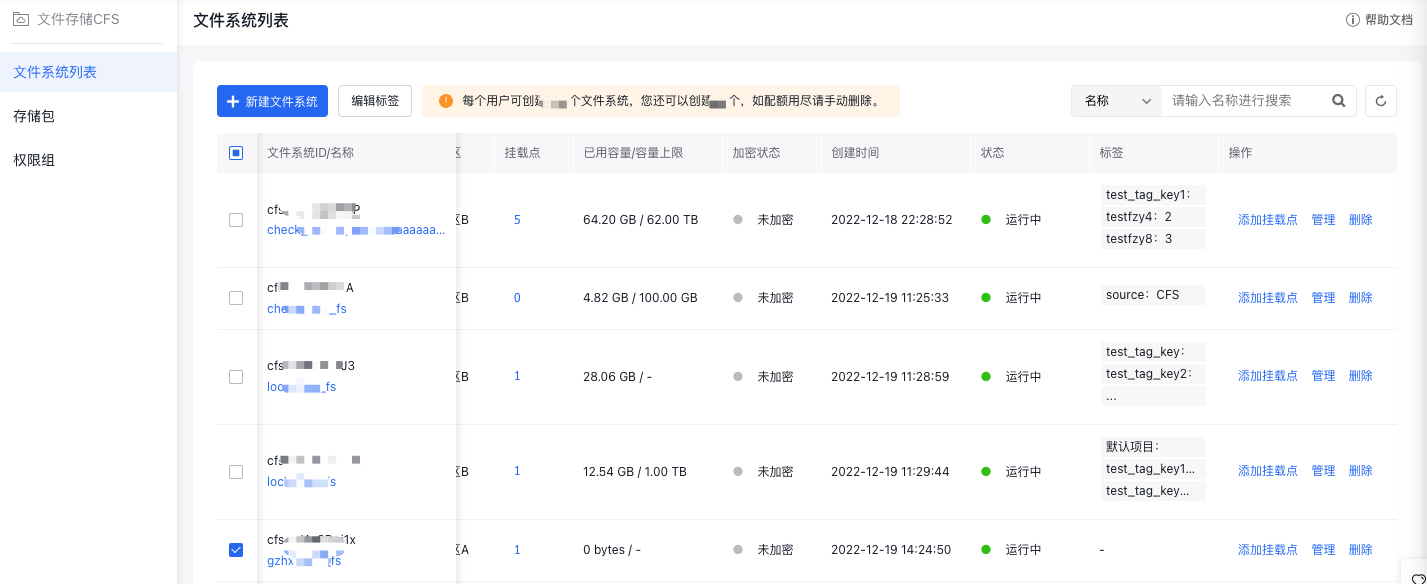
You can also follow these steps to add tags to a newly created file system:

  1. Sign in to the CFS console, select untagged file systems (batch operations supported) in the file list page, and click Edit Tag.
02-002.png

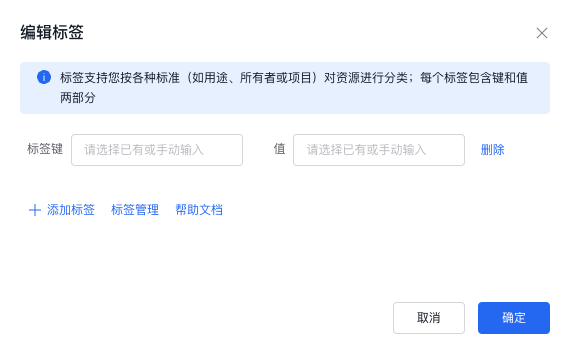
  1. In the tag editing pop-up, select from existing tag keys and values or manually input suitable tag keys and values according to your service needs, and add multiple tags if needed.
02-003.png

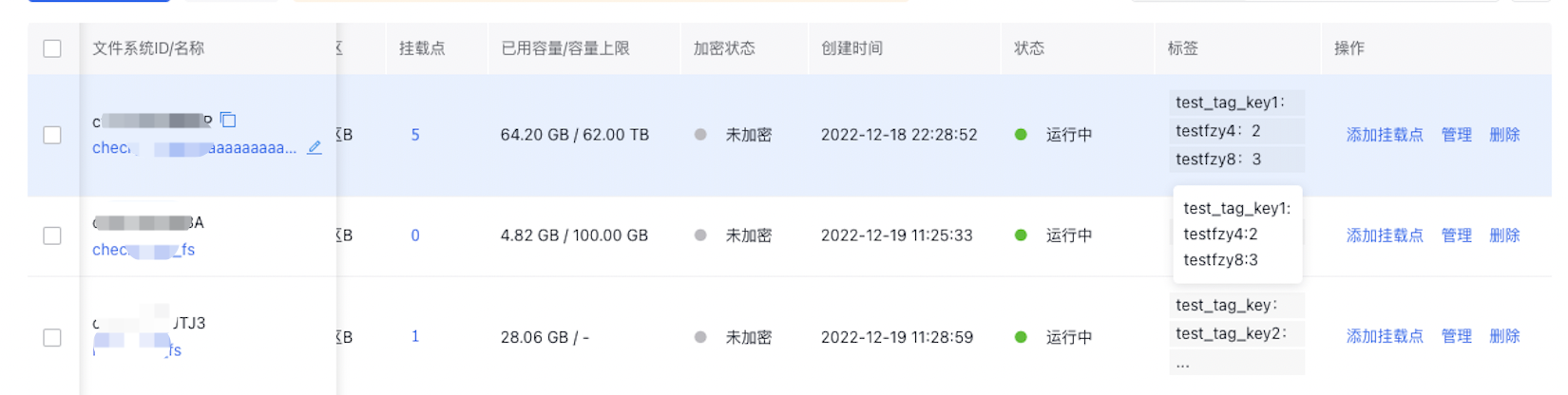
View tags

On the file system list page, you can view tags associated with each file system.
02-004.png

Edit and delete tags

You can follow these steps to re-edit or delete a tagged file system:

  1. Sign in to the CFS console, select file systems from which you need to re-edit or delete tags (batch operations not supported) in the file list page, and click Edit Tag.
  2. In the tag editing pop-up, you can update tag keys and values, remove tags, or add new ones.
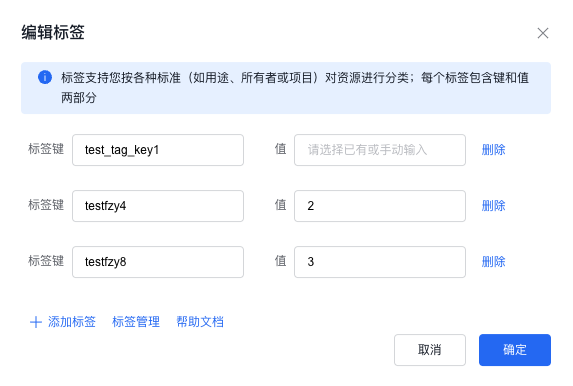
02-005.png

Filter by tag

You can filter file systems containing specified tag key information by following these steps:

  1. Sign in to the CFS console, switch the filter item to tag at the top of the file system list page, and select the tag key to be filtered.

02-006.png

  1. Input the corresponding tag value and click Search to display the matching file systems in the list.

View the resource bill

The resource bill function records the lifecycle and consumption-related data of each resource, helping users to view usage information for resources and products by resource dimension. To view the resource bill for PFS instances under specific tags, follow these steps:

  1. Sign in to the CFS console, select a file system in the file system list page, and click Edit Tag at the top
  2. In the pop-up, click on Tag Management to go to Baidu AI Cloud’s Tag Management page.
  3. Click View Bill in the operation bar for the bound CFS.
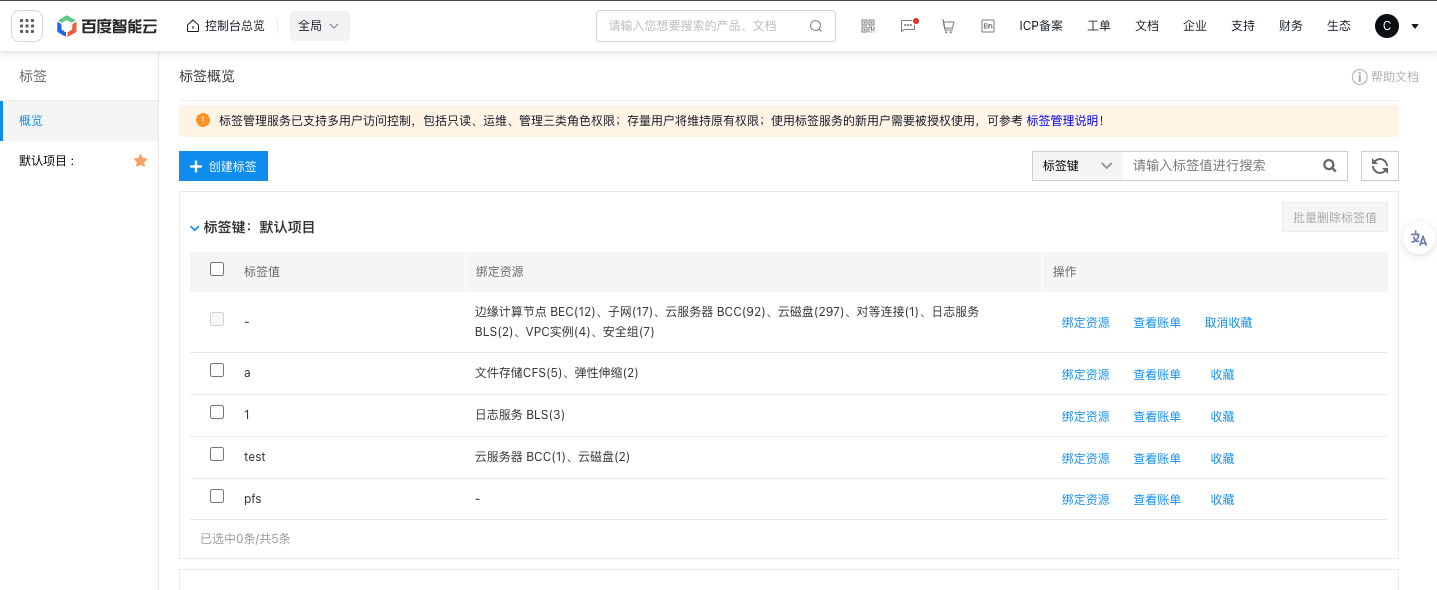
image.png

  1. Go to the Resource Bill page, select the year you want to view, and the current tagged resource consumption details will be shown. You can also perform a tag search by applying filter criteria, view consumption details of other tags by key and value, and download the related information.
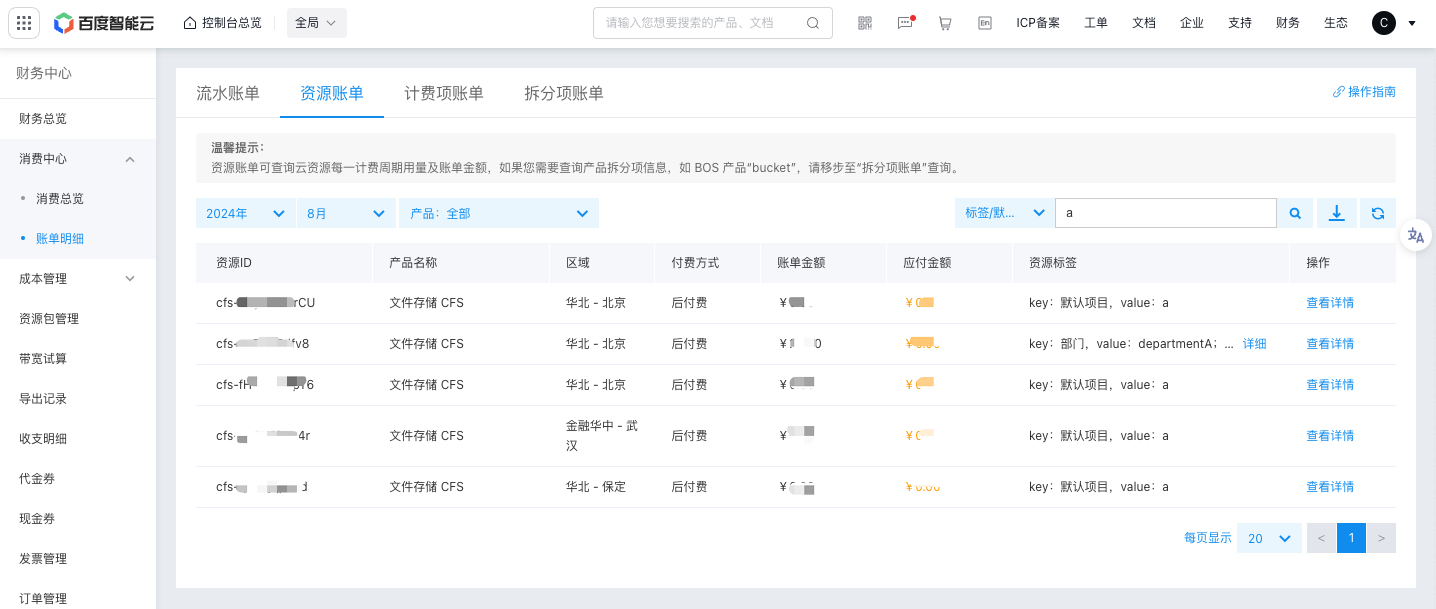
image (1).png

Previous
Data encryption
Next
Backup