Use SFTP to Upload and Download CFS File System Data

CFS

  • Updates and Announcements
    • Function Release Records
    • Product Announcement
      • Announcement on CFS Metric Adjustments
  • Product Description
    • Product Introduction
    • Basic concepts
    • Product features
    • Product specifications
    • Usage Limits and Recommendations
    • Selection Guide
      • How to Choose Between CFS and PFS
      • How to Choose Between CFS, BOS and CDS
    • Application scenarios
  • Product pricing
    • Pay-as-you-go
    • Storage package billing
    • Insufficient balance reminders and debt handling
    • Billing Cases
  • Quick Start
    • Getting Started Overview
    • Quick start (Linux)
    • Quick start (Windows)
  • Operation guide
    • Activate Service
    • Manage File System
      • Create file system
      • Delete a file system
      • View file system details
      • Set File System Capacity Upper Limit
    • Mount and Access
      • Add mount target
      • Mount and Unmount CFS on BCC
        • Mount and Unmount on Linux System
          • Mount and Unmount SMB Protocol CFS on Single BCC
          • Batch mounting and unmounting NFS CFS on multiple BCC
          • Mounting and unmounting NFS CFS on a single BCC
        • Mount and Unmount SMB Protocol CFS on Windows System
        • Mount CFS File System When Purchasing New BCC
      • Using CFS in CCE
    • Permission Group Management
    • Identity and access management
    • Data encryption
    • Management Tags
    • Backup
    • Monitor and Alarm
      • View monitoring
      • Alarm management
      • Metric definition
    • Cloud Audit
  • Typical Practices
    • Set Different User Permissions for Different Directories
    • Using File Systems Across Regions Or Accounts
    • Use SFTP to Upload and Download CFS File System Data
    • Use Rsync to Sync From Old File System to CFS File System
    • Best Practices for Managing CFS with Terraform
    • Performance Testing Methods
      • Linux System Performance Testing Methods
      • Windows System Performance Testing Methods
  • API Reference
    • API Function Update Records
    • API Overview
    • Interface Overview
    • General Description
    • Service domain
    • Error code
    • File System Related Interfaces
      • Create file system
      • Update file system
      • Query file system
      • Query mount client
      • Drop file system
      • Update file system tags
    • mount target Related Interfaces
      • Create mount target
      • Query mount targets
      • Delete mount target
    • Permission Group-related APIs
      • Create Permission Group
      • Update permission group
      • Query Permission Groups
      • Delete permission group
      • Create permission group rules
      • Update permission group rules
      • Query permission group rules
      • Delete permission group rule
    • Data type
  • Go-SDK
    • Overview
    • Initialization
    • File system
    • Mount target
    • Error handling
  • FAQs
    • Common Questions Overview
    • General Problems
    • Billing Problems
    • NFS protocol questions
    • SMB Protocol Issues
  • Service Level Agreement (SLA)
    • CFS Service Level Agreement (SLA)
All documents
menu
No results found, please re-enter

CFS

  • Updates and Announcements
    • Function Release Records
    • Product Announcement
      • Announcement on CFS Metric Adjustments
  • Product Description
    • Product Introduction
    • Basic concepts
    • Product features
    • Product specifications
    • Usage Limits and Recommendations
    • Selection Guide
      • How to Choose Between CFS and PFS
      • How to Choose Between CFS, BOS and CDS
    • Application scenarios
  • Product pricing
    • Pay-as-you-go
    • Storage package billing
    • Insufficient balance reminders and debt handling
    • Billing Cases
  • Quick Start
    • Getting Started Overview
    • Quick start (Linux)
    • Quick start (Windows)
  • Operation guide
    • Activate Service
    • Manage File System
      • Create file system
      • Delete a file system
      • View file system details
      • Set File System Capacity Upper Limit
    • Mount and Access
      • Add mount target
      • Mount and Unmount CFS on BCC
        • Mount and Unmount on Linux System
          • Mount and Unmount SMB Protocol CFS on Single BCC
          • Batch mounting and unmounting NFS CFS on multiple BCC
          • Mounting and unmounting NFS CFS on a single BCC
        • Mount and Unmount SMB Protocol CFS on Windows System
        • Mount CFS File System When Purchasing New BCC
      • Using CFS in CCE
    • Permission Group Management
    • Identity and access management
    • Data encryption
    • Management Tags
    • Backup
    • Monitor and Alarm
      • View monitoring
      • Alarm management
      • Metric definition
    • Cloud Audit
  • Typical Practices
    • Set Different User Permissions for Different Directories
    • Using File Systems Across Regions Or Accounts
    • Use SFTP to Upload and Download CFS File System Data
    • Use Rsync to Sync From Old File System to CFS File System
    • Best Practices for Managing CFS with Terraform
    • Performance Testing Methods
      • Linux System Performance Testing Methods
      • Windows System Performance Testing Methods
  • API Reference
    • API Function Update Records
    • API Overview
    • Interface Overview
    • General Description
    • Service domain
    • Error code
    • File System Related Interfaces
      • Create file system
      • Update file system
      • Query file system
      • Query mount client
      • Drop file system
      • Update file system tags
    • mount target Related Interfaces
      • Create mount target
      • Query mount targets
      • Delete mount target
    • Permission Group-related APIs
      • Create Permission Group
      • Update permission group
      • Query Permission Groups
      • Delete permission group
      • Create permission group rules
      • Update permission group rules
      • Query permission group rules
      • Delete permission group rule
    • Data type
  • Go-SDK
    • Overview
    • Initialization
    • File system
    • Mount target
    • Error handling
  • FAQs
    • Common Questions Overview
    • General Problems
    • Billing Problems
    • NFS protocol questions
    • SMB Protocol Issues
  • Service Level Agreement (SLA)
    • CFS Service Level Agreement (SLA)
  • Document center
  • arrow
  • CFS
  • arrow
  • Typical Practices
  • arrow
  • Use SFTP to Upload and Download CFS File System Data
Table of contents on this page
  • Prerequisites
  • Background
  • Operation steps

Use SFTP to Upload and Download CFS File System Data

Updated at:2025-11-11

This guide explains how to use SFTP to upload and download data on the CFS file system.

Prerequisites

In the region where the CFS file system is located, you have already purchased a Baidu Cloud Compute (BCC) instance (this guide uses the CentOS operating system as an example). For details, please refer to [Creating a BCC Instance](BCC/Operation guide/Instance/Create instance/Create Instance via Purchase Page.md).

Background

The speed of SFTP transfers depends on the Internet bandwidth of the BCC. Please configure the network bandwidth appropriately based on your business needs.

Operation steps

  1. Sign in to Baidu Cloud Compute (BCC)
  2. Modify the configuration file /etc/ssh/sshd_config

    • Comment out the Subsystem line in the sshd_config file, and add a new line: Subsystem sftp internal-sftp

      Plain Text
      1# override default of no subsystems
      2#Subsystem sftp /usr/libexec/openssh/sftp-server
      3Subsystem     sftp   internal-sftp
    • Add the following content at the end of the sshd_config file. Here, /usr/sftp is the SFTP root directory; modify it according to your actual situation

      Plain Text
      1X11Forwarding no
      2AllowTcpForwarding no
      3ForceCommand internal-sftp
      4ChrootDirectory /usr/sftp
  3. Set relevant permissions

    • 3.1 Execute the following command to add a user group.

      Plain Text
      1groupadd sftp
    • 3.2 Execute the following command to add a user and set it as an SFTP group.

      Plain Text
      1useradd -g sftp -s /sbin/nologin -M sftp
    • 3.3 Execute the following command to set the password for the SFTP user.

      Plain Text
      1passwd sftp
    • 3.4 Create the root directory, owner, and group for the SFTP user, and modify the permissions (set to 755).

      Plain Text
      1 cd /usr
      2 mkdir sftp
      3 chown root:sftp sftp
      4 chmod 755 sftp
  4. Create a CFS mount directory in the SFTP directory and modify permissions
Plain Text
1cd sftp/
2mkdir mnt
3chown sftp:sftp mnt
  1. Execute the following command to mount the CFS file system to the /usr/sftp/mnt directory
Plain Text
1mount -t nfs4 -o minorversion=1,rsize=1048576,wsize=1048576,hard,timeo=600,retrans=2,noresvport cfs-q2BPKzxxxx.lb-5179xxxx.cfs.bj.baidubce.com:/ /usr/sftp/mnt
  1. Execute the following command to restart the sshd service
Plain Text
1service sshd restart
  1. Sign in to the SFTP service to upload and download files

The account and password mentioned are the ones configured in Step 3. This guide uses the Cyberduck client as an example, but you can choose any client supporting the SFTP protocol based on your requirements.
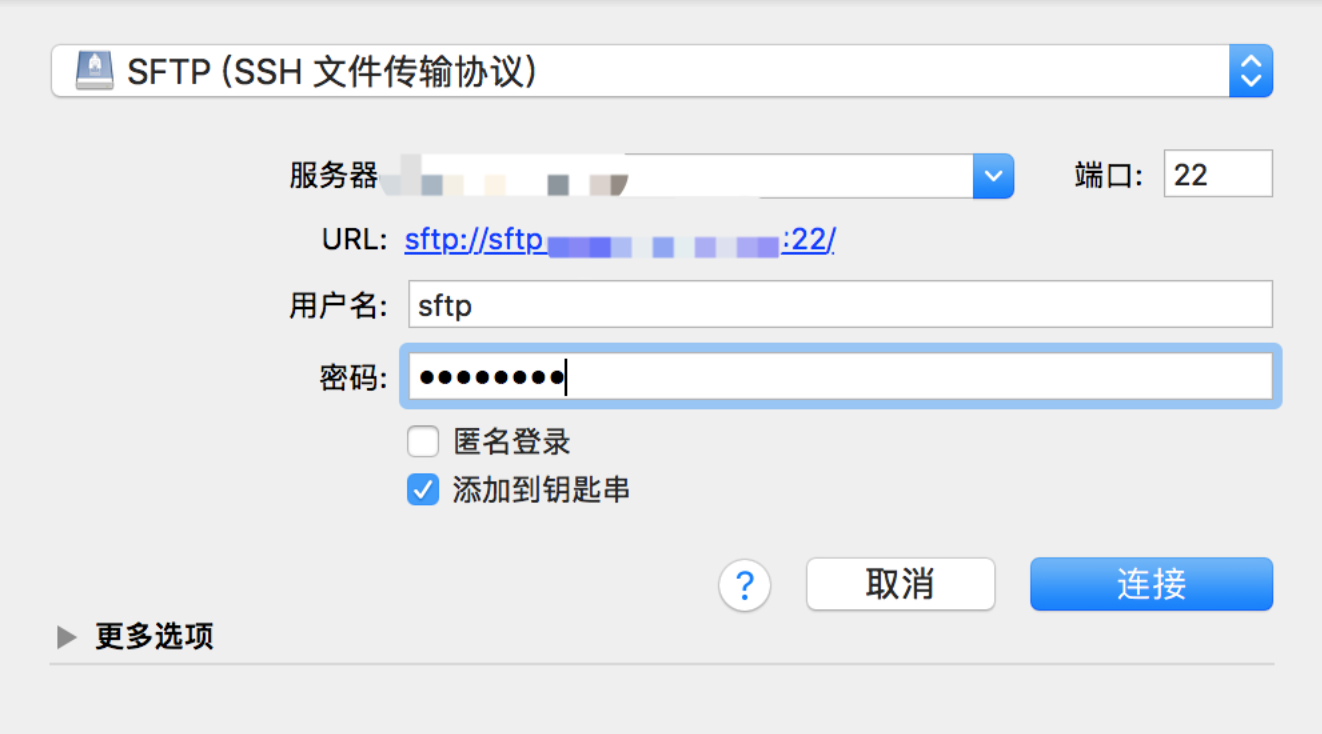
5aa6f5bb170ea6a91bb67b463.png

Previous
Using File Systems Across Regions Or Accounts
Next
Use Rsync to Sync From Old File System to CFS File System