Quick start (Windows)

CFS

  • Updates and Announcements
    • Function Release Records
    • Product Announcement
      • Announcement on CFS Metric Adjustments
  • Product Description
    • Product Introduction
    • Basic concepts
    • Product features
    • Product specifications
    • Usage Limits and Recommendations
    • Selection Guide
      • How to Choose Between CFS and PFS
      • How to Choose Between CFS, BOS and CDS
    • Application scenarios
  • Product pricing
    • Pay-as-you-go
    • Storage package billing
    • Insufficient balance reminders and debt handling
    • Billing Cases
  • Quick Start
    • Getting Started Overview
    • Quick start (Linux)
    • Quick start (Windows)
  • Operation guide
    • Activate Service
    • Manage File System
      • Create file system
      • Delete a file system
      • View file system details
      • Set File System Capacity Upper Limit
    • Mount and Access
      • Add mount target
      • Mount and Unmount CFS on BCC
        • Mount and Unmount on Linux System
          • Mount and Unmount SMB Protocol CFS on Single BCC
          • Batch mounting and unmounting NFS CFS on multiple BCC
          • Mounting and unmounting NFS CFS on a single BCC
        • Mount and Unmount SMB Protocol CFS on Windows System
        • Mount CFS File System When Purchasing New BCC
      • Using CFS in CCE
    • Permission Group Management
    • Identity and access management
    • Data encryption
    • Management Tags
    • Backup
    • Monitor and Alarm
      • View monitoring
      • Alarm management
      • Metric definition
    • Cloud Audit
  • Typical Practices
    • Set Different User Permissions for Different Directories
    • Using File Systems Across Regions Or Accounts
    • Use SFTP to Upload and Download CFS File System Data
    • Use Rsync to Sync From Old File System to CFS File System
    • Best Practices for Managing CFS with Terraform
    • Performance Testing Methods
      • Linux System Performance Testing Methods
      • Windows System Performance Testing Methods
  • API Reference
    • API Function Update Records
    • API Overview
    • Interface Overview
    • General Description
    • Service domain
    • Error code
    • File System Related Interfaces
      • Create file system
      • Update file system
      • Query file system
      • Query mount client
      • Drop file system
      • Update file system tags
    • mount target Related Interfaces
      • Create mount target
      • Query mount targets
      • Delete mount target
    • Permission Group-related APIs
      • Create Permission Group
      • Update permission group
      • Query Permission Groups
      • Delete permission group
      • Create permission group rules
      • Update permission group rules
      • Query permission group rules
      • Delete permission group rule
    • Data type
  • Go-SDK
    • Overview
    • Initialization
    • File system
    • Mount target
    • Error handling
  • FAQs
    • Common Questions Overview
    • General Problems
    • Billing Problems
    • NFS protocol questions
    • SMB Protocol Issues
  • Service Level Agreement (SLA)
    • CFS Service Level Agreement (SLA)
All documents
menu
No results found, please re-enter

CFS

  • Updates and Announcements
    • Function Release Records
    • Product Announcement
      • Announcement on CFS Metric Adjustments
  • Product Description
    • Product Introduction
    • Basic concepts
    • Product features
    • Product specifications
    • Usage Limits and Recommendations
    • Selection Guide
      • How to Choose Between CFS and PFS
      • How to Choose Between CFS, BOS and CDS
    • Application scenarios
  • Product pricing
    • Pay-as-you-go
    • Storage package billing
    • Insufficient balance reminders and debt handling
    • Billing Cases
  • Quick Start
    • Getting Started Overview
    • Quick start (Linux)
    • Quick start (Windows)
  • Operation guide
    • Activate Service
    • Manage File System
      • Create file system
      • Delete a file system
      • View file system details
      • Set File System Capacity Upper Limit
    • Mount and Access
      • Add mount target
      • Mount and Unmount CFS on BCC
        • Mount and Unmount on Linux System
          • Mount and Unmount SMB Protocol CFS on Single BCC
          • Batch mounting and unmounting NFS CFS on multiple BCC
          • Mounting and unmounting NFS CFS on a single BCC
        • Mount and Unmount SMB Protocol CFS on Windows System
        • Mount CFS File System When Purchasing New BCC
      • Using CFS in CCE
    • Permission Group Management
    • Identity and access management
    • Data encryption
    • Management Tags
    • Backup
    • Monitor and Alarm
      • View monitoring
      • Alarm management
      • Metric definition
    • Cloud Audit
  • Typical Practices
    • Set Different User Permissions for Different Directories
    • Using File Systems Across Regions Or Accounts
    • Use SFTP to Upload and Download CFS File System Data
    • Use Rsync to Sync From Old File System to CFS File System
    • Best Practices for Managing CFS with Terraform
    • Performance Testing Methods
      • Linux System Performance Testing Methods
      • Windows System Performance Testing Methods
  • API Reference
    • API Function Update Records
    • API Overview
    • Interface Overview
    • General Description
    • Service domain
    • Error code
    • File System Related Interfaces
      • Create file system
      • Update file system
      • Query file system
      • Query mount client
      • Drop file system
      • Update file system tags
    • mount target Related Interfaces
      • Create mount target
      • Query mount targets
      • Delete mount target
    • Permission Group-related APIs
      • Create Permission Group
      • Update permission group
      • Query Permission Groups
      • Delete permission group
      • Create permission group rules
      • Update permission group rules
      • Query permission group rules
      • Delete permission group rule
    • Data type
  • Go-SDK
    • Overview
    • Initialization
    • File system
    • Mount target
    • Error handling
  • FAQs
    • Common Questions Overview
    • General Problems
    • Billing Problems
    • NFS protocol questions
    • SMB Protocol Issues
  • Service Level Agreement (SLA)
    • CFS Service Level Agreement (SLA)
  • Document center
  • arrow
  • CFS
  • arrow
  • Quick Start
  • arrow
  • Quick start (Windows)
Table of contents on this page
  • Prerequisites
  • Mounting steps
  • Step 1: Create a CFS file system
  • Step 2: Create mount target
  • Step 3: Mount CFS file system
  • Step 4: Verify the mount
  • Unmounting steps
  • FAQs
  • How to resolve system error 1272?

Quick start (Windows)

Updated at:2025-11-11

This guide explains how to create an SMB file system in the CFS console and mount it to a Baidu Cloud Compute (BCC) instance (Windows) for data reading and writing.

Prerequisites

  1. The Cloud File System (CFS) service has been activated. When signing into the Cloud File System (CFS) console for the first time, you need to activate the CFS service as guided on the page.
  2. The target BCC instance has been created for mounting the CFS file system. For BCC creation methods, refer to: Quick Configuration of Windows Cloud Servers.

Mounting steps

Step 1: Create a CFS file system

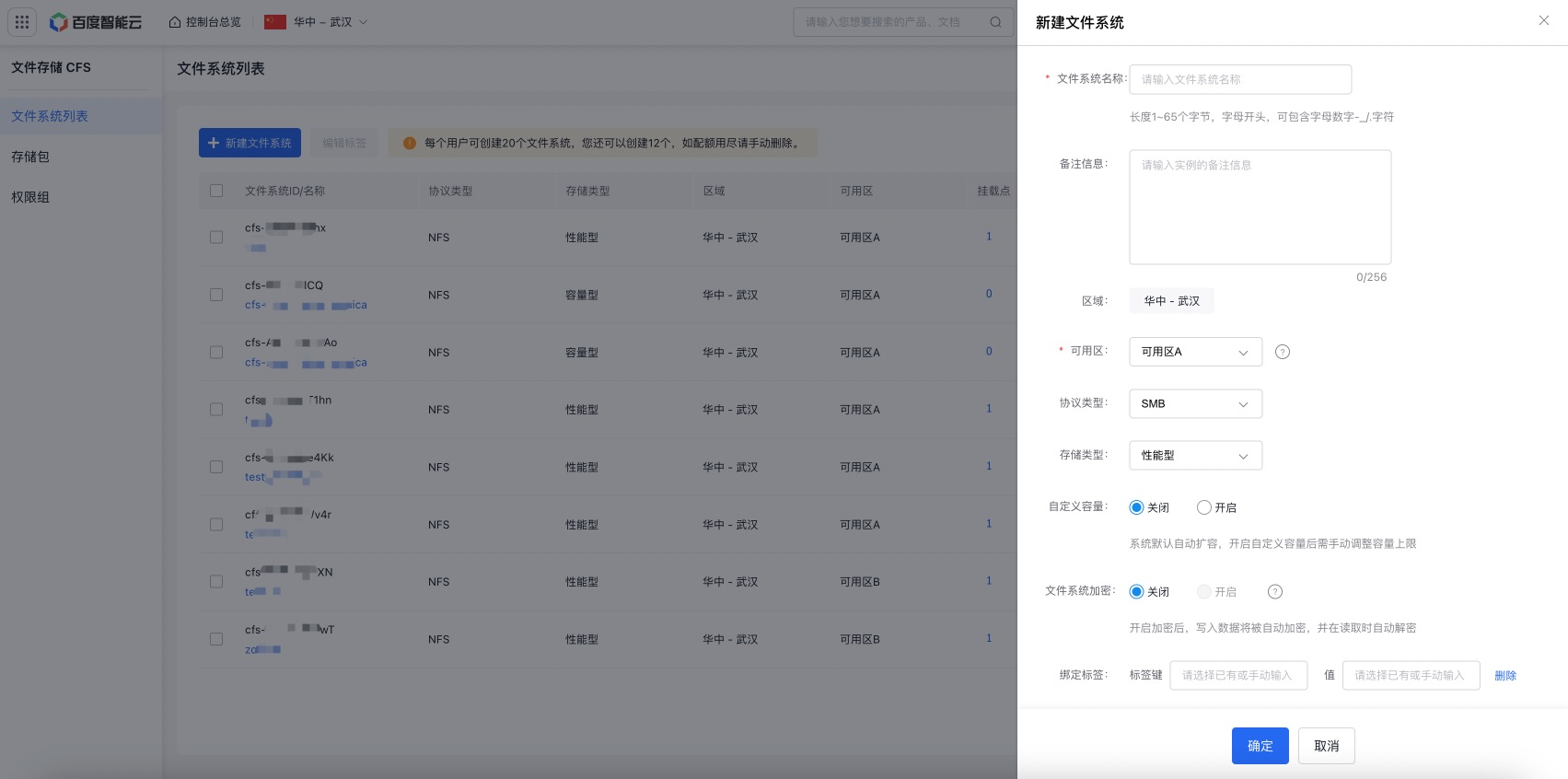
  1. Click "Create File System" in the CFS console.
  2. On the Create File System panel, fill in details such as the file system name, availability zone, protocol type, and storage class. For detailed parameter descriptions, refer to Create File System.

Description:

①For optimal performance, it is recommended to deploy CFS file systems in the same availability zone as BCC instances

②This document selects the SMB, indicating that BCC instances running Windows OS will mount and access the CFS file system via SMB
3c82baf2a0871bd07a3fca7ddc1af6c3.png

  1. Click "OK" and follow the on-screen instructions to complete the creation of the CFS file system.

Step 2: Create mount target

  1. Click the File System Name in CFS console to access the Basic Information page
  2. Click Add Mount Target, and select the subnet and permission group in the pop-up page. For more permission group details, refer to Permission Group Management
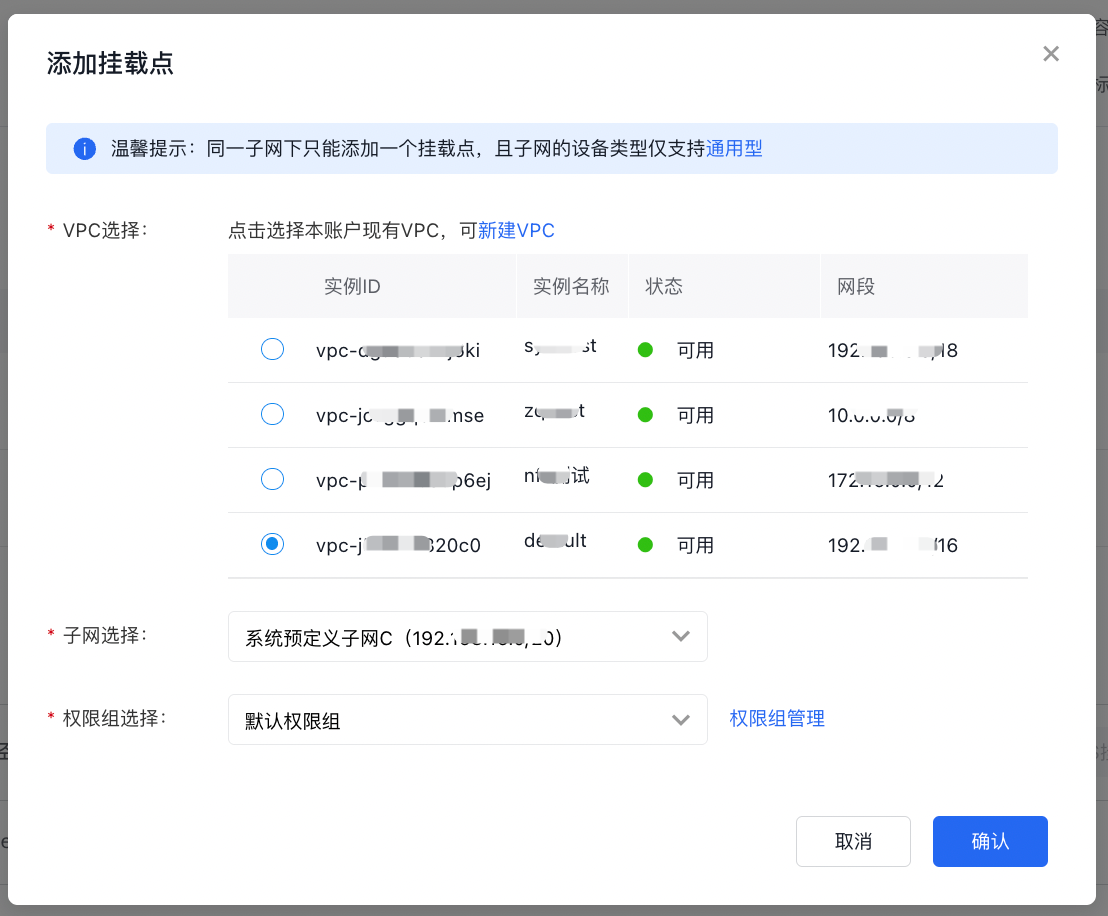
  1. Click Confirm to view the mount target information. Please record the domain name of a mount target (cfs-***.baidubce.com) here for subsequent mount operations.
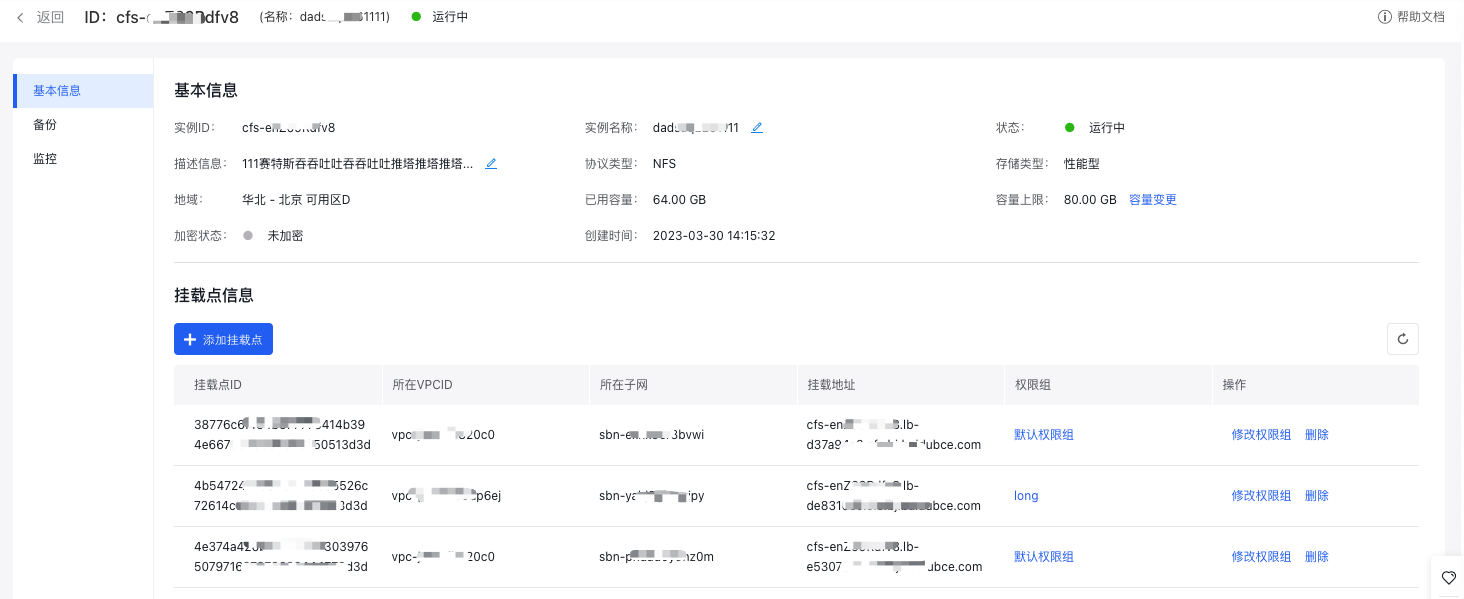
image.png

Step 3: Mount CFS file system

  1. Sign in to the target BCC instance in the BCC console. This document uses VNC for login. For other login methods, refer to Baidu Cloud Compute (BCC) Login Methods.
  2. After login, open PowerShell or the cmd command line in the target BCC instance and execute the following mount command
Bash
1net use <Client Local Drive Letter>: \\<Domain Name of a Mount Target>\cfs

Description:

  • is the local drive letter of the CFS file system to be mounted (e.g., z) and cannot be duplicated with existing drive letters;
  • can be found in the file system’s mount target list (see Step 2);
  • cfs is a fixed SMB share name and cannot be modified.

Example:

Bash
1net use z: \\cfs-***.lb-b768ef66.cfs.bj.baidubce.com\cfs

Step 4: Verify the mount

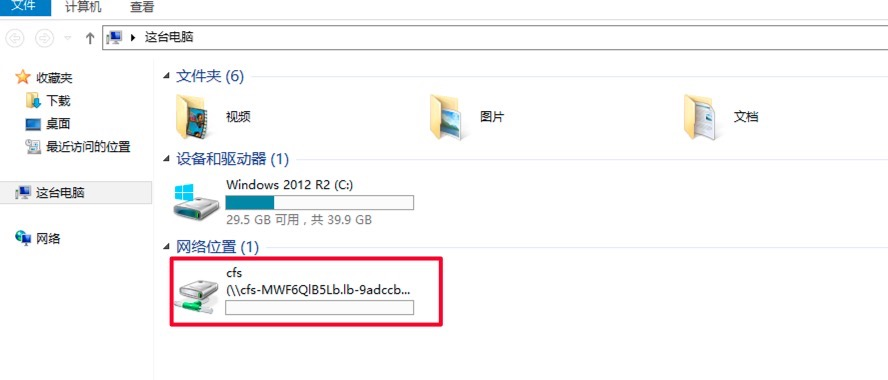
  1. After mounting, you can use Windows Command Line or PowerShell to view the mounted file systems with the following commands.
Bash
1net use

Alternatively, you can open Windows Explorer to check the drive letters in the network locations.
9921ba4efc10728af3e9eee26d7ee2aa.png

  1. Once mounted successfully, the CFS file system can be accessed and used like a regular local directory on the BCC.

Unmounting steps

  1. Sign in to the Baidu Cloud Compute (BCC) where the CFS file system is mounted.
  2. To unmount the file system, use the following command.
Bash
1net use <Target Drive Letter>: /del
2 ## Among which, <target drive letter> refers to the local drive letter of the CFS file system to be unmounted.
  1. Execute the net use command to check unmounting results. If the mounted CFS file system information is not found in the echo, it means the file system's directory has been successfully unmounted.

FAQs

How to resolve system error 1272?

If Windows Server displays the following error (System Error 1272), it is because Windows security policies block users accessing SMB file systems via Guest Auth

54acef60a3474b2b03b84f6a9acd7a7a.png

Solution: Run the following PowerShell command as administrator

Bash
1reg add "HKLM\SYSTEM\CurrentControlSet\Services\LanmanWorkstation\Parameters" /v "AllowInsecureGuestAuth" /t REG_DWORD /d 1 /f
2net stop lanmanworkstation /y ; net start lanmanworkstation ; net start SessionEnv

Alternatively, run the following cmd as an administrator:

Bash
1reg add "HKLM\SYSTEM\CurrentControlSet\Services\LanmanWorkstation\Parameters" /v "AllowInsecureGuestAuth" /t REG_DWORD /d 1 /f
2net stop lanmanworkstation /y && net start lanmanworkstation && net start SessionEnv

Previous
Quick start (Linux)
Next
Operation guide