Mount CFS File System When Purchasing New BCC

CFS

  • Updates and Announcements
    • Function Release Records
    • Product Announcement
      • Announcement on CFS Metric Adjustments
  • Product Description
    • Product Introduction
    • Basic concepts
    • Product features
    • Product specifications
    • Usage Limits and Recommendations
    • Selection Guide
      • How to Choose Between CFS and PFS
      • How to Choose Between CFS, BOS and CDS
    • Application scenarios
  • Product pricing
    • Pay-as-you-go
    • Storage package billing
    • Insufficient balance reminders and debt handling
    • Billing Cases
  • Quick Start
    • Getting Started Overview
    • Quick start (Linux)
    • Quick start (Windows)
  • Operation guide
    • Activate Service
    • Manage File System
      • Create file system
      • Delete a file system
      • View file system details
      • Set File System Capacity Upper Limit
    • Mount and Access
      • Add mount target
      • Mount and Unmount CFS on BCC
        • Mount and Unmount on Linux System
          • Mount and Unmount SMB Protocol CFS on Single BCC
          • Batch mounting and unmounting NFS CFS on multiple BCC
          • Mounting and unmounting NFS CFS on a single BCC
        • Mount and Unmount SMB Protocol CFS on Windows System
        • Mount CFS File System When Purchasing New BCC
      • Using CFS in CCE
    • Permission Group Management
    • Identity and access management
    • Data encryption
    • Management Tags
    • Backup
    • Monitor and Alarm
      • View monitoring
      • Alarm management
      • Metric definition
    • Cloud Audit
  • Typical Practices
    • Set Different User Permissions for Different Directories
    • Using File Systems Across Regions Or Accounts
    • Use SFTP to Upload and Download CFS File System Data
    • Use Rsync to Sync From Old File System to CFS File System
    • Best Practices for Managing CFS with Terraform
    • Performance Testing Methods
      • Linux System Performance Testing Methods
      • Windows System Performance Testing Methods
  • API Reference
    • API Function Update Records
    • API Overview
    • Interface Overview
    • General Description
    • Service domain
    • Error code
    • File System Related Interfaces
      • Create file system
      • Update file system
      • Query file system
      • Query mount client
      • Drop file system
      • Update file system tags
    • mount target Related Interfaces
      • Create mount target
      • Query mount targets
      • Delete mount target
    • Permission Group-related APIs
      • Create Permission Group
      • Update permission group
      • Query Permission Groups
      • Delete permission group
      • Create permission group rules
      • Update permission group rules
      • Query permission group rules
      • Delete permission group rule
    • Data type
  • Go-SDK
    • Overview
    • Initialization
    • File system
    • Mount target
    • Error handling
  • FAQs
    • Common Questions Overview
    • General Problems
    • Billing Problems
    • NFS protocol questions
    • SMB Protocol Issues
  • Service Level Agreement (SLA)
    • CFS Service Level Agreement (SLA)
All documents
menu
No results found, please re-enter

CFS

  • Updates and Announcements
    • Function Release Records
    • Product Announcement
      • Announcement on CFS Metric Adjustments
  • Product Description
    • Product Introduction
    • Basic concepts
    • Product features
    • Product specifications
    • Usage Limits and Recommendations
    • Selection Guide
      • How to Choose Between CFS and PFS
      • How to Choose Between CFS, BOS and CDS
    • Application scenarios
  • Product pricing
    • Pay-as-you-go
    • Storage package billing
    • Insufficient balance reminders and debt handling
    • Billing Cases
  • Quick Start
    • Getting Started Overview
    • Quick start (Linux)
    • Quick start (Windows)
  • Operation guide
    • Activate Service
    • Manage File System
      • Create file system
      • Delete a file system
      • View file system details
      • Set File System Capacity Upper Limit
    • Mount and Access
      • Add mount target
      • Mount and Unmount CFS on BCC
        • Mount and Unmount on Linux System
          • Mount and Unmount SMB Protocol CFS on Single BCC
          • Batch mounting and unmounting NFS CFS on multiple BCC
          • Mounting and unmounting NFS CFS on a single BCC
        • Mount and Unmount SMB Protocol CFS on Windows System
        • Mount CFS File System When Purchasing New BCC
      • Using CFS in CCE
    • Permission Group Management
    • Identity and access management
    • Data encryption
    • Management Tags
    • Backup
    • Monitor and Alarm
      • View monitoring
      • Alarm management
      • Metric definition
    • Cloud Audit
  • Typical Practices
    • Set Different User Permissions for Different Directories
    • Using File Systems Across Regions Or Accounts
    • Use SFTP to Upload and Download CFS File System Data
    • Use Rsync to Sync From Old File System to CFS File System
    • Best Practices for Managing CFS with Terraform
    • Performance Testing Methods
      • Linux System Performance Testing Methods
      • Windows System Performance Testing Methods
  • API Reference
    • API Function Update Records
    • API Overview
    • Interface Overview
    • General Description
    • Service domain
    • Error code
    • File System Related Interfaces
      • Create file system
      • Update file system
      • Query file system
      • Query mount client
      • Drop file system
      • Update file system tags
    • mount target Related Interfaces
      • Create mount target
      • Query mount targets
      • Delete mount target
    • Permission Group-related APIs
      • Create Permission Group
      • Update permission group
      • Query Permission Groups
      • Delete permission group
      • Create permission group rules
      • Update permission group rules
      • Query permission group rules
      • Delete permission group rule
    • Data type
  • Go-SDK
    • Overview
    • Initialization
    • File system
    • Mount target
    • Error handling
  • FAQs
    • Common Questions Overview
    • General Problems
    • Billing Problems
    • NFS protocol questions
    • SMB Protocol Issues
  • Service Level Agreement (SLA)
    • CFS Service Level Agreement (SLA)
  • Document center
  • arrow
  • CFS
  • arrow
  • Operation guide
  • arrow
  • Mount and Access
  • arrow
  • Mount and Unmount CFS on BCC
  • arrow
  • Mount CFS File System When Purchasing New BCC
Table of contents on this page
  • Prerequisites
  • Usage restrictions
  • Mount an CFS file system
  • Verify mount results
  • Linux system
  • Windows system

Mount CFS File System When Purchasing New BCC

Updated at:2025-11-11

This document explains how to mount a CFS file system while purchasing a BCC.

Prerequisites

  • The file system has been created. For details, refer to: Create File System.
  • Add a mount target. For specific operations, please refer to Add Mount Target.

Usage restrictions

Currently, the following restrictions apply for configuration for mounting CFS file systems to newly purchased BCC instances:

  1. Mount directory: Only the root directory of the CFS file system is supported; subdirectories cannot be mounted.
  2. Mount count: Support mounting up to 5 CFS file systems

    Note: If the current BCC configuration for mounting CFS file systems cannot meet service needs, manually mount the CFS file system after BCC creation. For specific operations, please refer to: Mounting and Unmounting NFS CFS for a Single BCC , Batch Mounting and Unmounting NFS CFS for Multiple BCCs , Mounting and Unmounting SMB CFS for a Single BCC , Mounting and Unmounting SMB CFS for Windows Systems .

Mount an CFS file system

  1. Sign in to the Baidu Cloud Compute (BCC) console.
  2. Create a BCC instance. For steps, refer to Creating an Instance in the Purchase Page.
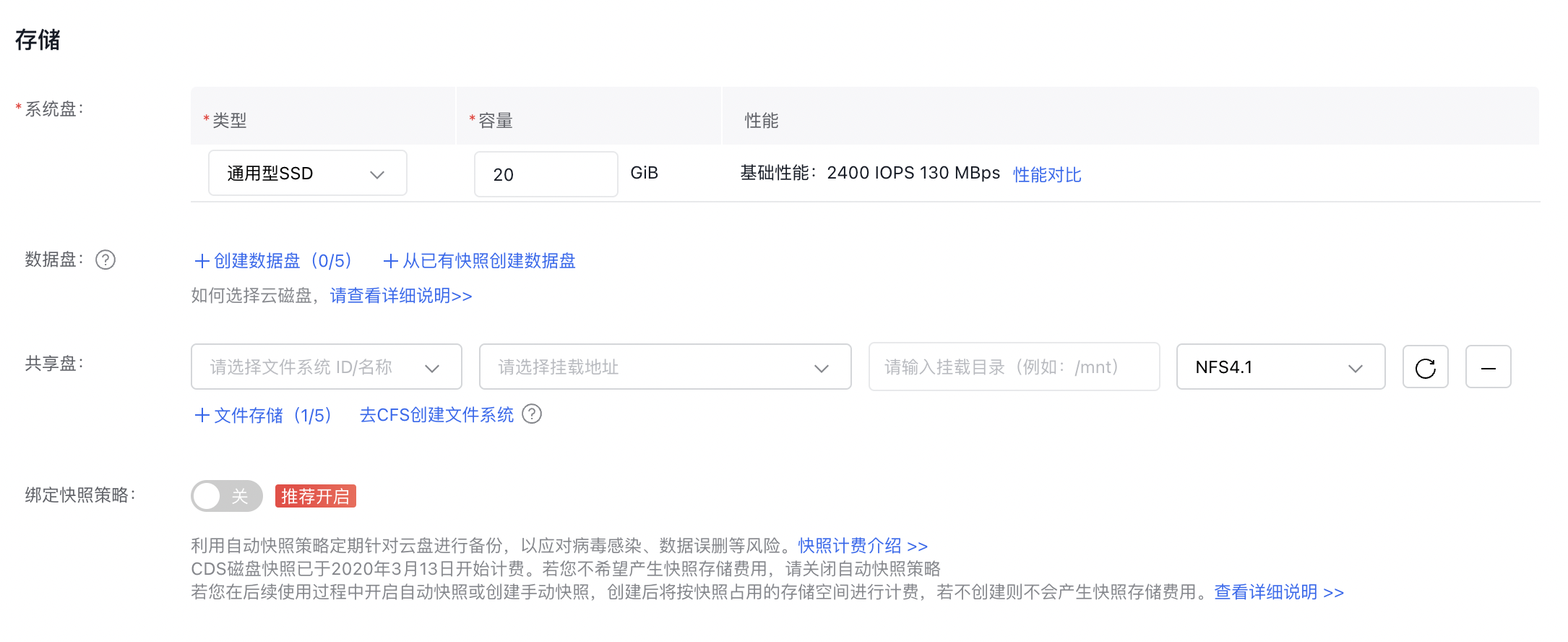
  • Add the cloud file system through the storage module on the custom purchase page.
f44ad5ce99ec0d8e2d4d18688a7a9623.png

  • Detailed configuration parameter
Configuration parameter Configuration content
File system
  • Linux systems only support file systems with NFS.
  • Windows systems support only file systems with SMB.
  • Domain name of a mount target
  • For network connectivity between CFS and BCC, it requires that BCC belongs to the same private network VPC as CFS.
  • If no options are available, add a mount target for the current file system. For specific steps, refer to Add Mount Target.
  • Mount directory/drive letter Access the CFS local path or drive letter from the BCC. For instance, use /mnt/cfs for Linux systems and z for Windows systems.
    Protocol type
  • For NFS file systems, simply select NFSv4.1
  • For SMB file systems, just select SMB.
  • Verify mount results

    Linux system

    1. Sign in to the Baidu Cloud Compute (BCC) where the CFS file system is mounted.
    2. Check if the mount is successful using the following command:
    Shell
    1df -h

    If the following information is returned, it indicates the mount is successful

    4.png

    1. Once mounted successfully, the CFS file system can be accessed and used like a regular local directory on the BCC.

    Windows system

    1. Sign in to the Baidu Cloud Compute (BCC) where the CFS file system is mounted.
    2. Use the following commands in the Windows Command Line or PowerShell to view mounted file systems.
    Shell
    1net use

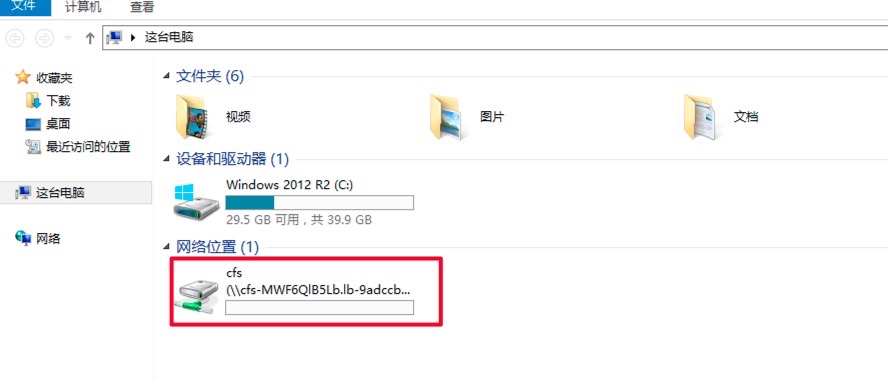
    Alternatively, you can open Windows Explorer to check the drive letters in the network locations.
    1579161087514.jpg

    1. Once mounted successfully, the CFS file system can be accessed and used like a regular local directory on the BCC.

    Previous
    Mount and Unmount SMB Protocol CFS on Windows System
    Next
    Using CFS in CCE