

Message Center
Message center introduction
Message center is the one-stop messaging platform of Baidu AI Cloud that handles unified message configuration and invocation. As a unified messaging hub, it dispatches messages to users via SMS, email, in-site notifications, etc.
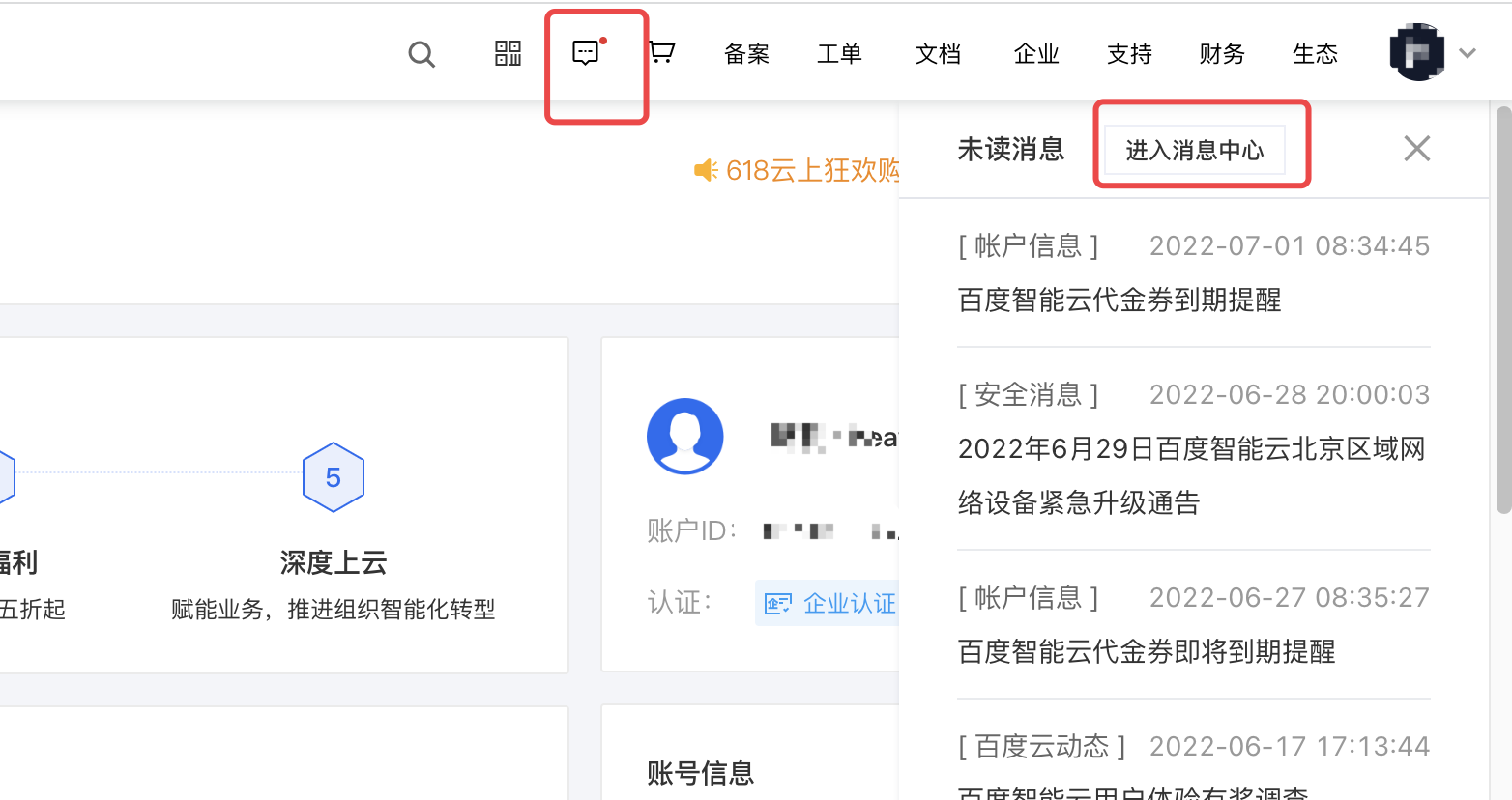
Click Messages-Message Center to access the Message Center of Baidu AI Cloud.
In-site messages
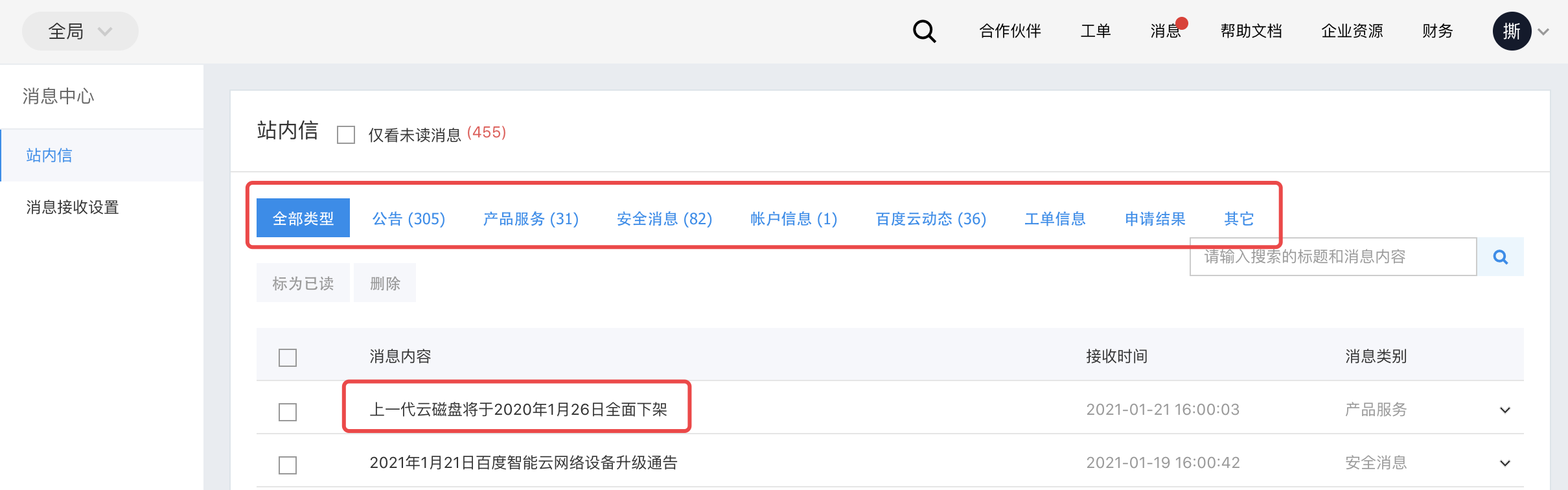
View in-site messages and filter them by type in the message center. Click on message titles to access detailed content.
Receive settings
Edit contacts
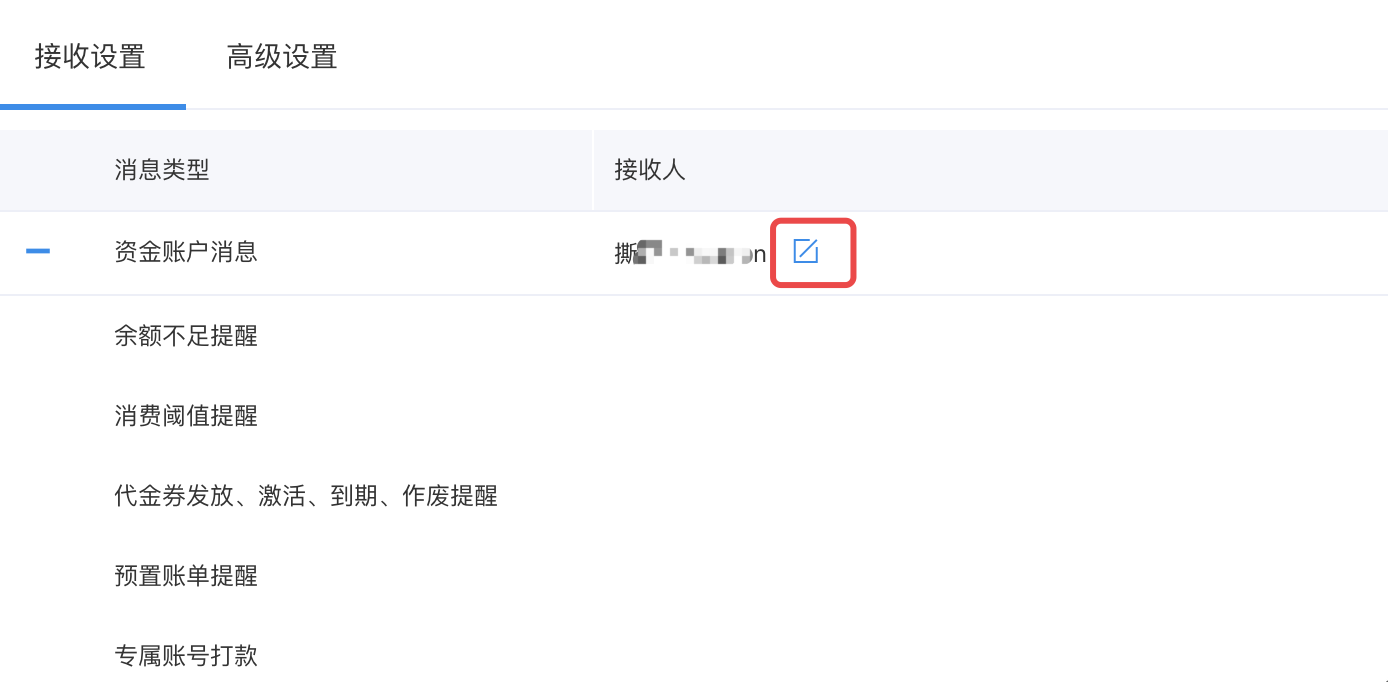
The message center receives system and product notifications sent to the root account, which is designated as the default contact.
- Click Edit to modify contacts.
- Click Quick Add Message Contact.
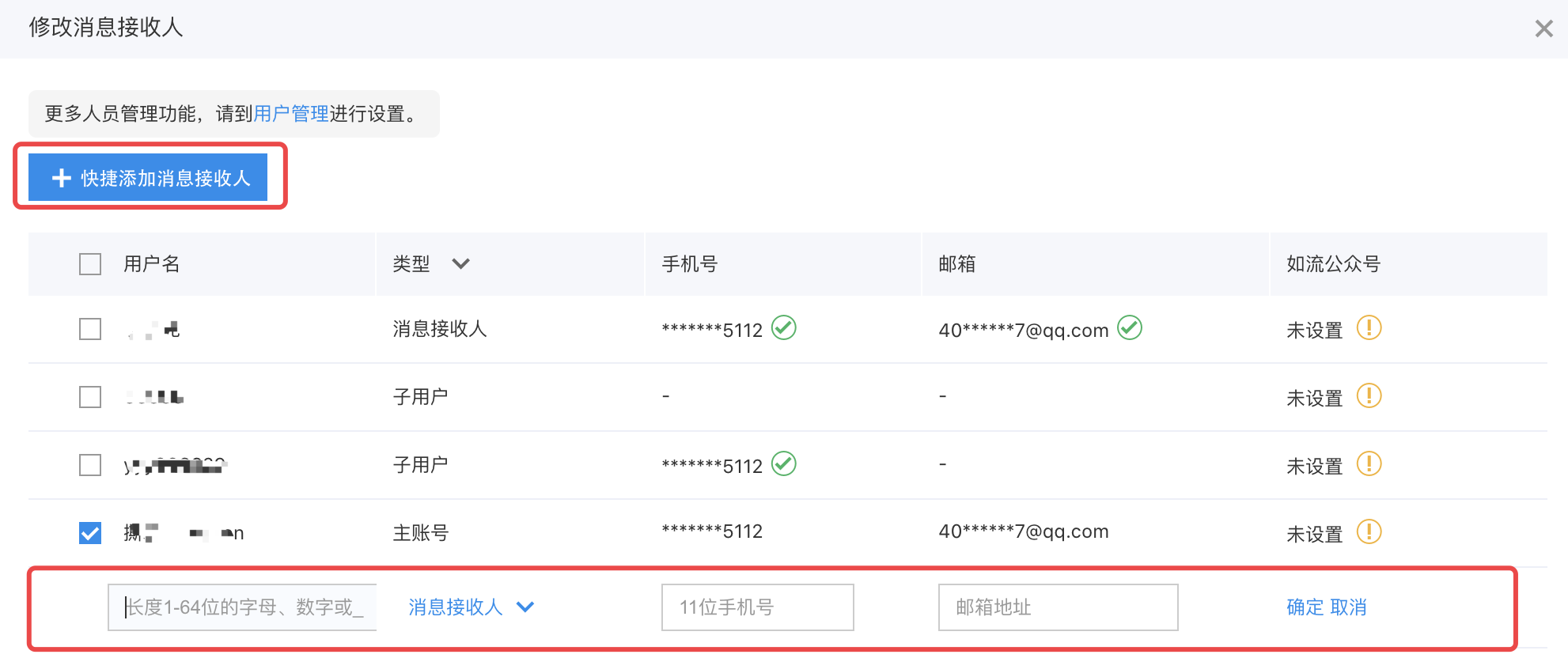
Verify message contacts.
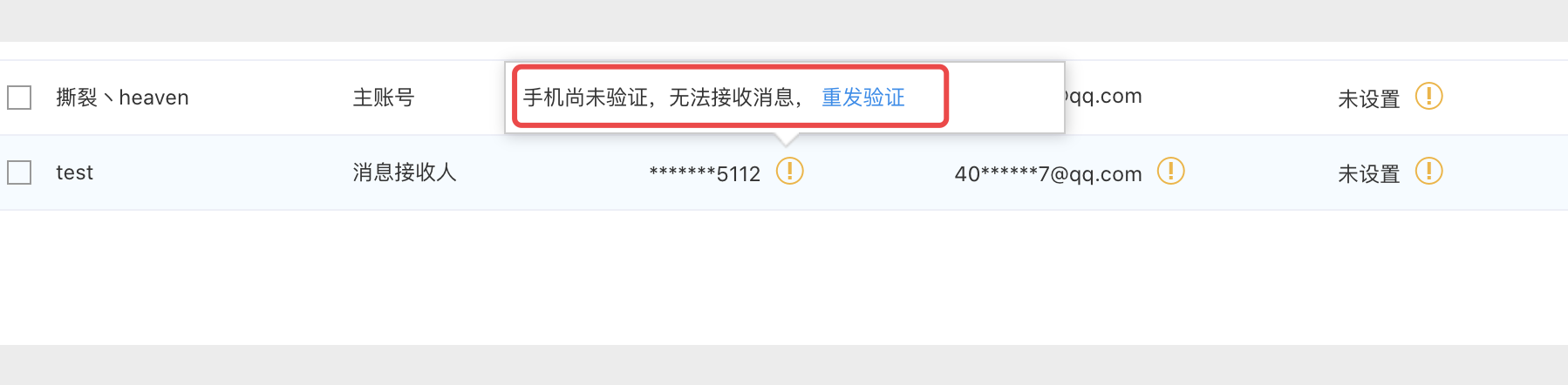
Once a message contact is successfully created, the system will automatically send SMS and email invitations. Clicking the provided link completes the contact verification process. Users can reopen the Edit Contact window to check the SMS/email verification status. Verification reminders can be resent to unverified contacts.
Message contact management
In the message center, click Message Contact Management to centrally manage message contacts.
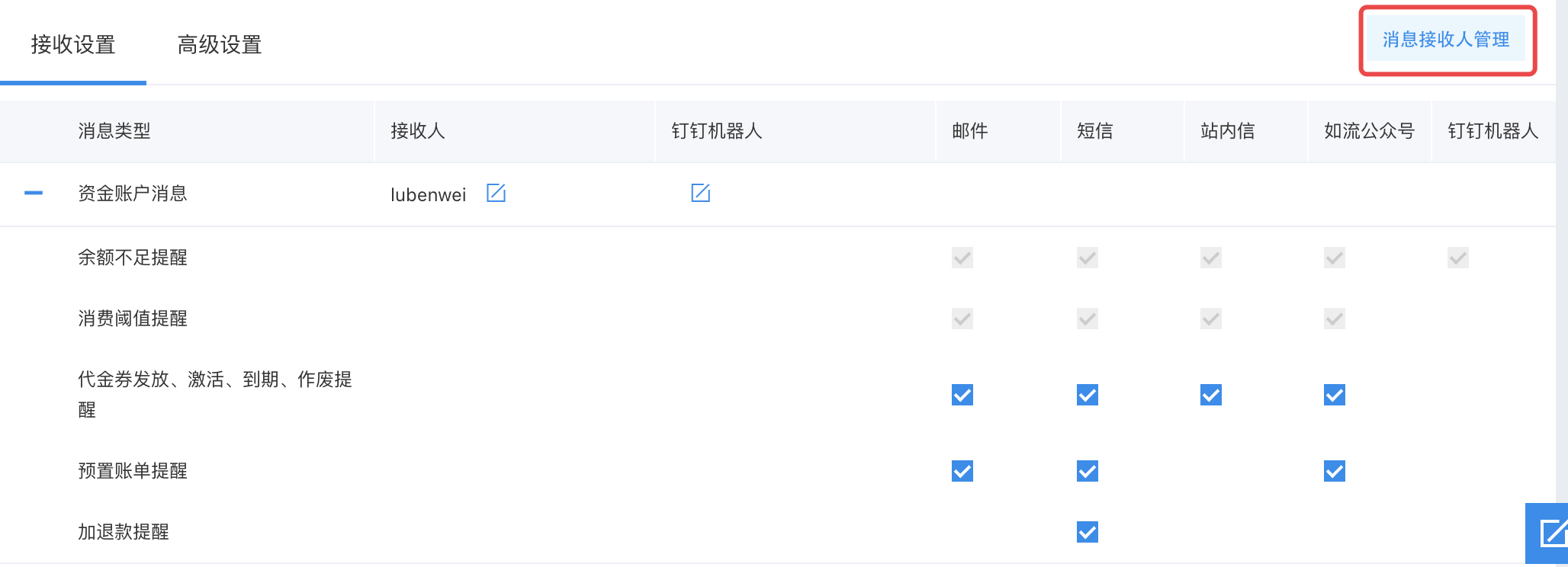
Friendly reminder: After adding message contacts in Message Contact Management, such contacts must also be set as contacts in the message center to receive messages and notifications.
Edit DingTalk bot
The message center can synchronize system and product notifications to DingTalk chat groups using custom bots.
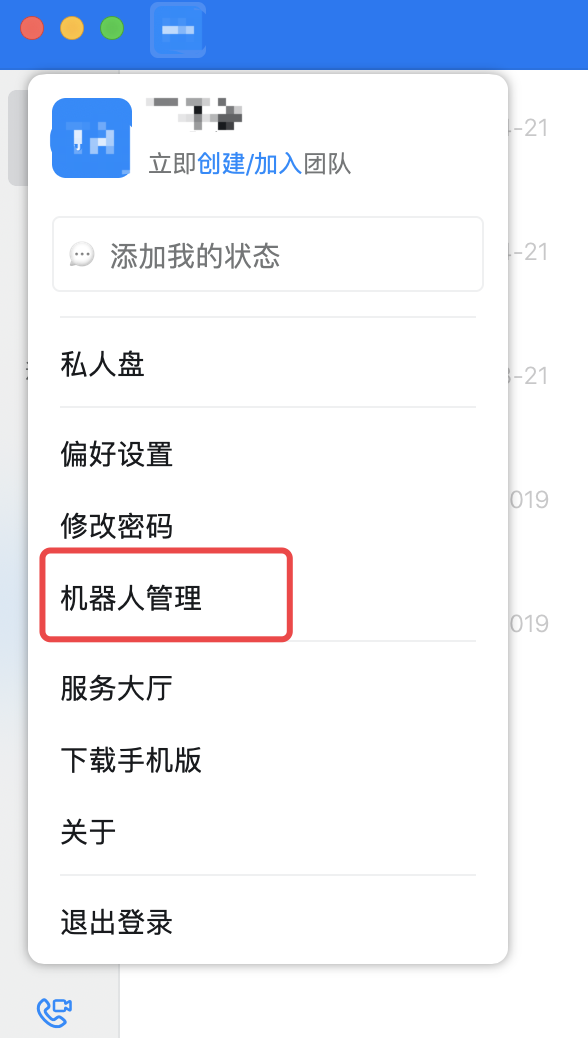
- Open DingTalk on PC (using PC as an example), click the profile icon in the top-left corner, and select Bot Management.
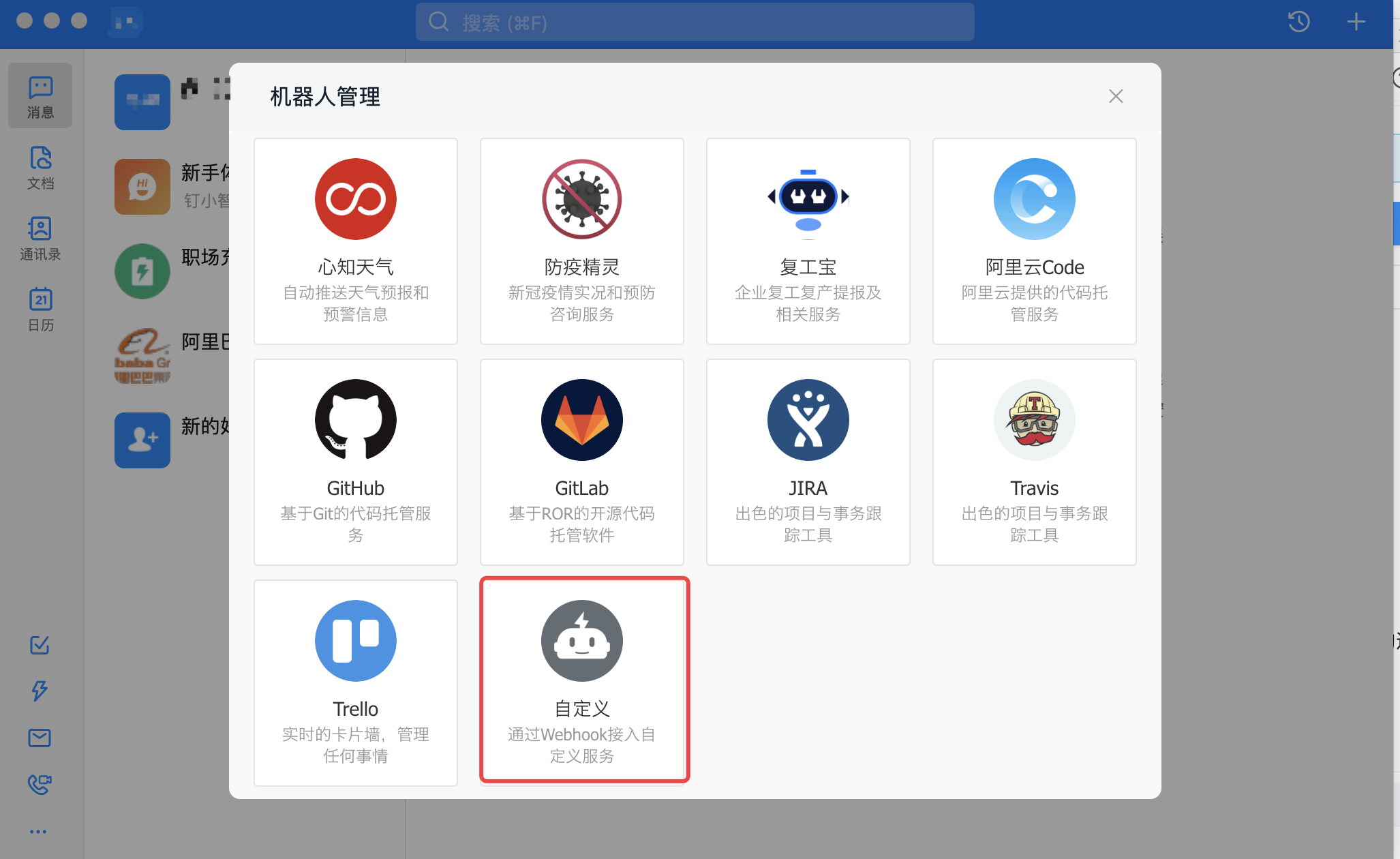
In the bot management interface, select a custom bot.
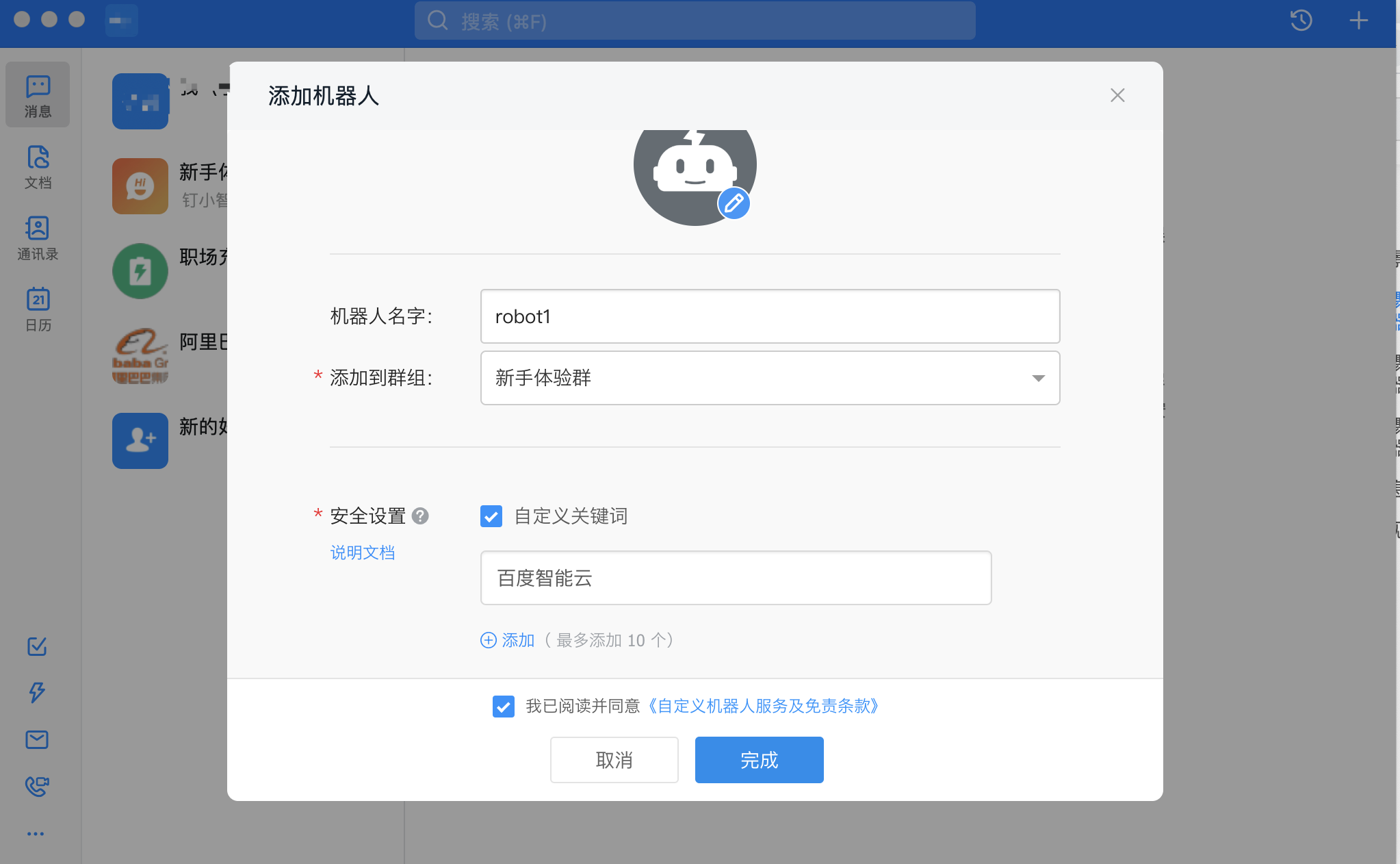
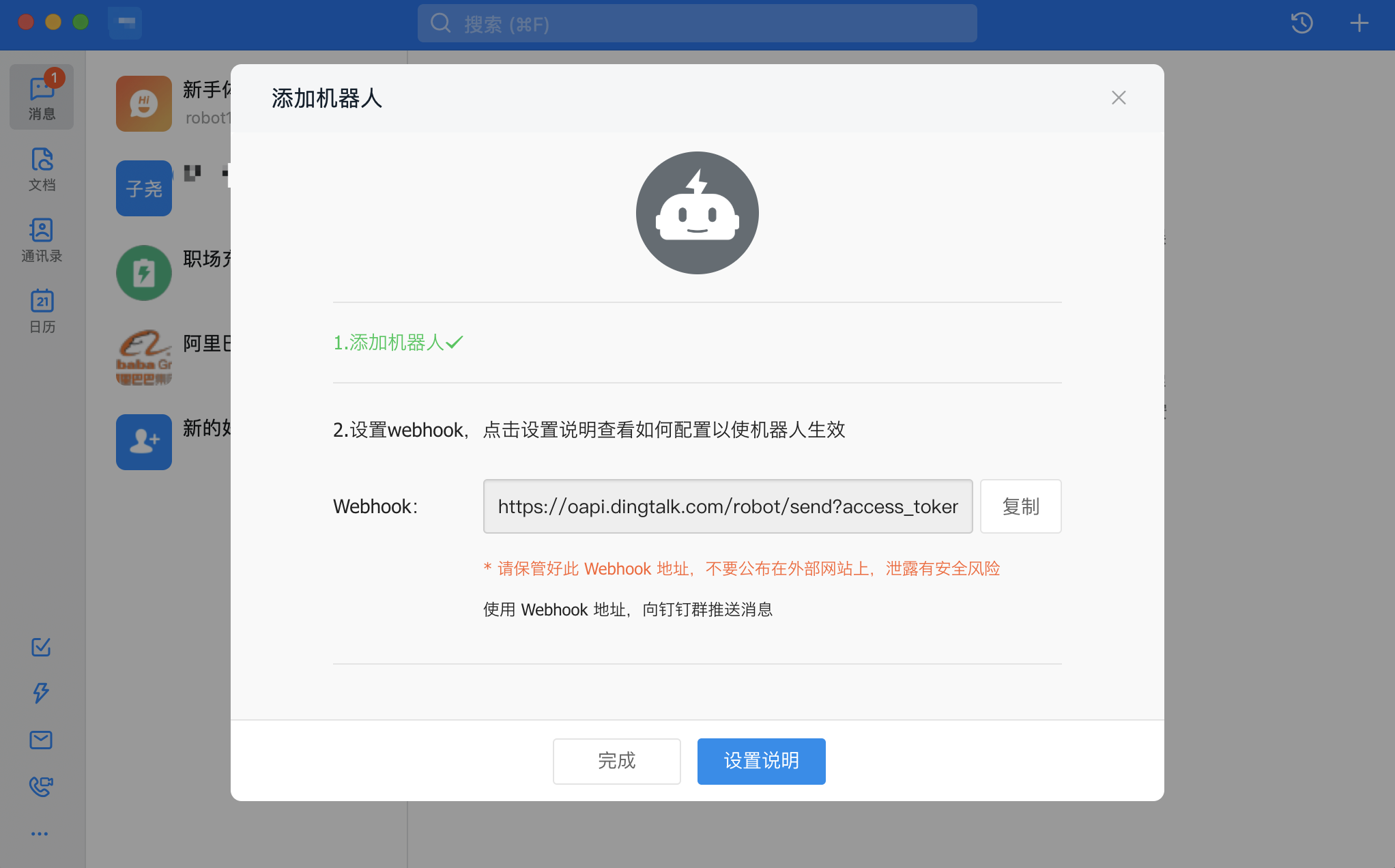
- Enter bot name and select the group to send notifications to, while also setting an avatar for the bot; in Security Settings, selectCustom Keywords and add Baidu Intelligent Cloud as a keyword. Check I have read and agree to the Custom Bot Service and Disclaimer Terms, then click Complete to obtain the DingTalk bot Webhook address.
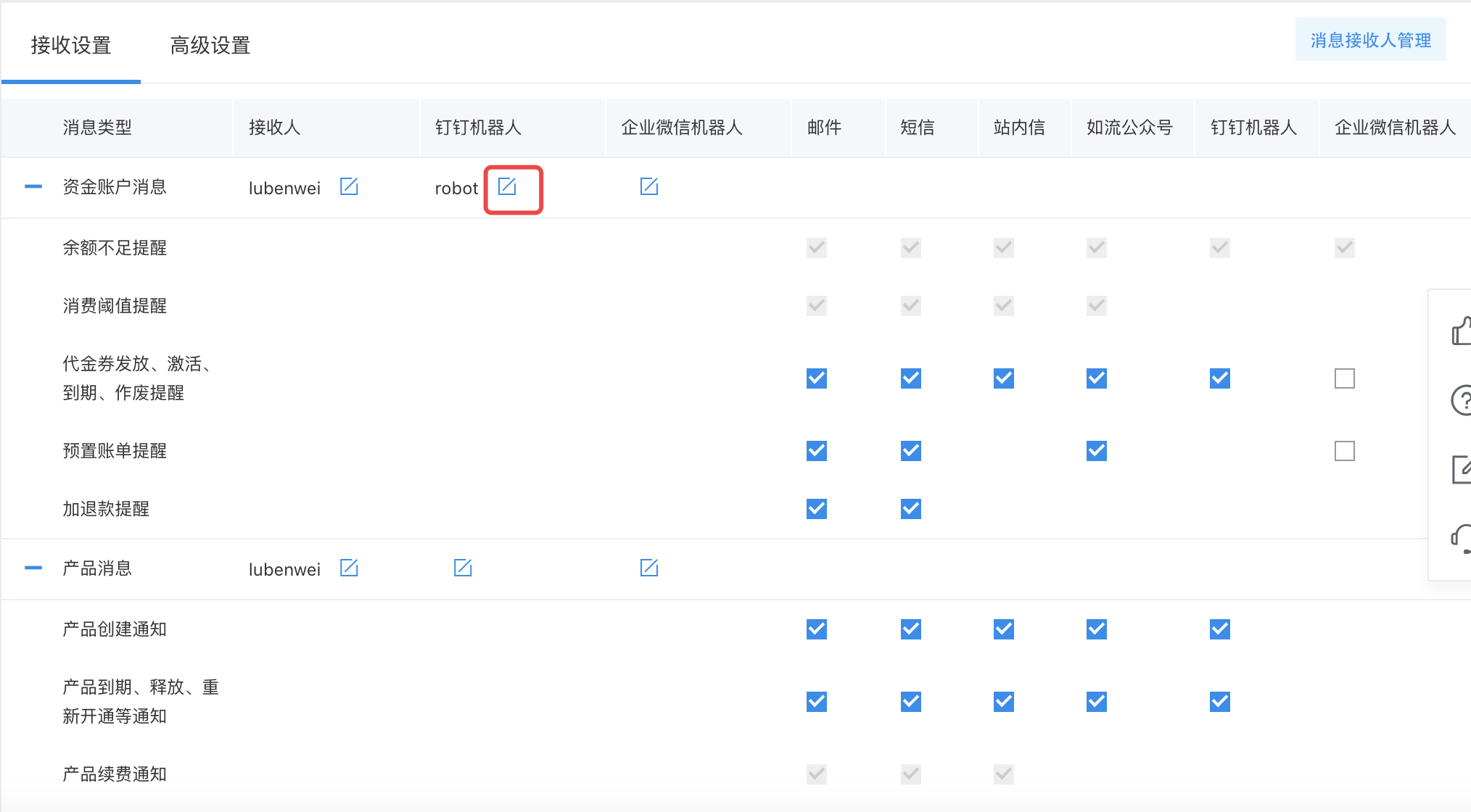
- Enter Message Center - Message Receiving Settings - Receiving Settings, click Edit to modify the DingTalk bot.
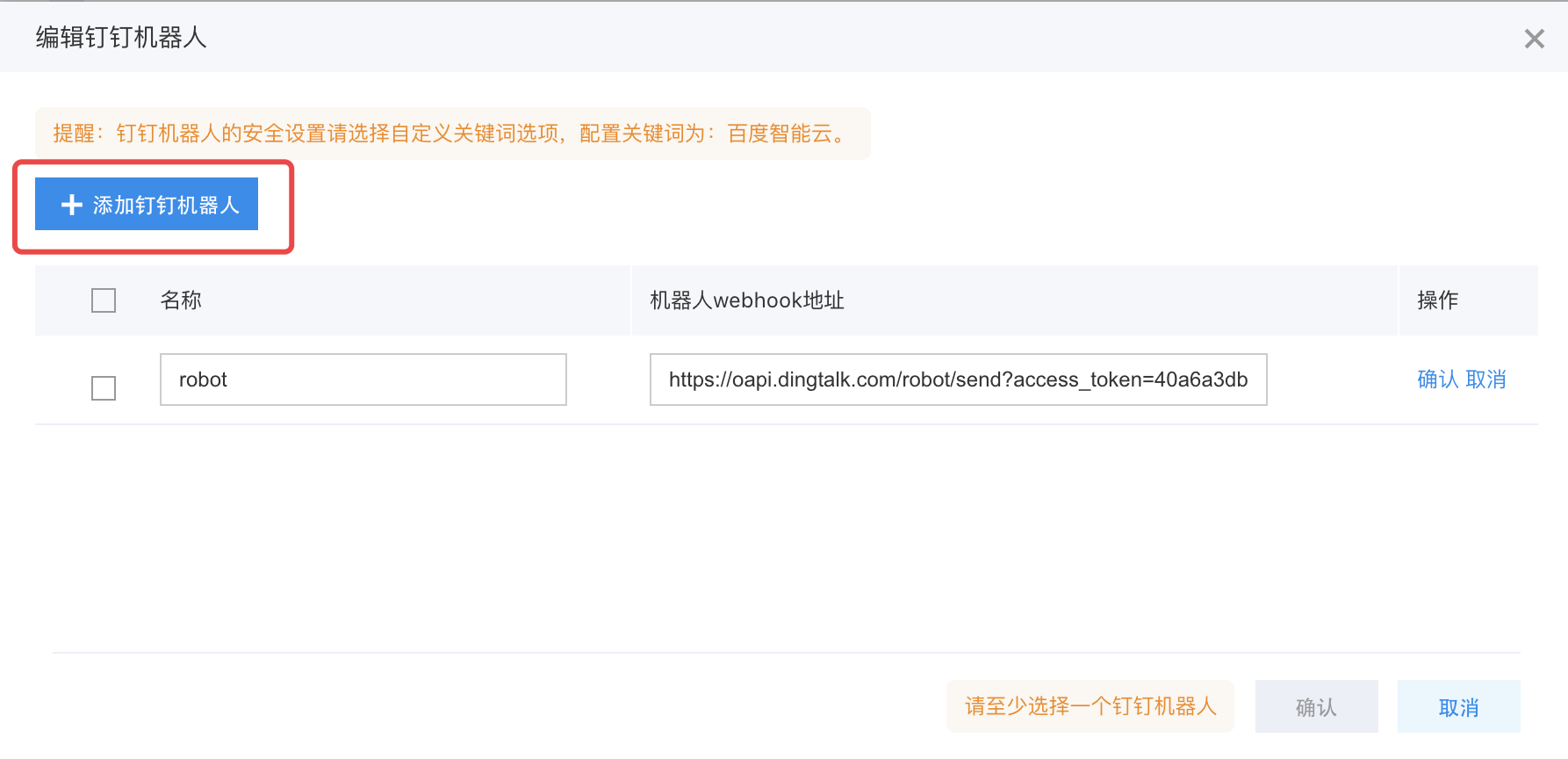
- Click Add DingTalk Bot, enter the bot name and obtained Webhook address, then click OK.
Edit enterprise WeChat bot
The message center can synchronize system and product notifications to WeCom group chats through group bots.
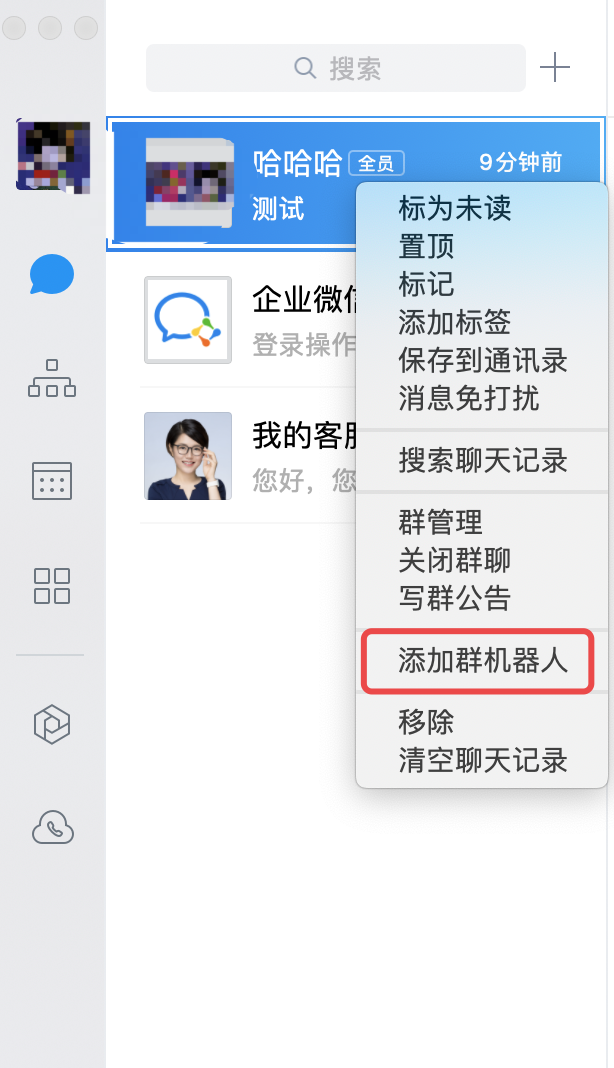
- Open the PC version of WeCom (using the PC version as an example), right-click on the enterprise group in the chat list, and click Add Group Bot.
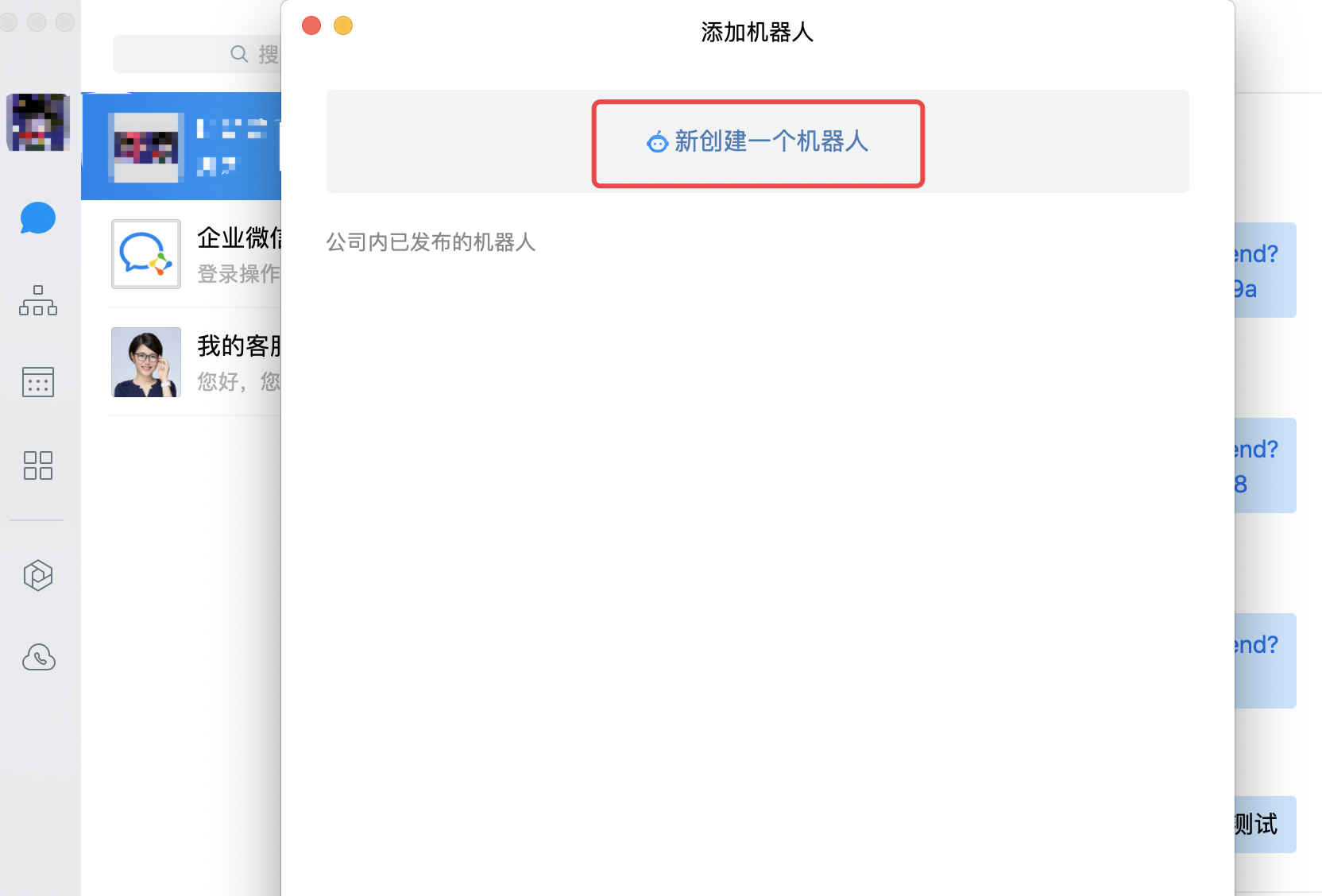
- Click Create New Bot.
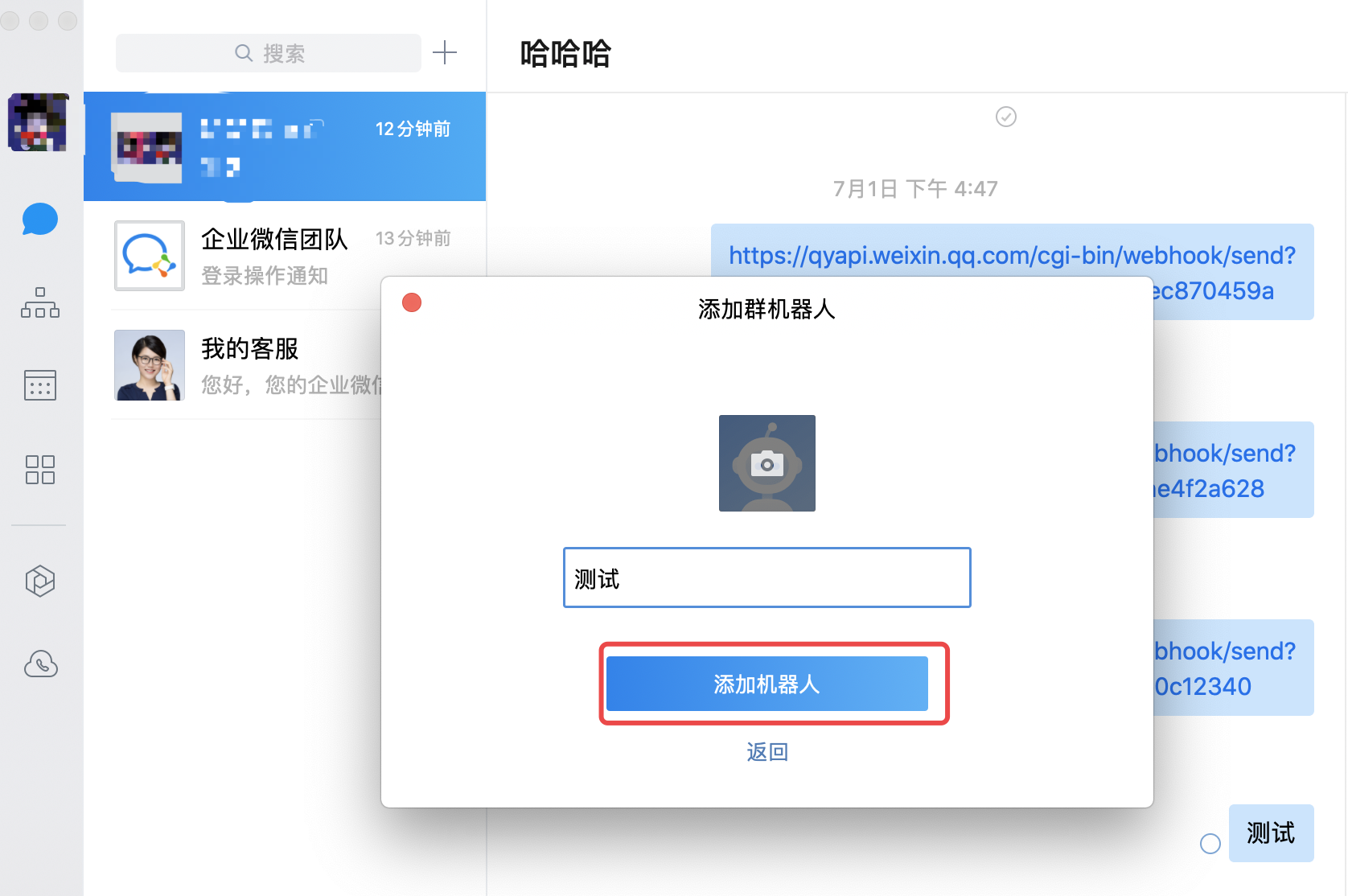
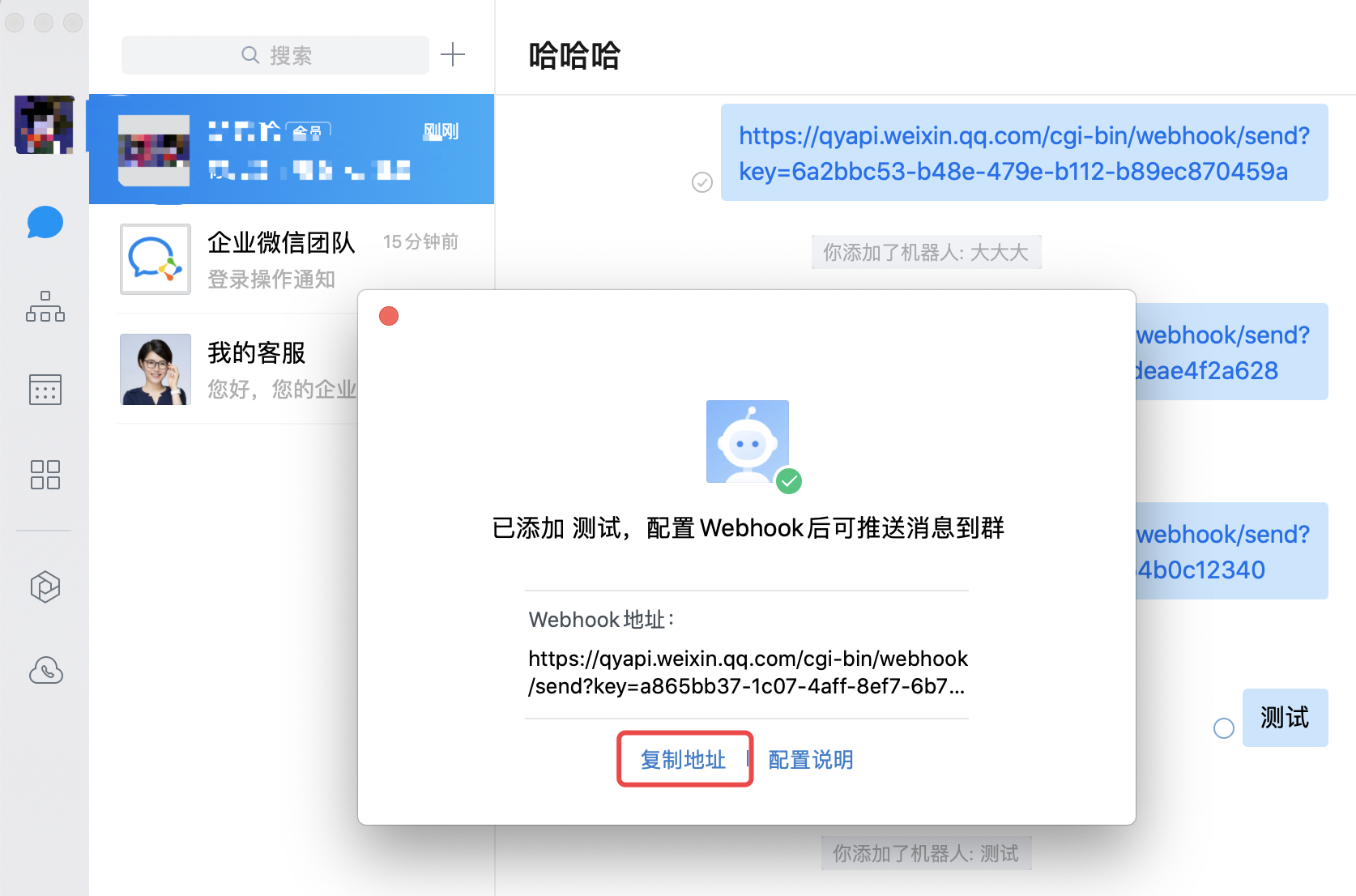
- Enter the bot name, click Add Bot, and copy the Webhook address.
- Enter Message Center - Message Receiving Settings - Receiving Settings, click Edit to modify the WeCom bot.
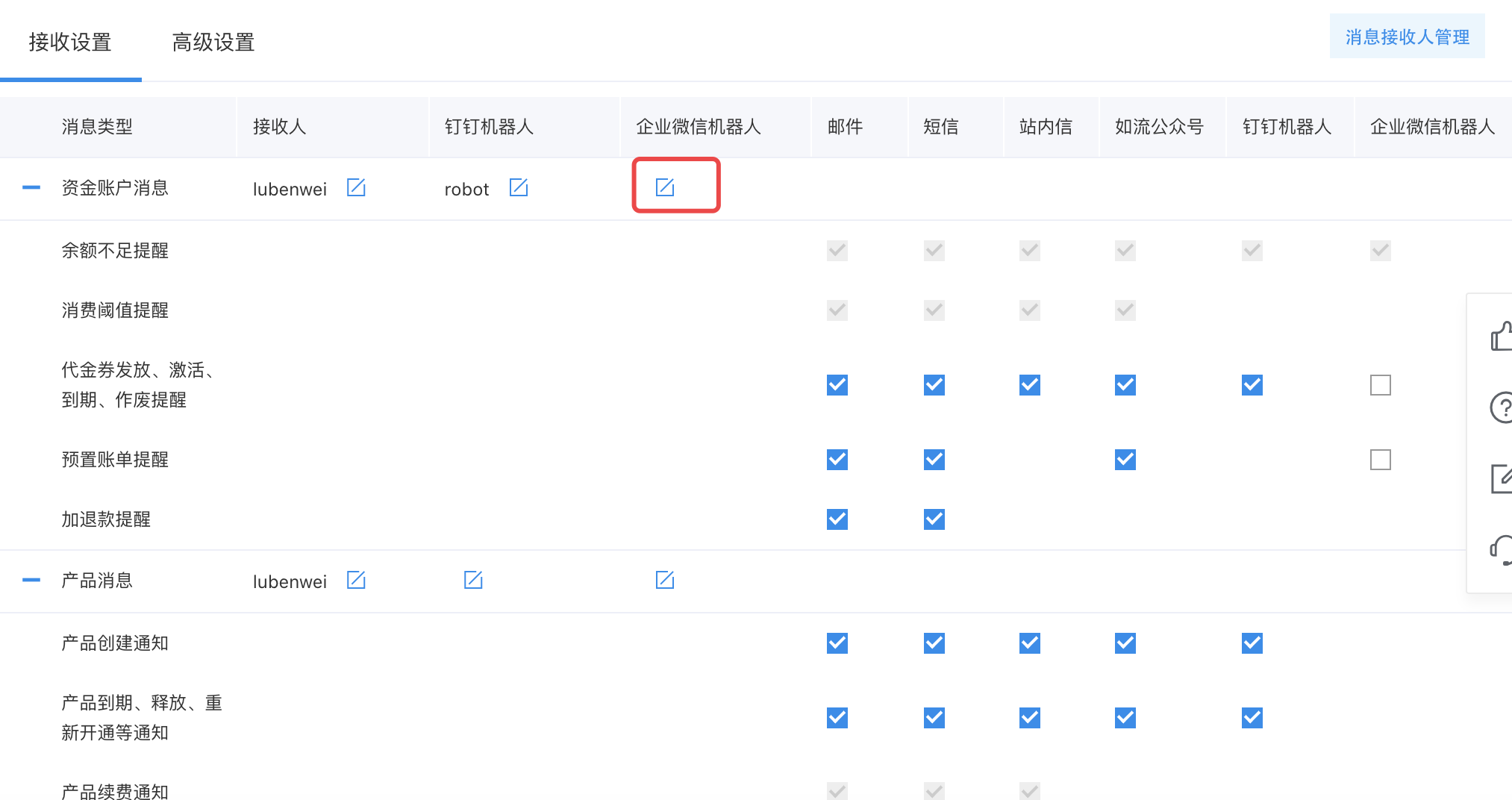
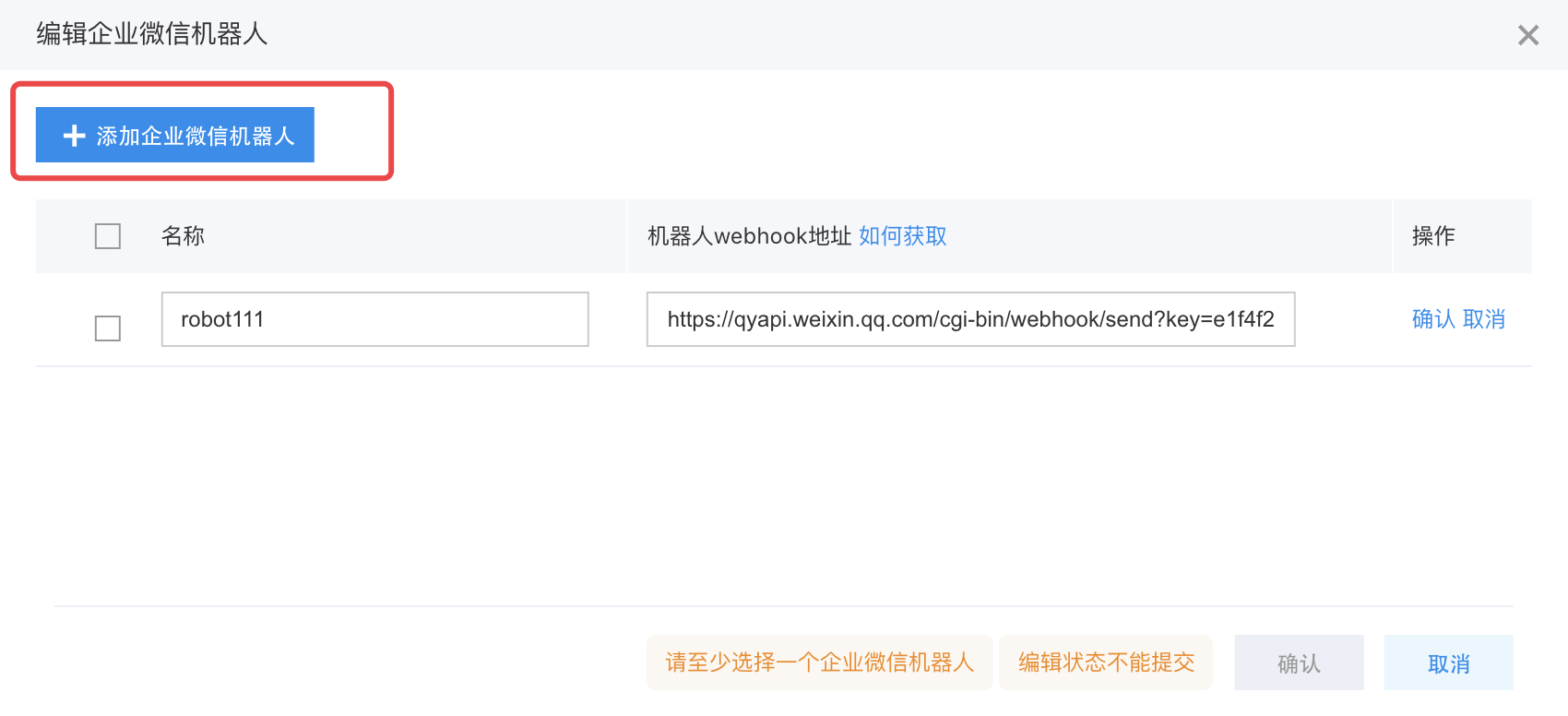
- Click Add WeCom Bot, enter the bot name and obtained Webhook address, then click OK.
Message subscription
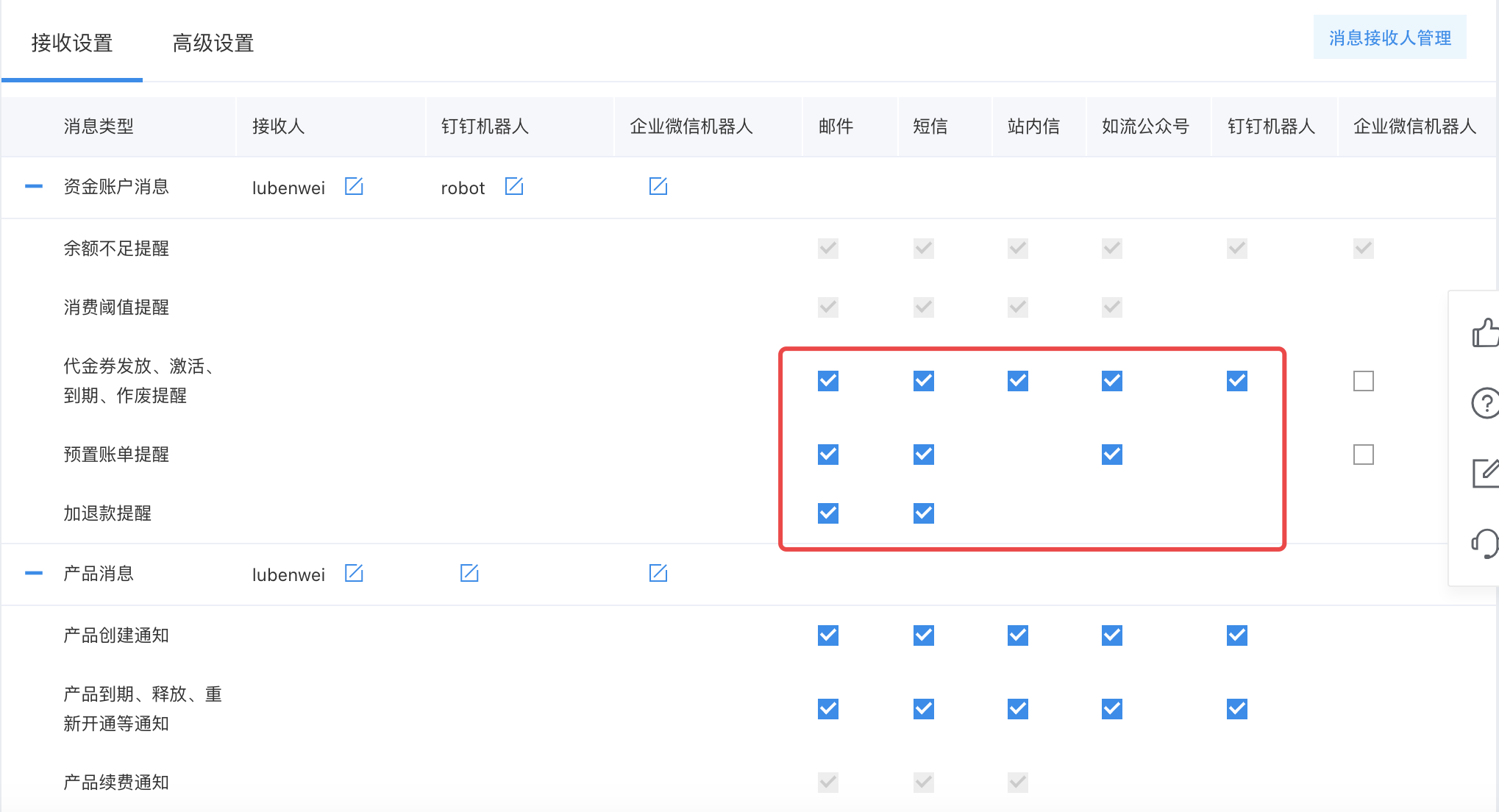
In the message center, use "Checkbox" to subscribe to different message types. Grayed checkboxes indicate mandatory messages and notifications.
Advanced settings
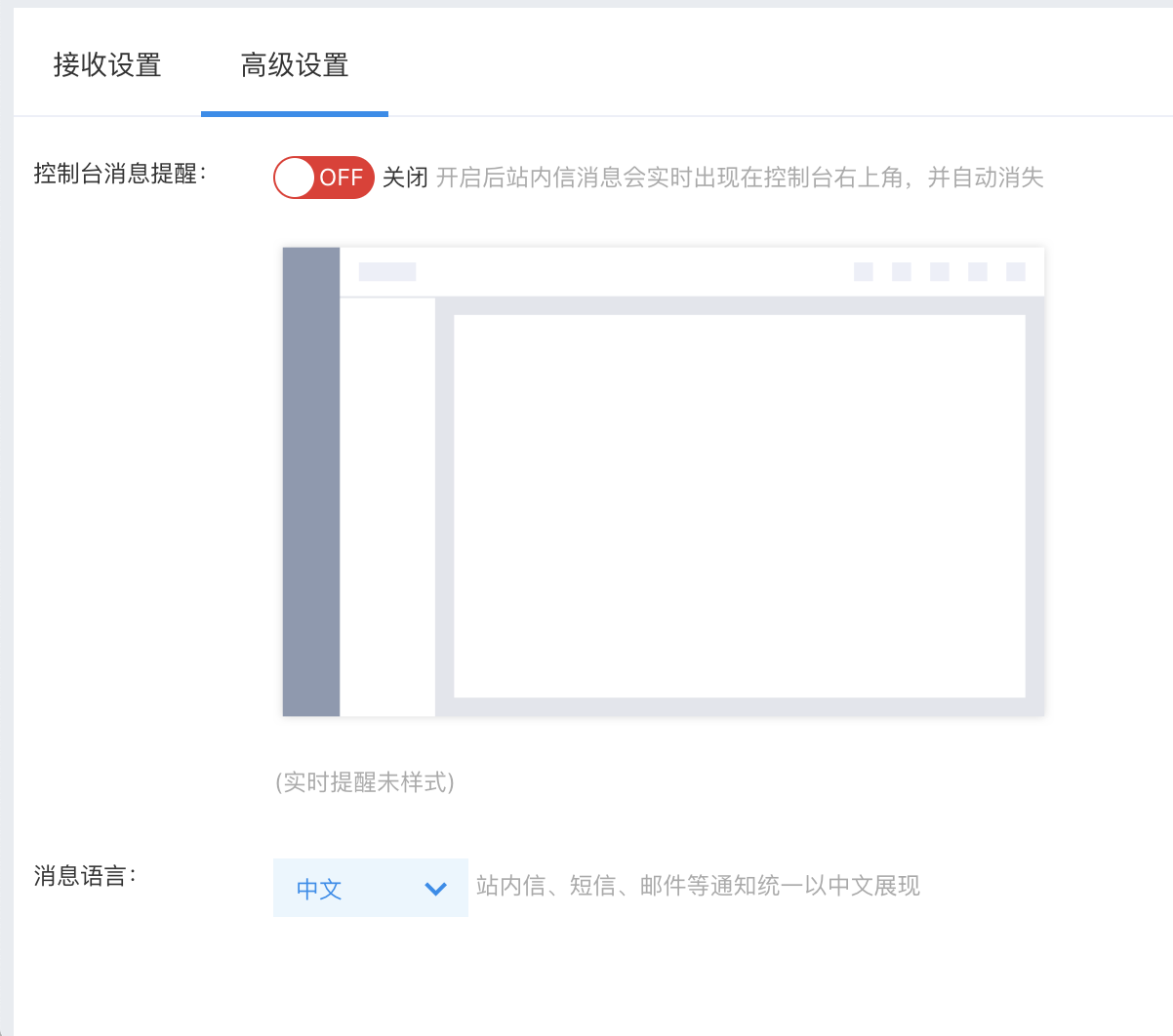
In the advanced settings of the message center, users can choose whether to receive station messages as pop-up alerts and set their preferred notification language.
FAQs of message center
1. How to cancel all messages and notifications?
It is not possible to deactivate all messages and notifications—some types are mandatory.
2. How to cancel a specific category of messages and notifications?
For message types that can be configured, just unselect the delivery methods like email, SMS, in-site messages, or Infoflow official accounts.
3. How to set up multiple contacts to simultaneously receive messages and notifications?
Click Edit Message Contact to select multiple users as message contacts.
4. To avoid service interruption due to account in debt, what type of messages and notifications should be set up to promptly remind users to recharge?
The low balance alert is enabled by default; users only need to configure their preferred message contacts.
5. Why haven't I received SMS or email notifications despite enabling message center alerts?
Please confirm that the correct message contacts are set up in the message center.
6. Can the Baidu AI Cloud APP be used to configure message receiving settings?
No