

Two-Factor Authentication
What is two factor authentication?
Two-factor authentication adds an additional layer of security beyond username and password to verify the identities of users accessing Baidu AI Cloud resources. It is also commonly known as 2-step authentication or multifactor authentication.
Two factor authentication method
Baidu AI Cloud supports dual two factor authentication methods: SMS and virtual MFA
- SMS authentication: Verify the user's identity by sending a time-limited verification code to the secure mobile phone number bound to the cloud account
- Virtual MFA: Verifies user identity through verification codes generated by the virtual MFA App bound to the cloud account. This method offers higher security than SMS verification and is recommended to be enabled
If both two-factor authentication methods are activated, verification through either method suffices. To protect cloud resources and funds, it is recommended that the root account and administrator IAM users enable two-factor authentication for their accounts. This feature can also be enabled for IAM users.
Protection scope
Baidu AI Cloud's two factor authentication supports login protection and operation protection:
- Login protection: Enable login protection, requiring SMS or virtual MFA for successful account login.
- Operation protection: When enabled, users must complete secondary identity verification before performing sensitive operations to confirm authenticity
Enable two factor authentication
Any Baidu AI Cloud user can enable two-factor authentication for their own accounts. Additionally, to enhance the security of cloud resource access for IAM users, the root account and administrator IAM users can enable two-factor authentication for these users.
Enable two factor authentication
Prerequisites
Possess a Baidu AI Cloud account: either a root account or an IAM user account.
Operation step
- Sign in to the Baidu AI Cloud Console, or use the IAM user login link to complete authentication
- Hover over and click the user avatar in the upper-right corner to access User Center;
- In Security Settings, under Login Protection and Operation Protection, click Settings button;
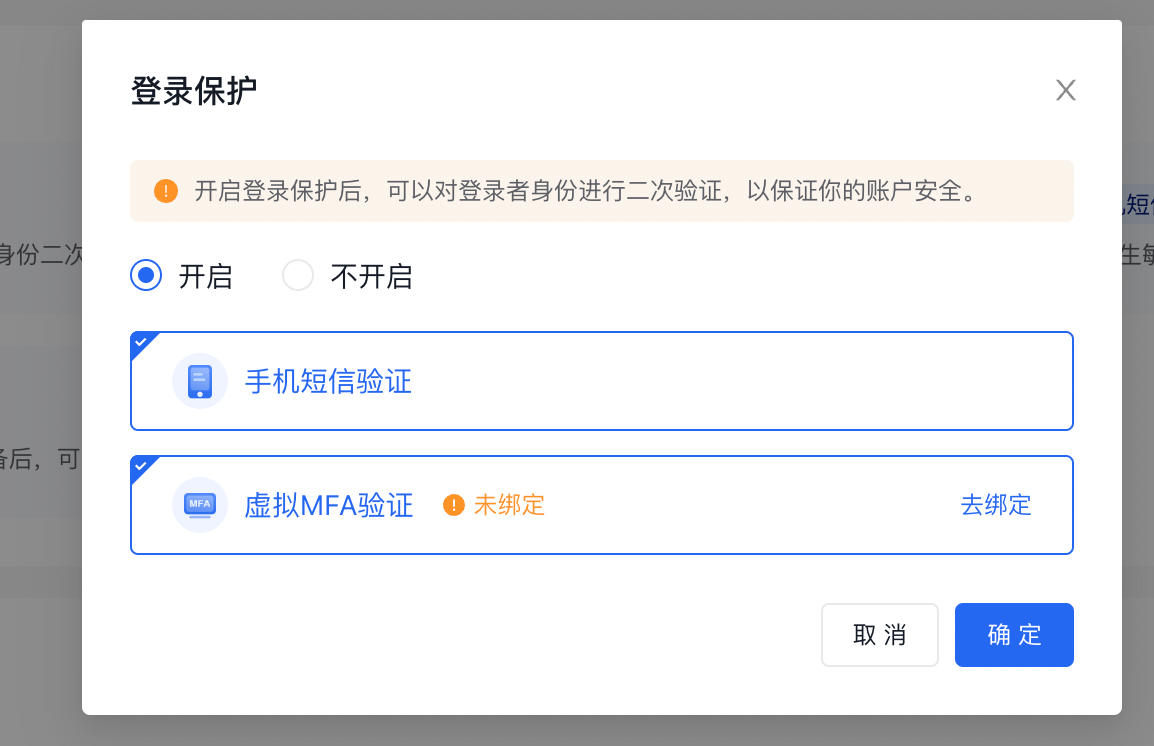
- In the pop-up window, click the Enable option to select one or dual two factor authentication methods;
- Click OK to complete the setup.


The root account enables operation protection via SMS authentication by default
Administrators enable two factor authentication for IAM users
Prerequisites
The login account must be either a root account or an administrator IAM user account.
Operation step
- Sign in to the Baidu AI Cloud Console, or use the IAM user login link to complete authentication;
- Hover over the upper-right corner, click Identity and Access Management, and enter User Management > IAM User;
- Click the name of selected IAM user to access the User Details page;
- In the Two Factor Authentication module, it is possible to enable Login Protection and Operation Protection for IAM users. For both Login Protection and Operation Protection, one or both TFA methods may be enabled.

Note
- If login protection is enabled for an IAM user who has not been bound to a mobile phone number or virtual MFA, the system will redirect them to the binding page during their next console login. For details, refer to [Bind Virtual MFA](#Bind virtual MFA);
- If the administrator enables operation protection for an IAM user, and the IAM user has been bound to a mobile phone number or virtual MFA, secondary authentication via SMS or software-generated dynamic code is required when account anomalies or sensitive operations are detected;
- If an administrator disables operation protection for an IAM user, secondary authentication will not be required for account anomalies or sensitive operations.
Disable two factor authentication
For methods and paths, refer to [Enable Two Factor Authentication](#Enable two factor authentication) to disable previously enabled login or operation protection.
Bind virtual MFA
After enabling virtual MFA for themselves or IAM users, users must first bind the virtual MFA device during their initial secondary authentication.
Operation step
-
Download identity authenticator. Users must first install an MFA application on the smart device to proceed. It is recommended to install Baidu AI Cloud APP or Google Authenticator.
Note:
- For iOS, search directly for Baidu AI Cloud or Google Authenticator in the App Store to install.
- The Android version of Google Authenticator still depends on an external QR code scanning component. Users will also need to search for and install a Barcode Scanner from the app market. Therefore, it is recommended that Android users install the Baidu AI Cloud app or other commonly used authentication apps.
-
Bind the MFA device.
- Choose the Baidu AI Cloud app: Go to the console page, click on Virtual MFA, and scan the QR code displayed on the computer screen.
- Choose another authenticator: Open the authenticator app, click the scan icon, and scan the QR code displayed on the computer screen.

Upon successful scanning, the system will automatically add the user, and the account and key will be displayed on the App. Navigate to the Virtual MFA dynamic password page. Dynamic password is refreshed every 30 seconds.
Note:
- In addition to actively binding virtual MFA through User Center - Security Information - Virtual MFA, if using virtual MFA for secondary authentication without prior binding, the computer screen will also display a QR code for virtual MFA binding.
- Enter two consecutive sets of passwords on the computer page, and then click OK button to complete the virtual MFA device binding.
Upon successful binding of virtual MFA, secondary authentication is simultaneously completed
Unbind virtual MFA
Unbinding an MFA device requires verification through the currently bound device. If the MFA app was accidentally uninstalled, submit a ticket to backend support for assistance with unbinding.