Manage Transmission Task
Updated at:2025-11-03
View transmission task
- After creating a transmission task, navigate to the "Logging - Transmission Task List" page.
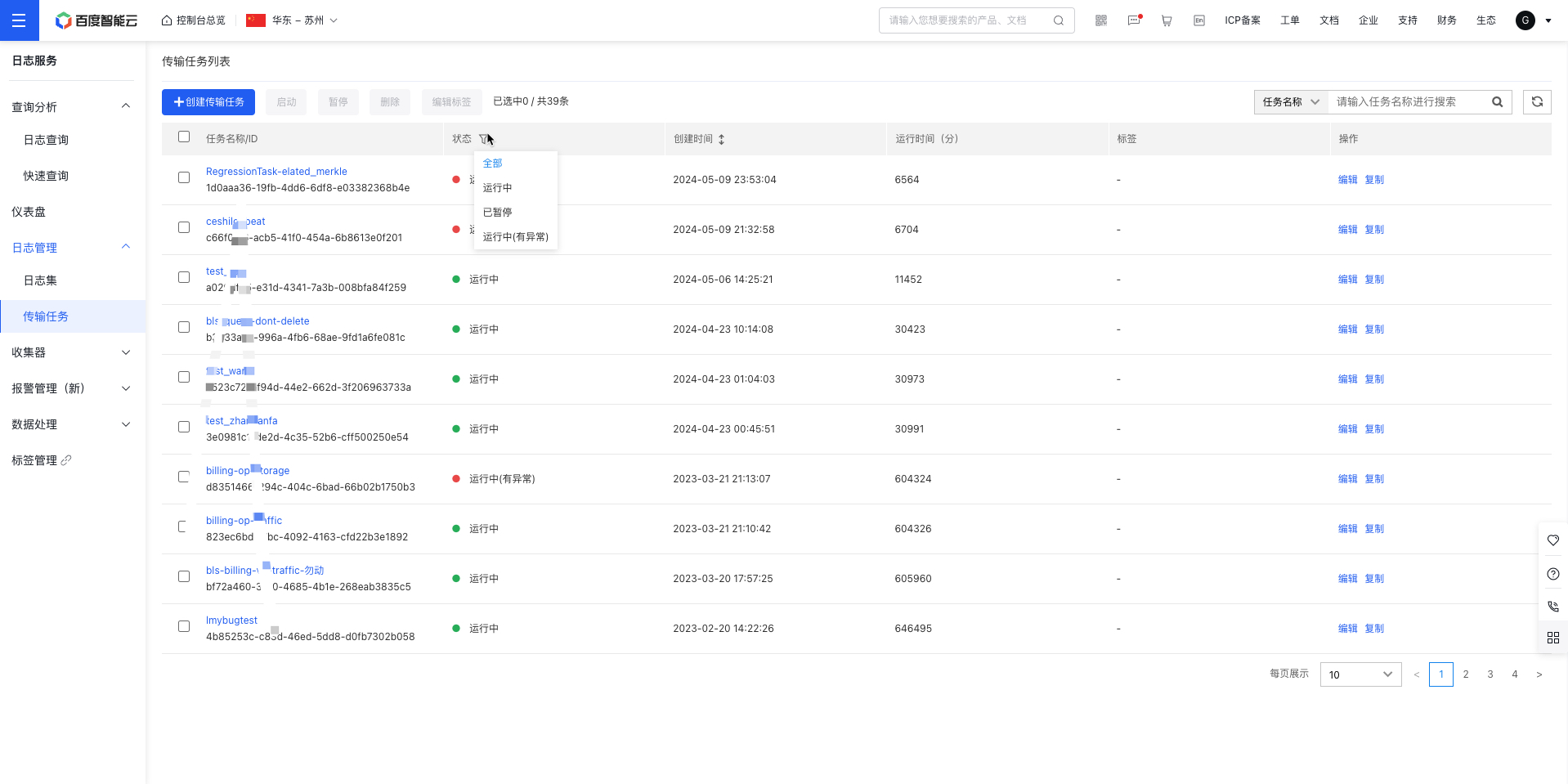
- By default, display all transmission task statuses and runtime. You can filter tasks by selecting Running, Abnormal, or Paused under the Status option.
-
Click the Transmission Task Name to access its details page and view the following information of the transmission task:
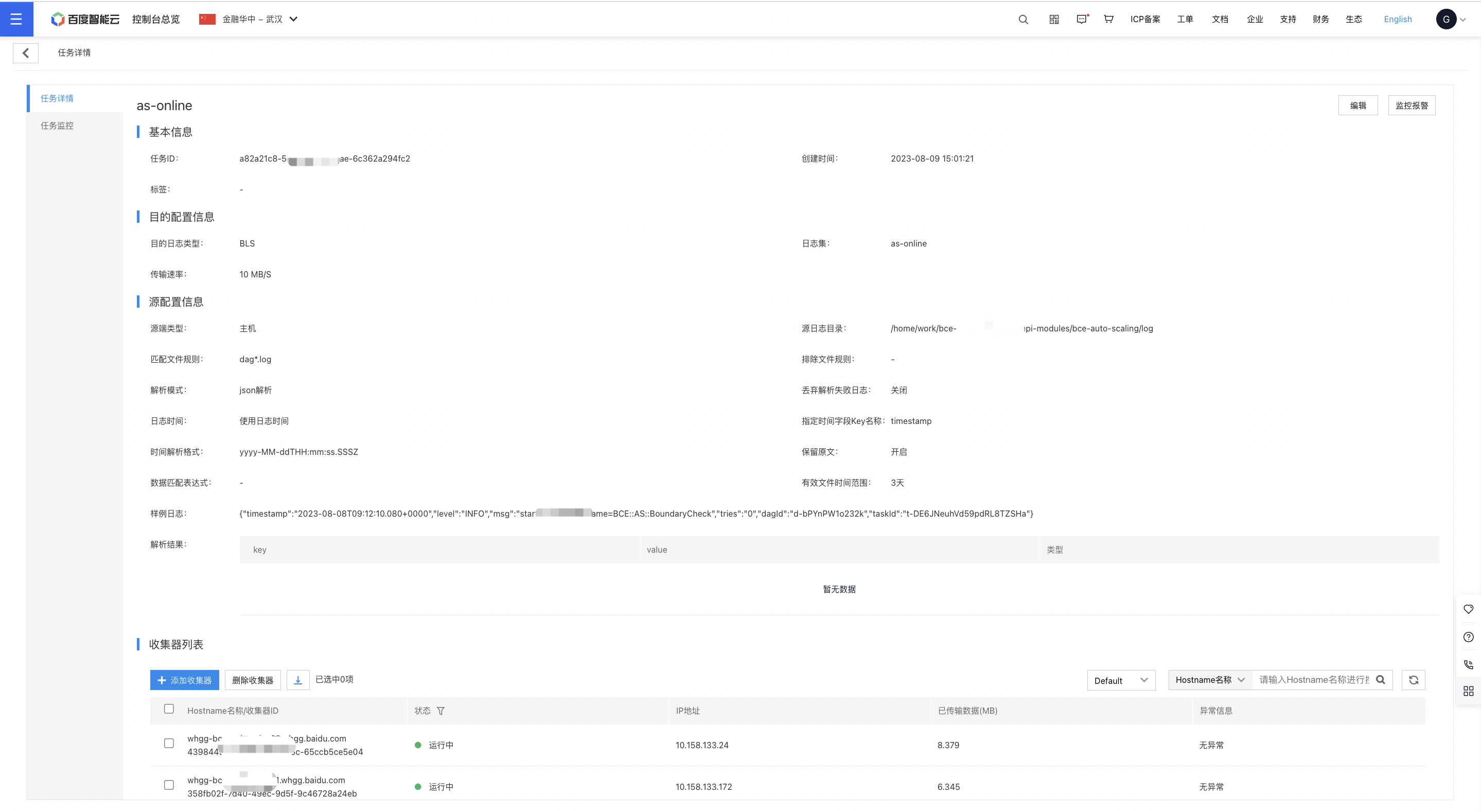
- Basic Information: View the task ID, task name, creation time, and associated tags.
- Destination Location Configuration: Check the destination location settings of the transmission task.
- Source Location Configuration: Check the source location settings of the transmission task.
-
Agent List: View the operational status of agents involved in the current transmission tasks.
- Status: Check and filter agent statuses (e.g., registered, running, lost, uncertified, abnormal).
- IP Address: Displays the host IP address corresponding to the agent.
- Transmitted Data: View the total amount of log data transmitted by the current task.
- Exception Message: If an agent encounters an issue during the transmission task, use this section to view error messages for troubleshooting purposes.
- Add/Delete Agent: Add new agents or remove existing ones. Once an agent is deleted, its historical information will no longer be retained. If the same transmission task is redeployed to this agent, all transmitted data will restart from zero.
- Download: Download the details of all agents associated with the current task for offline viewing and management.
Edit transmission task
To modify a successfully created transmission task, follow these steps:
- Go to Logging - Transmission Task List to check all the transmission tasks.
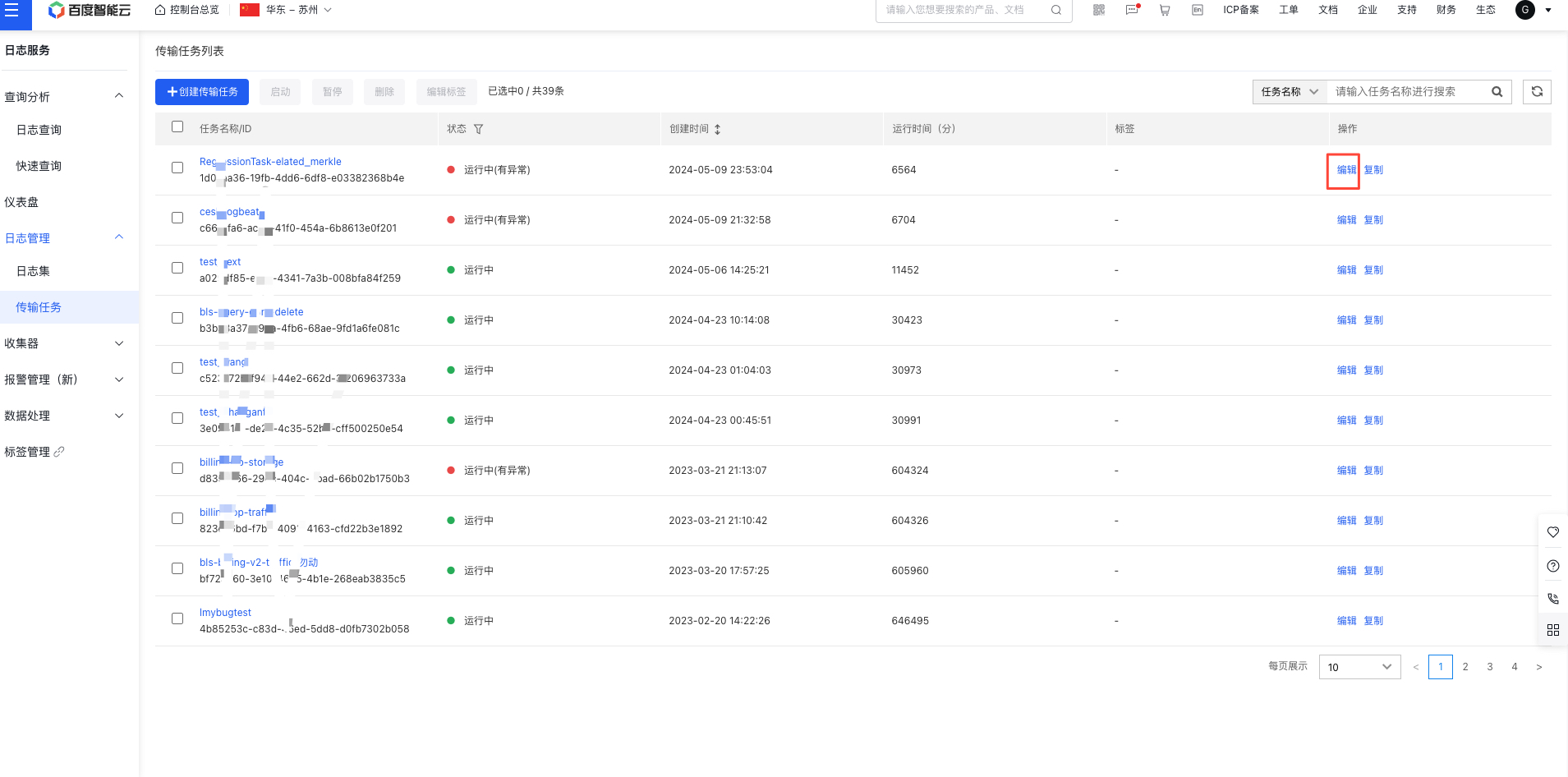
- Find the transmission task that needs modification, and click the Edit button to access the editing page.
- Update the necessary parameters, keeping in mind that Logshipper Destination and Source Location Type cannot be changed.
- Click Save to confirm the updated parameters.
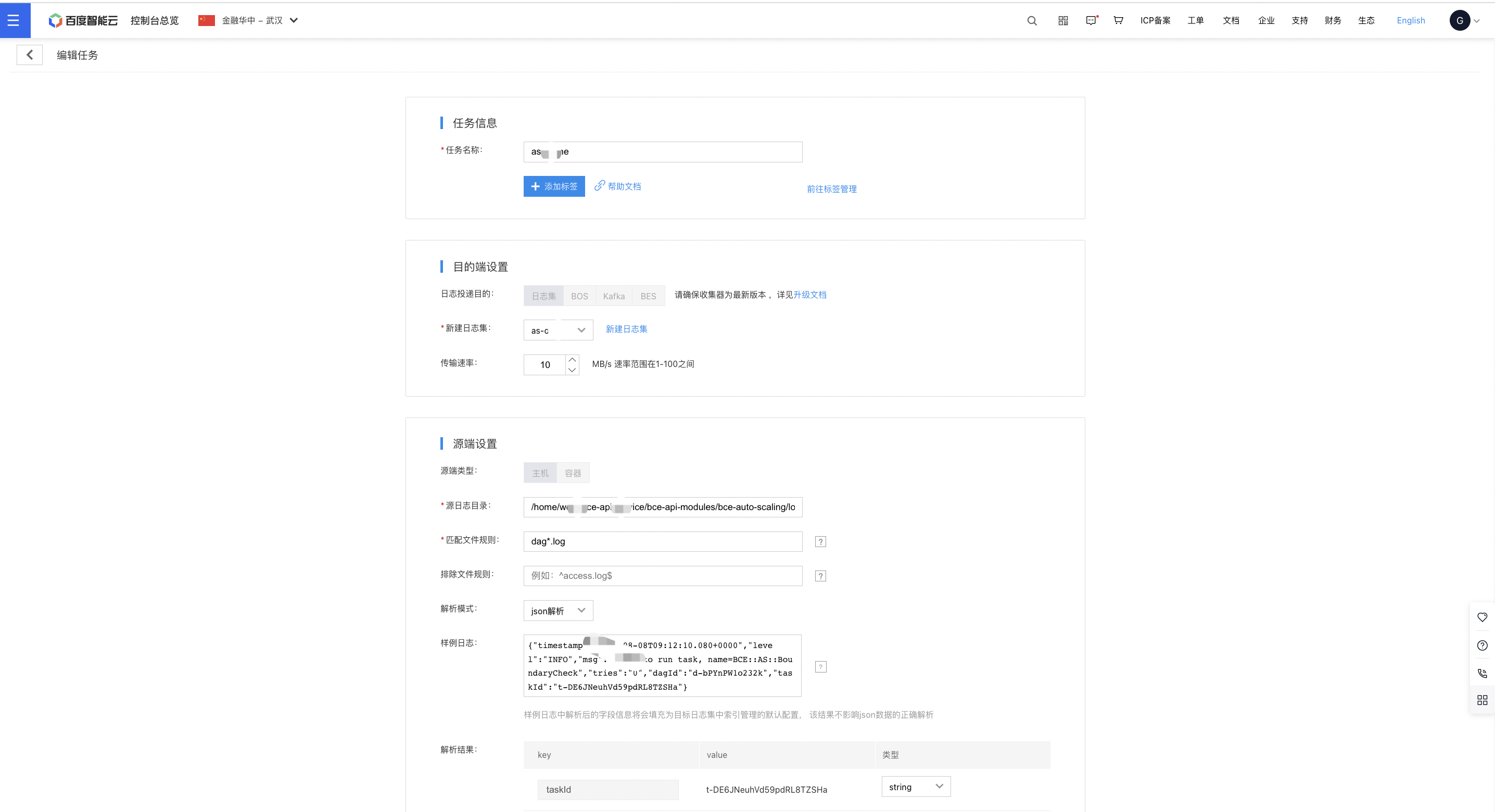
Pause or start a transmission task
- Go to Logging - Transmission Task List to check all the transmission tasks.
- Choose the transmission task to pause, click the Pause button, and then confirm by clicking OK.
- To restart paused transmission tasks, select the desired task and click the Start button.
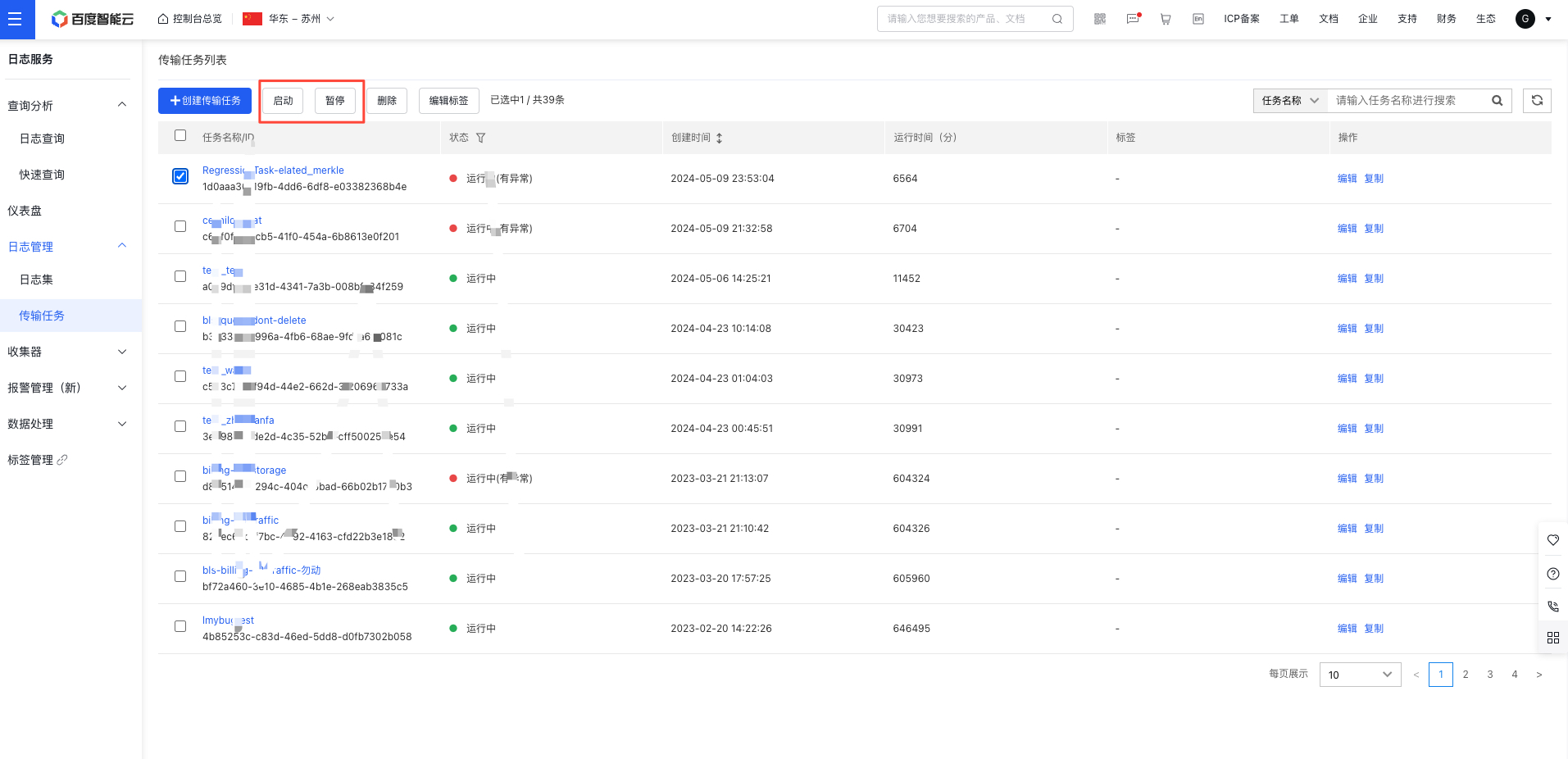
Note: If the file period was set to 1 day when creating the transmission task, restarting it after a three-day pause will gather log files generated from 1 day before the restart forward. Log files from the first and second days of the pause will not be transmitted.
Delete transmission service
To delete a successfully created transmission task, follow these steps:
- Go to Logging - Transmission Task List to check all the transmission tasks.
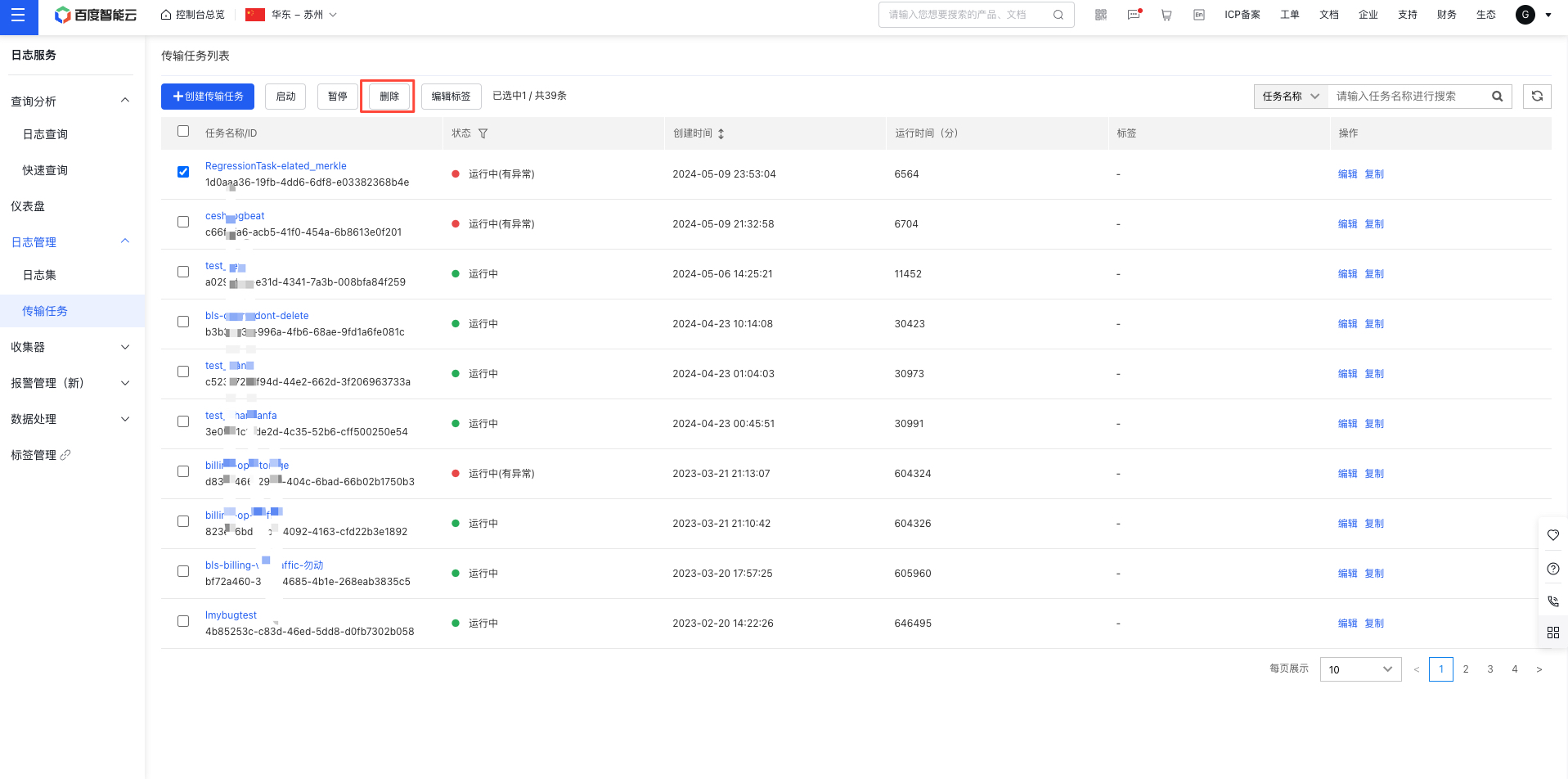
- Choose the transmission task to delete, click the Delete button, and confirm by clicking OK.