

Screenshot-Based Editing Tips for LUI
Screenshot-Based Editing Tips for LUI
Overview
When using the LUI (Dialogue Optimization) feature in Miaoda, one simple but powerful way to improve the accuracy and efficiency of edits is to use annotated screenshots as a visual reference.
This approach works especially well when you want to fine-tune a specific area of your app interface. Simply capture and mark up a screenshot to highlight the area to be modified, then upload it along with a short description of your intent.
Steps:
- In the app preview page, take a screenshot of the section you want to modify.
- Annotate the screenshot to highlight the area or issue.
- Upload the annotated screenshot to the chat window.
- Add a brief note describing your intent (e.g., “adjust button style,” “add new feature here”).
Example: Snake Game
Let’s walk through this technique using a classic Snake game as an example. First, open the app in edit mode and locate the target screen in the preview area.

1. Add New Features to a Specific Area
To make the game more fun, we’ll add two special zones: a Slow Zone and a Speed Zone.
- Take a screenshot of the game area on the left.
- Draw two colored boxes on the screenshot to mark the two zones.
- Upload the annotated image to the LUI chat and describe your request.
Change the background inside the blue box to blue — snakes move at half speed here. Change the background inside the yellow box to yellow — snakes move at double speed. In the green area, the snake’s speed remains normal.
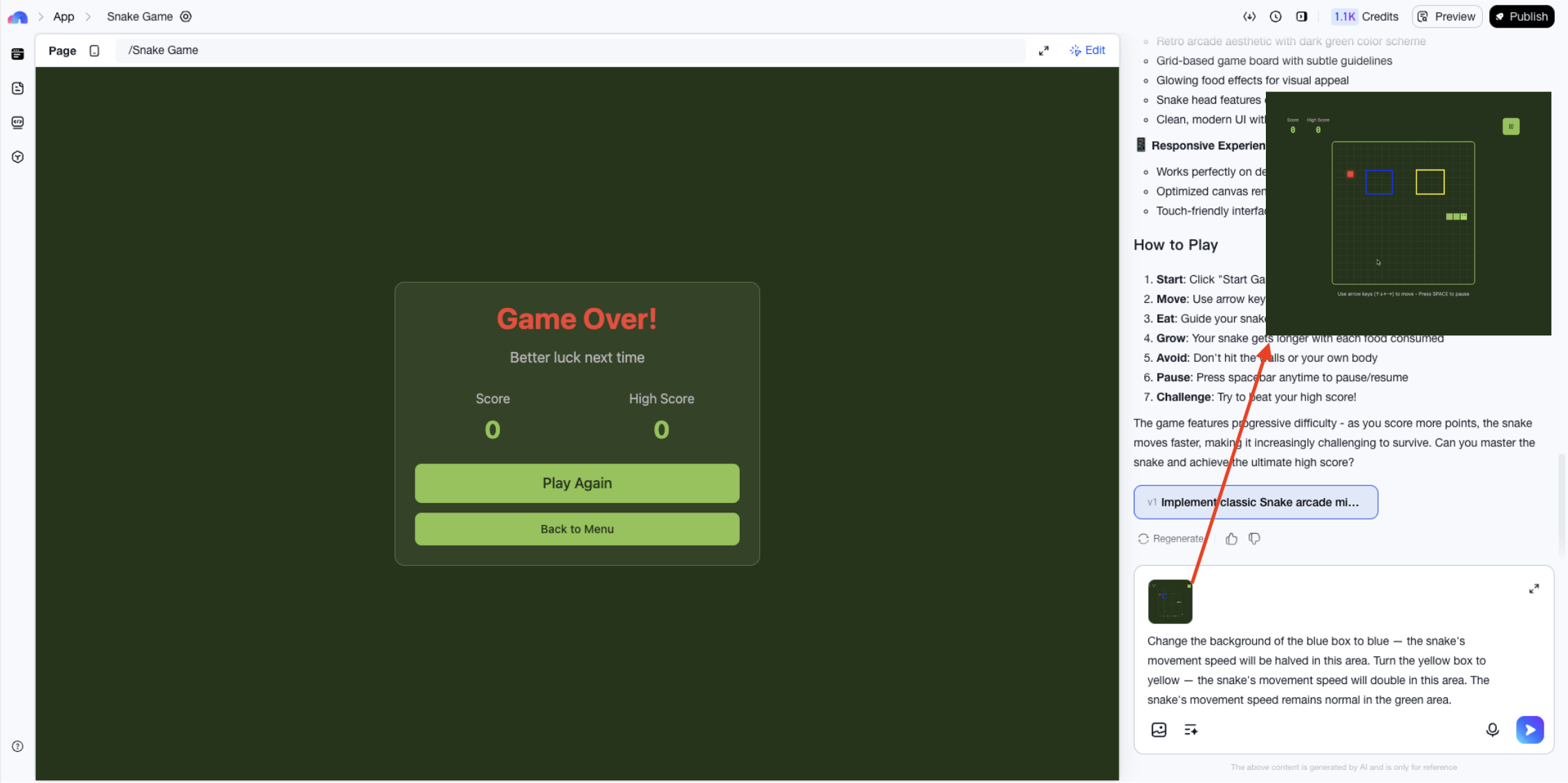
Result:
Now, let’s add a red wall area.
- Take a screenshot of the game preview area.
- Draw a box around where you want the red wall.
- Upload the screenshot and describe the modification.
Add a red wall inside the red box. The game ends if the snake hits it.

Result:
2. Adjust the Layout of a Specific Area
To increase the difficulty, we’ll move the Speed Zone to a tighter area between the red wall and the border.
- Take a screenshot of the game preview area.
- Draw a white box around the new target location.
- Upload the screenshot and describe the modification.
Move the yellow zone to the white box shown in the image.
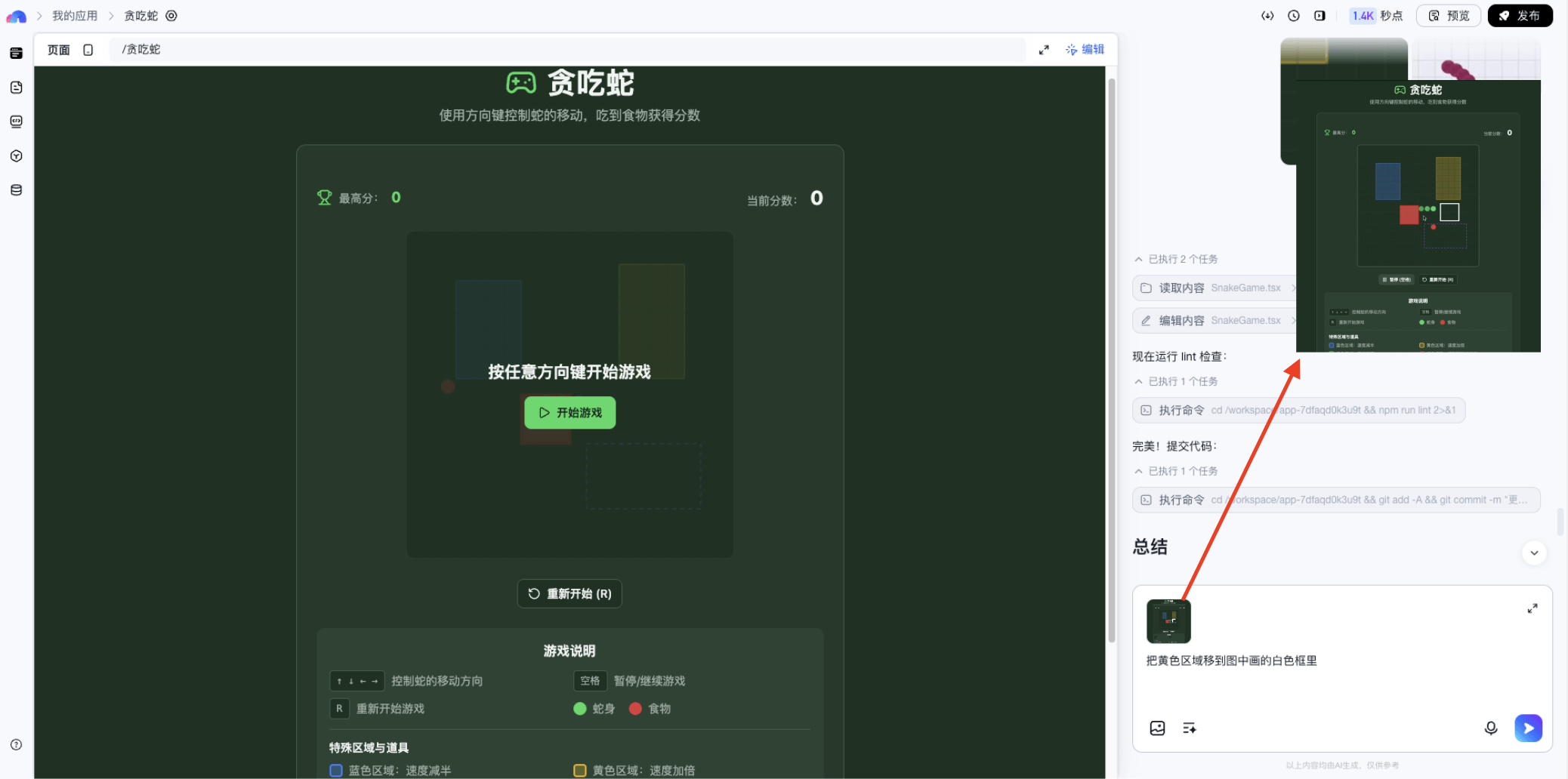
Result:
3. Modify the Style of a Specific Element
To make the game more visually appealing, let’s update the red wall’s style.
- Take a screenshot of the current game area.
- Find a reference image online that shows the desired style.
- Upload both images to the LUI chat and describe your intent.
Change the red wall’s style to match the second image.
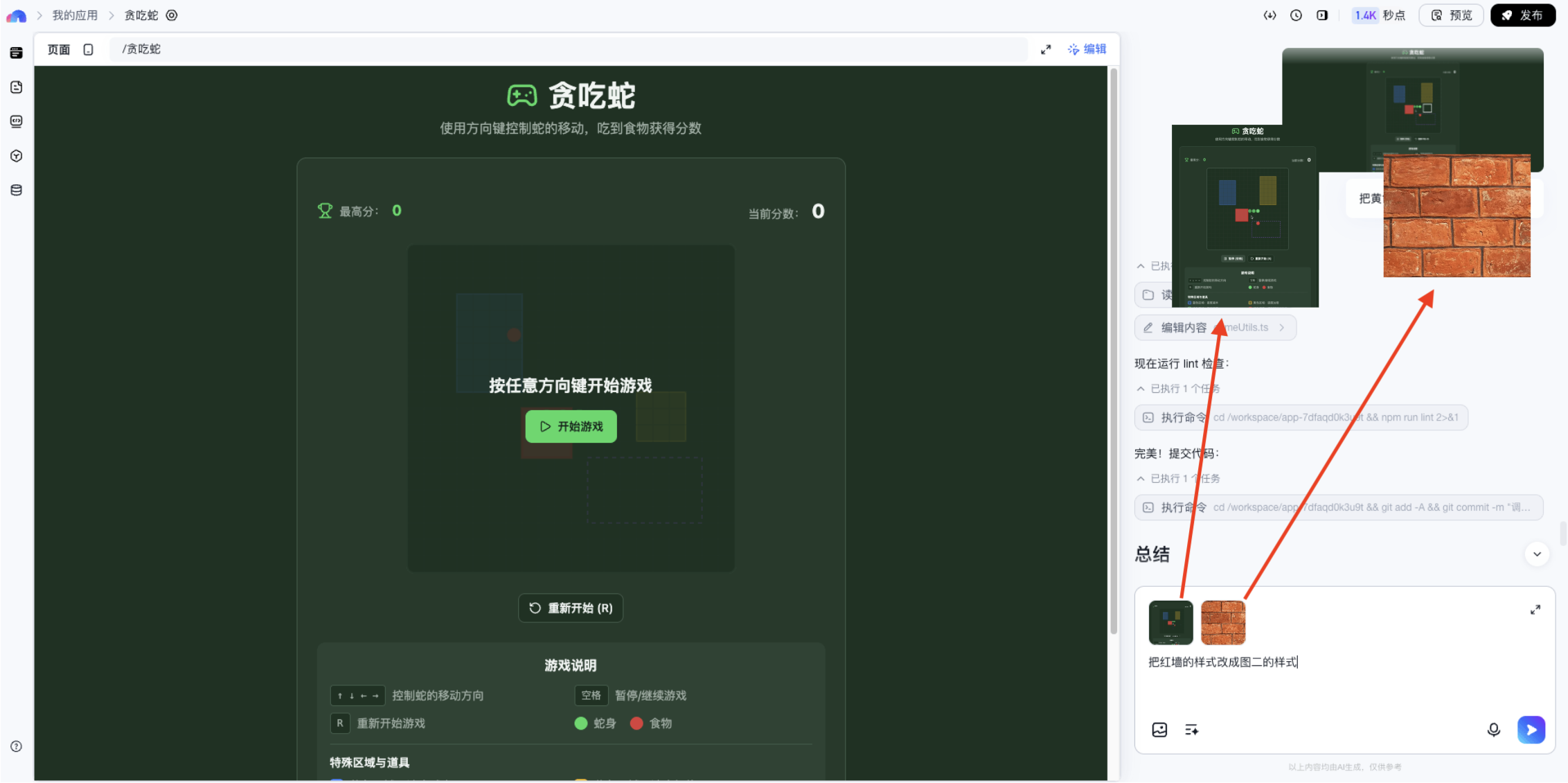
Result:
