Custom Skills
Overview
MeDo official skills already cover a wide range of scenarios, including AI tools, payment services, video technologies, voice and image processing, text processing, map services, information search, login verification, and more, helping you efficiently complete tasks and build feature-rich applications.
However, official skills may not fully satisfy more vertical or highly customized business requirements. To address this, MeDo provides Custom Skills — simply upload a .zip skill package to quickly create a custom skill, which can then be flexibly invoked during task execution or application generation.
With custom skills, you can equip MeDo with richer, more professional capabilities and domain knowledge, enabling it to complete specialized tasks more effectively or build applications that better fit your business needs.
External API Integration
Currently, MeDo has temporarily removed the method of creating custom plugins directly through API documentation links or API descriptions. If you need to integrate external APIs, you can currently use the following approaches.
In the future, MeDo will support directly converting APIs into custom plugins through conversation, allowing you to quickly use them in task execution or application generation after creation. Stay tuned.
| Method | Description | Illustration |
|---|---|---|
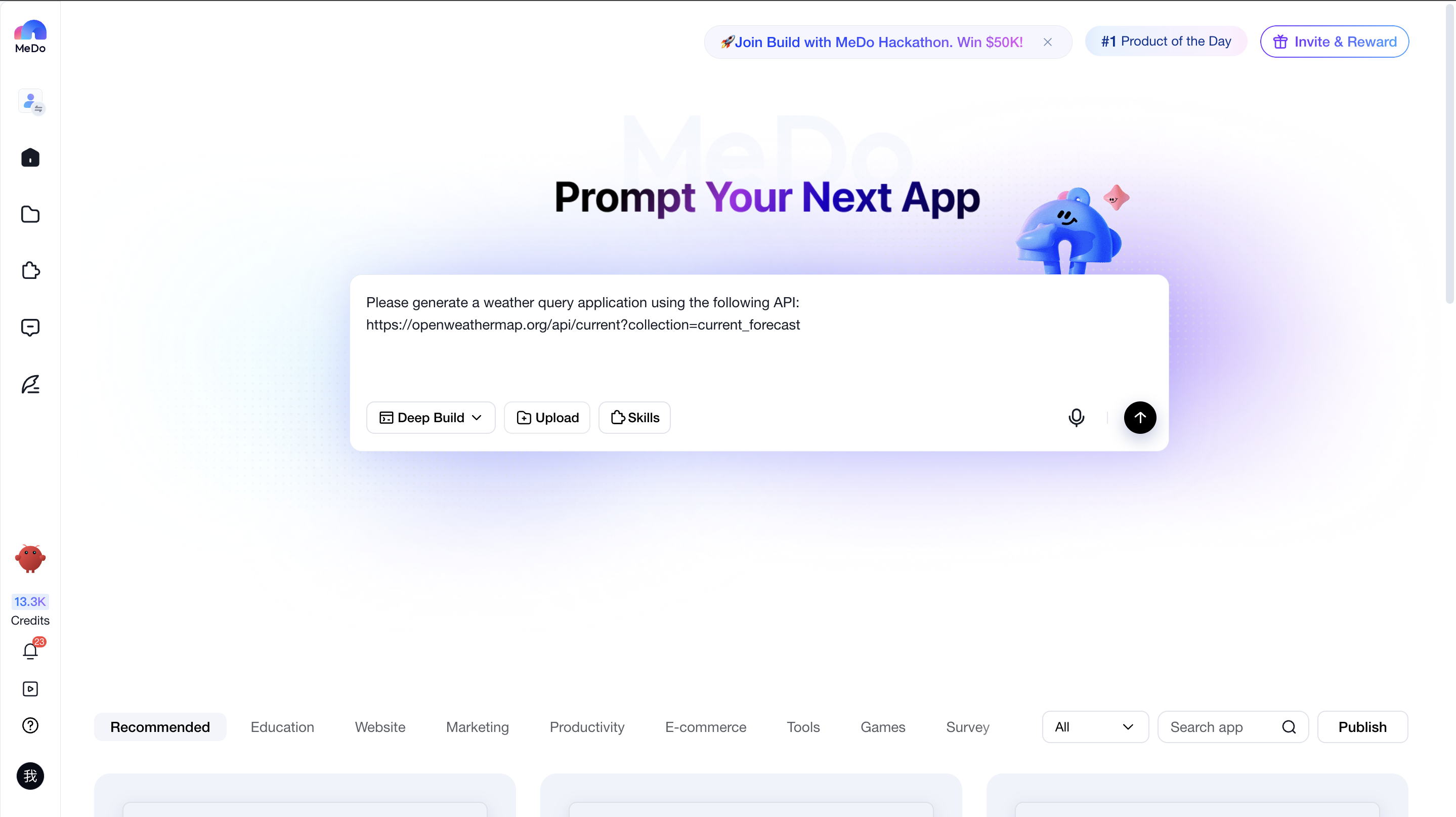
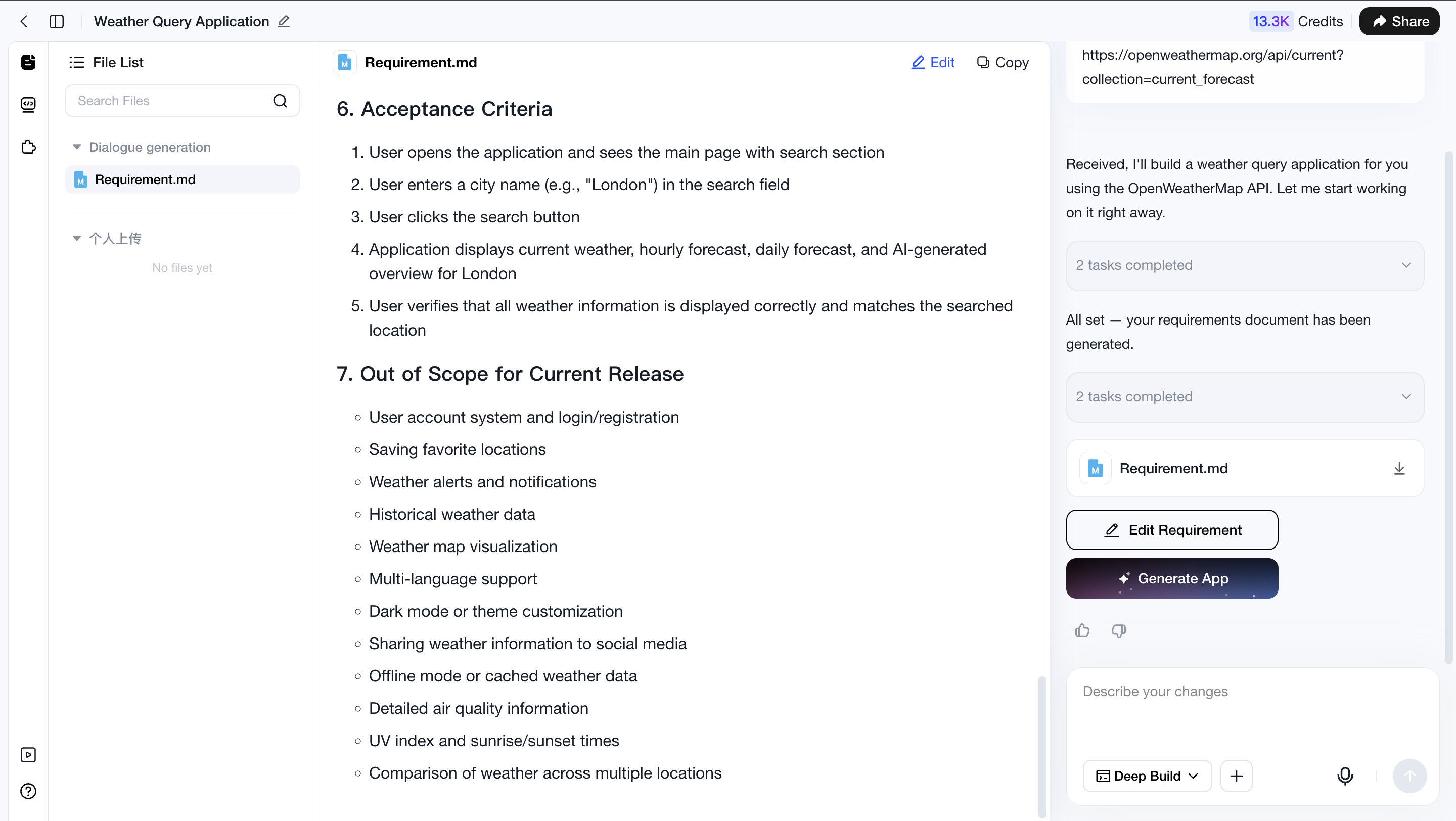
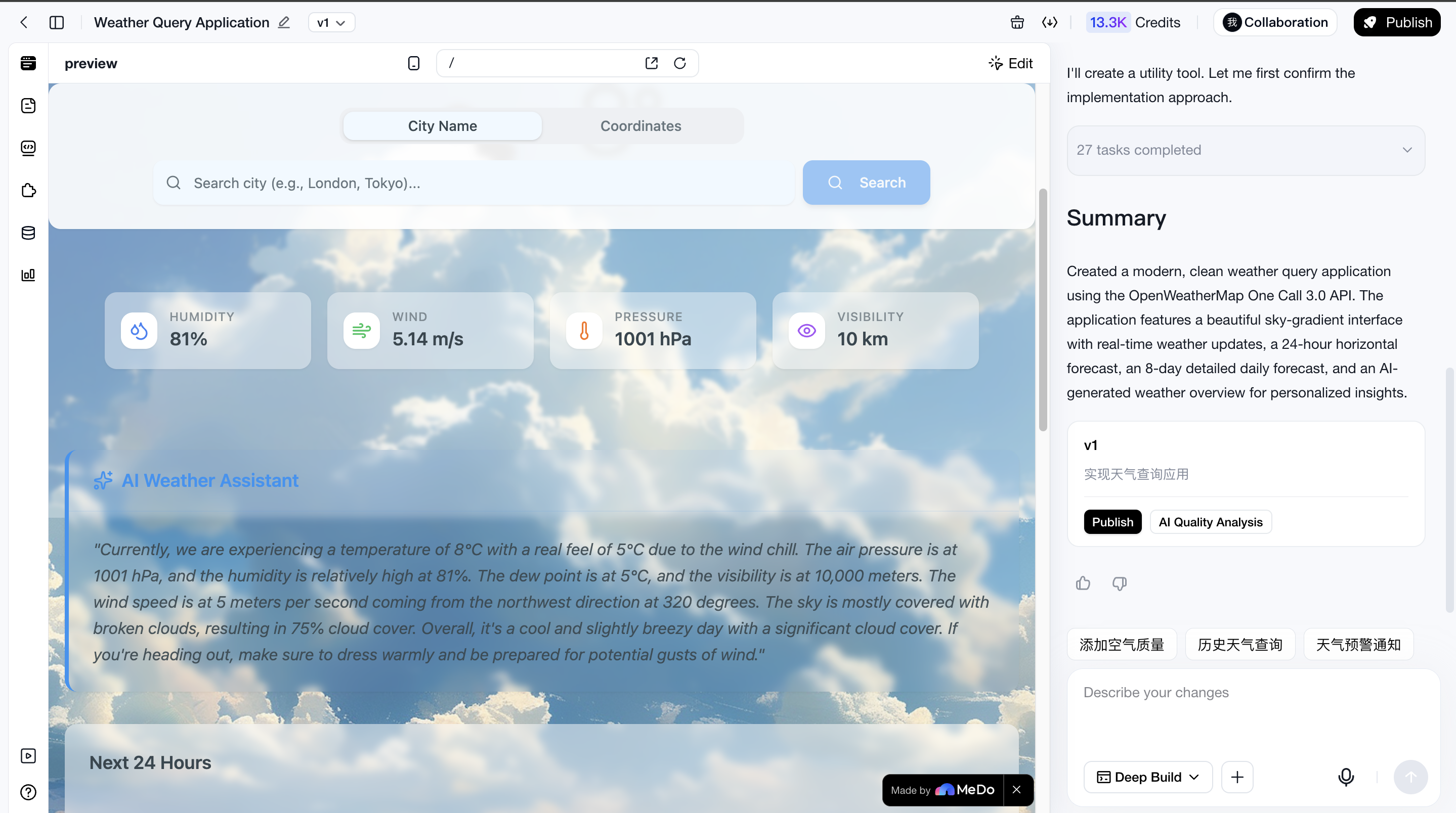
| Integrate directly in conversation | Please generate a weather query application using the following API https://openweathermap.org/api/current?collection=current_forecast |
   |
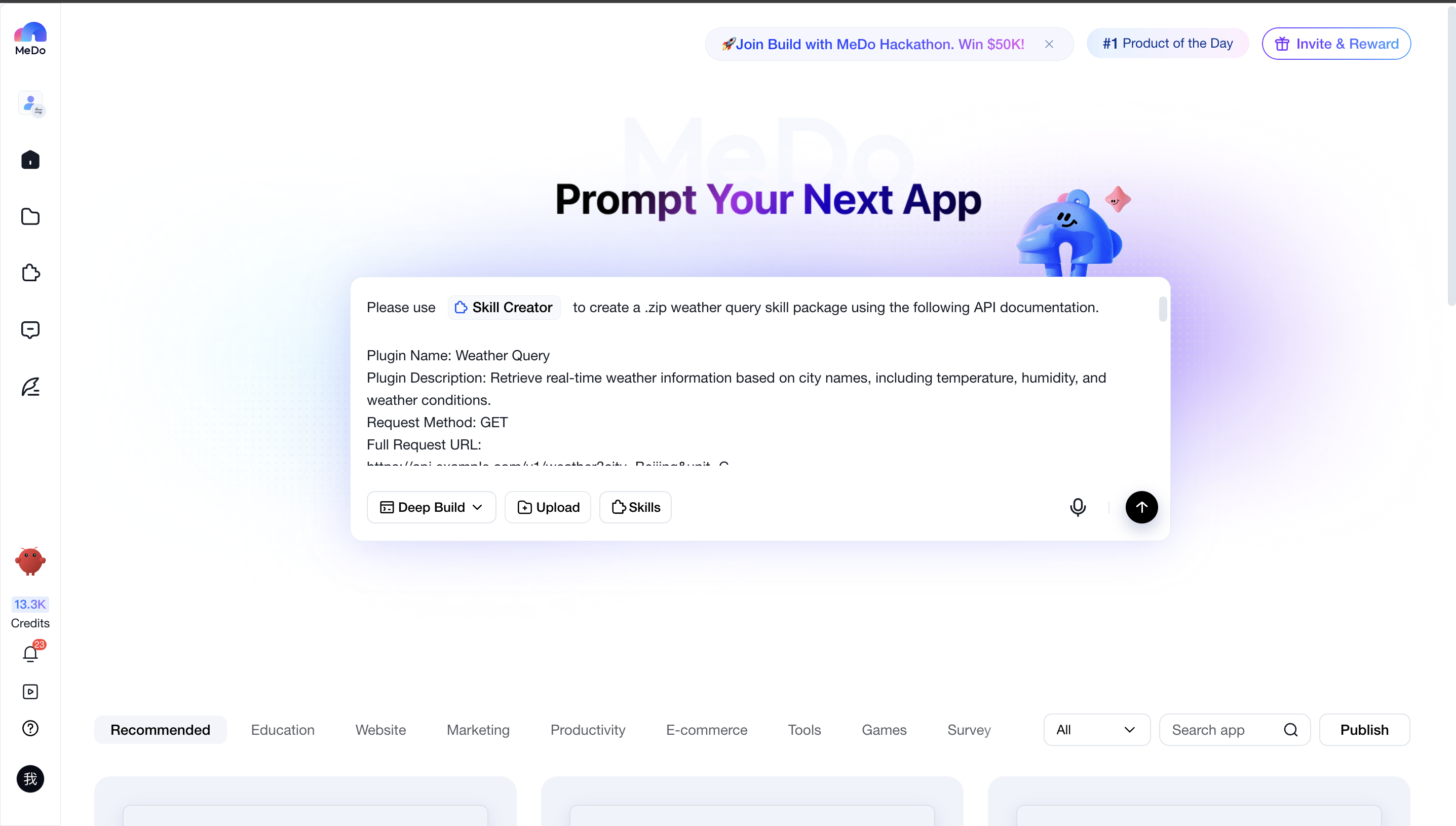
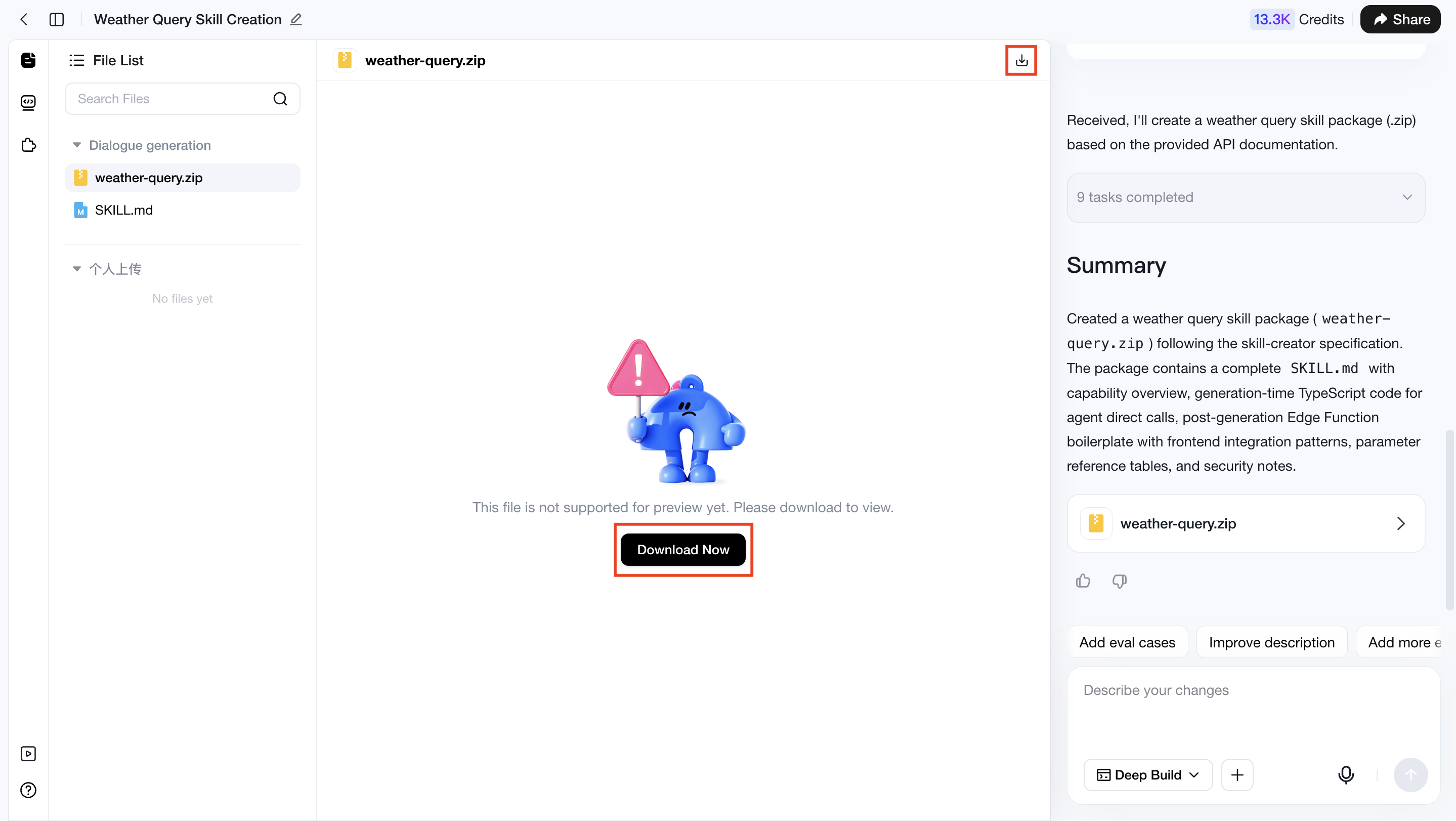
| Generate a skill package through conversation or using the “Skill Creation & Editing” skill, then import it as a custom skill |
|
  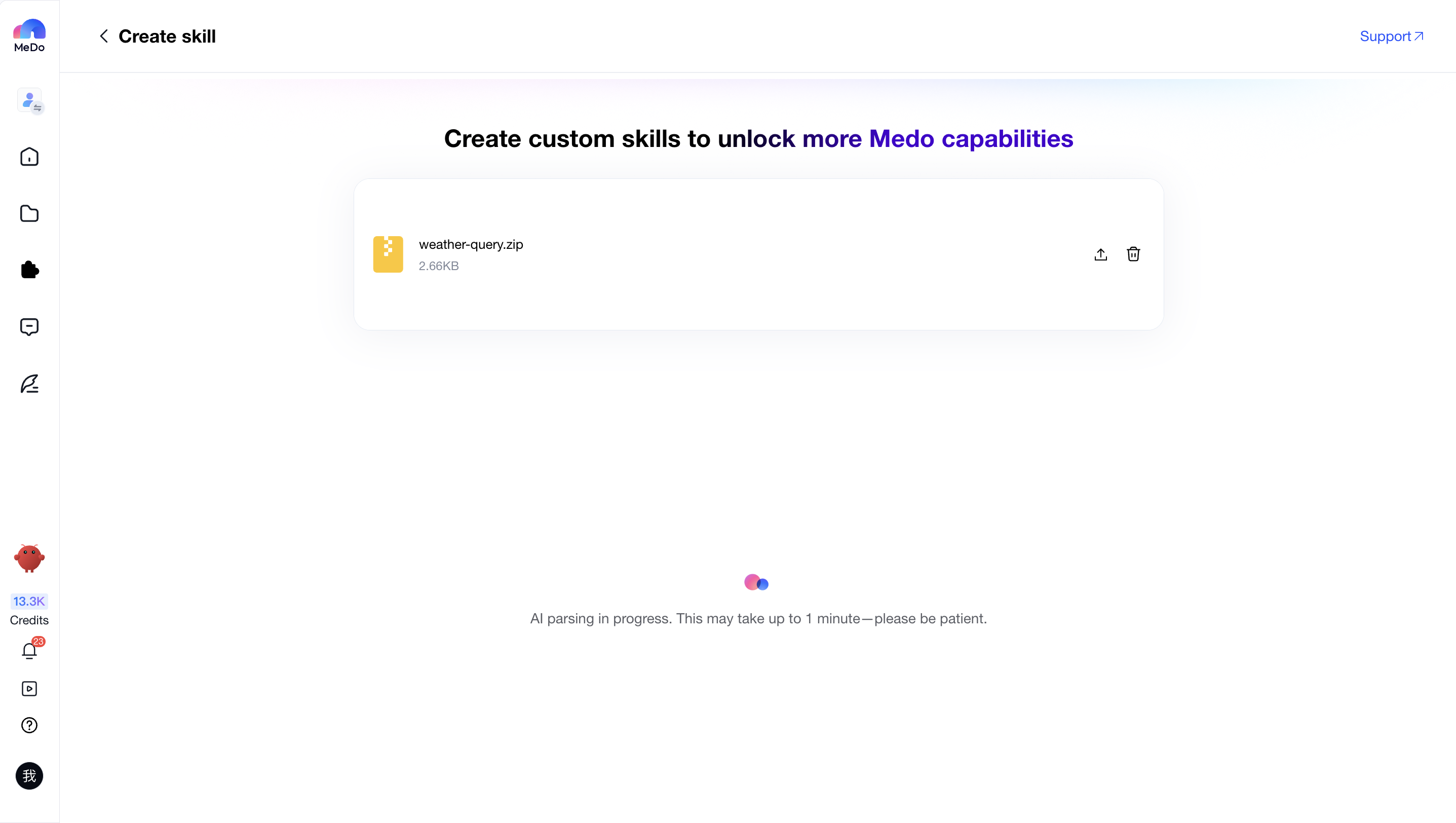  |
| Import and create directly | If you already have a prepared skill package containing APIs, you can directly import it into Custom Skills. See the following sections for detailed instructions. | / |
Create Custom Skills
Please navigate to:【My Skills > Create Skill】

Upload Skills
Skill Upload Format Requirements
After entering the Skill Creation & Editing page, you can upload a .zip Skill Package or SKILL.md file by clicking or dragging the file into the upload area.Both the Skill Package and SKILL.md file must follow the standard SKILL format described below:
| Upload Content | Description | File / Content Structure Example |
|---|---|---|
.zip Skill Package |
When uploading a skill package, it is recommended to include the following files. SKILL.md is required.
|
financial-analysis.zip └── financial-analysis/ ├── SKILL.md # Required, skill definition file ├── scripts/ # Optional, scripts │ └── analyze.py ├── references/ # Optional, reference materials │ └── knowledge.md └── assets/ # Optional, assets └── icon.png |
| SKILL.md |
The structure of the `SKILL.md` file is shown below. For more formatting requirements, please refer to the Notes section below: --- name: skill-name description: | Briefly describe the capability and applicable scenarios of this Skill. Use when: (1) Scenario One, (2) Scenario Two --- # Purpose Describe the core objective of this Skill. # Instructions Define the execution workflow and behavior rules of this Skill. # Examples Input: xxx Output: xxx # Guardrails Define usage boundaries and limitations. |
--- name: financial-analysis description: | Analyze enterprise financial data and generate insights. Use when: (1) Financial report analysis, (2) Company comparison, (3) Risk identification --- # Purpose Help users analyze financial data, identify business trends, and detect potential risks. # Instructions 1. Understand the user's input data or questions 2. Analyze key financial indicators 3. Generate structured conclusions # Examples Input: Financial reports from the past three years of a company Output: Revenue trends, profit changes, and risk alerts # Guardrails - Do not fabricate data - Ask follow-up questions when data is insufficient |
Precautions
The following formatting requirements apply when uploading .zip Skill Packages and SKILL.md files to Miaoda.
| Notes | Description | Example |
|---|---|---|
SKILL.md File Name |
The Skill description file must be named SKILL.md (case-sensitive). |
SKILL.md |
| Frontmatter | The SKILL.md file must begin with Frontmatter enclosed by --- |
--- name: financial-analysis description: | Analyze enterprise financial data and generate business insights. Use when: (1) Financial report analysis, (2) Company comparison --- # Instructions 1. Analyze user input 2. Extract key indicators ...... |
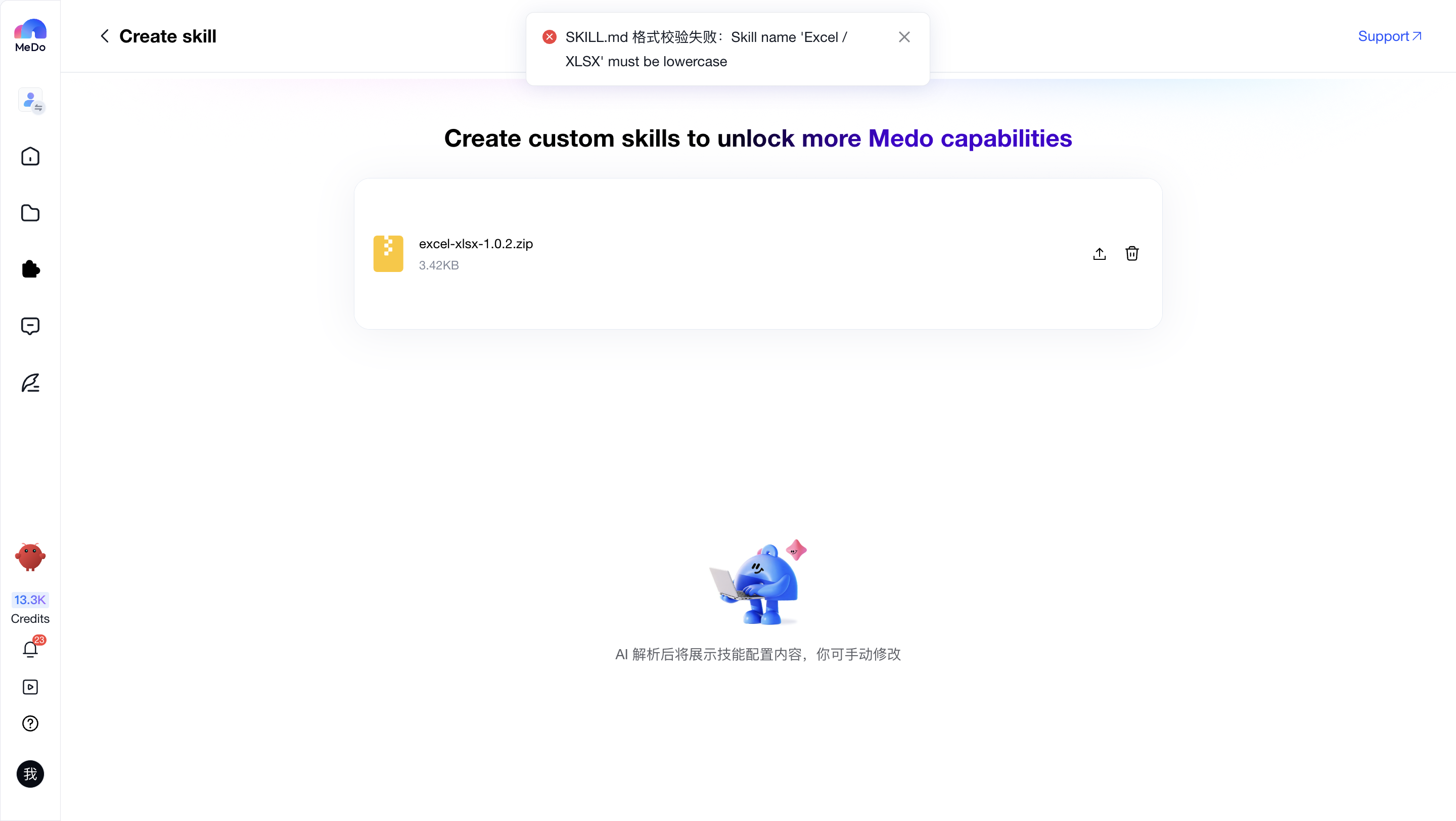
| name Field | Required. Used as the unique Skill name. Only lowercase letters, numbers, and hyphens - are supported. |
|
| description Field | Required. Describes the Skill capabilities and applicable scenarios. Both Chinese and English are supported. | |
| File Content | The content after Frontmatter must not be empty. | |
| Root Directory Name | The ZIP root directory name must exactly match the name field in SKILL.md. Only lowercase letters, numbers, and hyphens - are supported. |
Root directory name (Skill Package name): financial-analysis |
After the upload is completed, MeDo will parse and configure the skill based on the content you provided. The process usually takes about one minute. Please do not leave the page during parsing.
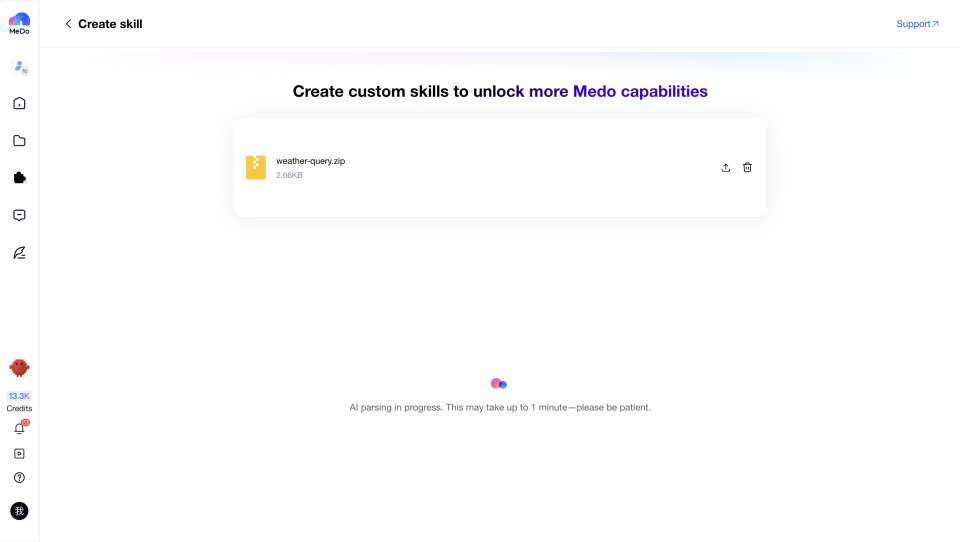
If parsing succeeds, the interface will display the skill configuration. See section 2 for details. If parsing fails, MeDo will stop parsing and explain the reason.
Edit Configuration
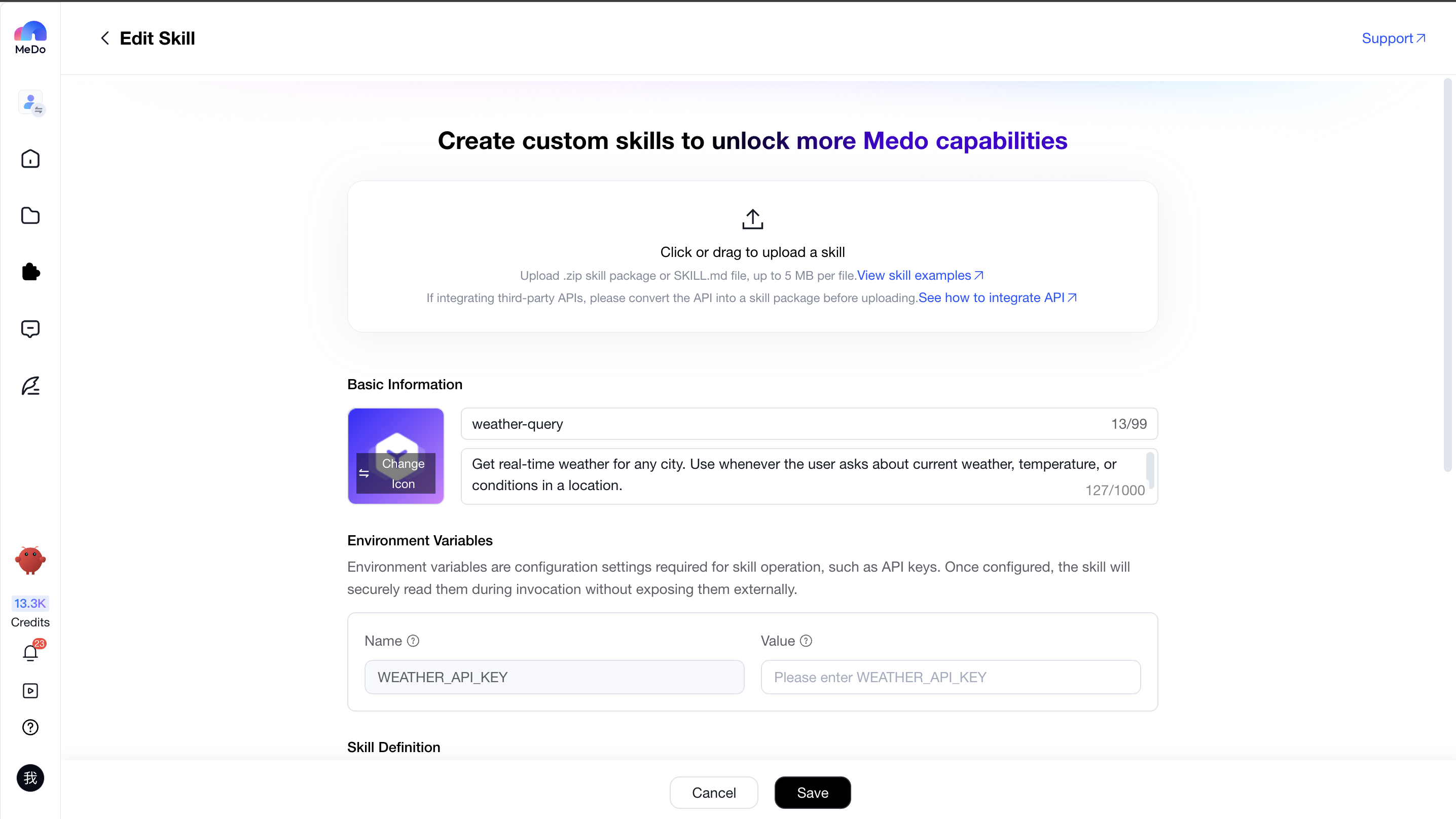
After successful parsing, the interface will display the skill configuration.
Basic Information
MeDo will automatically configure the skill icon, skill name, and skill description based on the uploaded skill package.
| Dimension | Description |
|---|---|
| Name | The name of the skill. After configuration, this name will appear in Skills > My Skills, the skill selection list, and the application's used skills list |
| Description | The description of the skill. After configuration, this description will appear in Skills > My Skills, the skill selection list, and the application's used skills list |
| Icon | The icon of the skill. After configuration, this icon will appear in Skills > My Skills, the skill selection list, and the application's used skills list |
Illustration:

Environment Variables
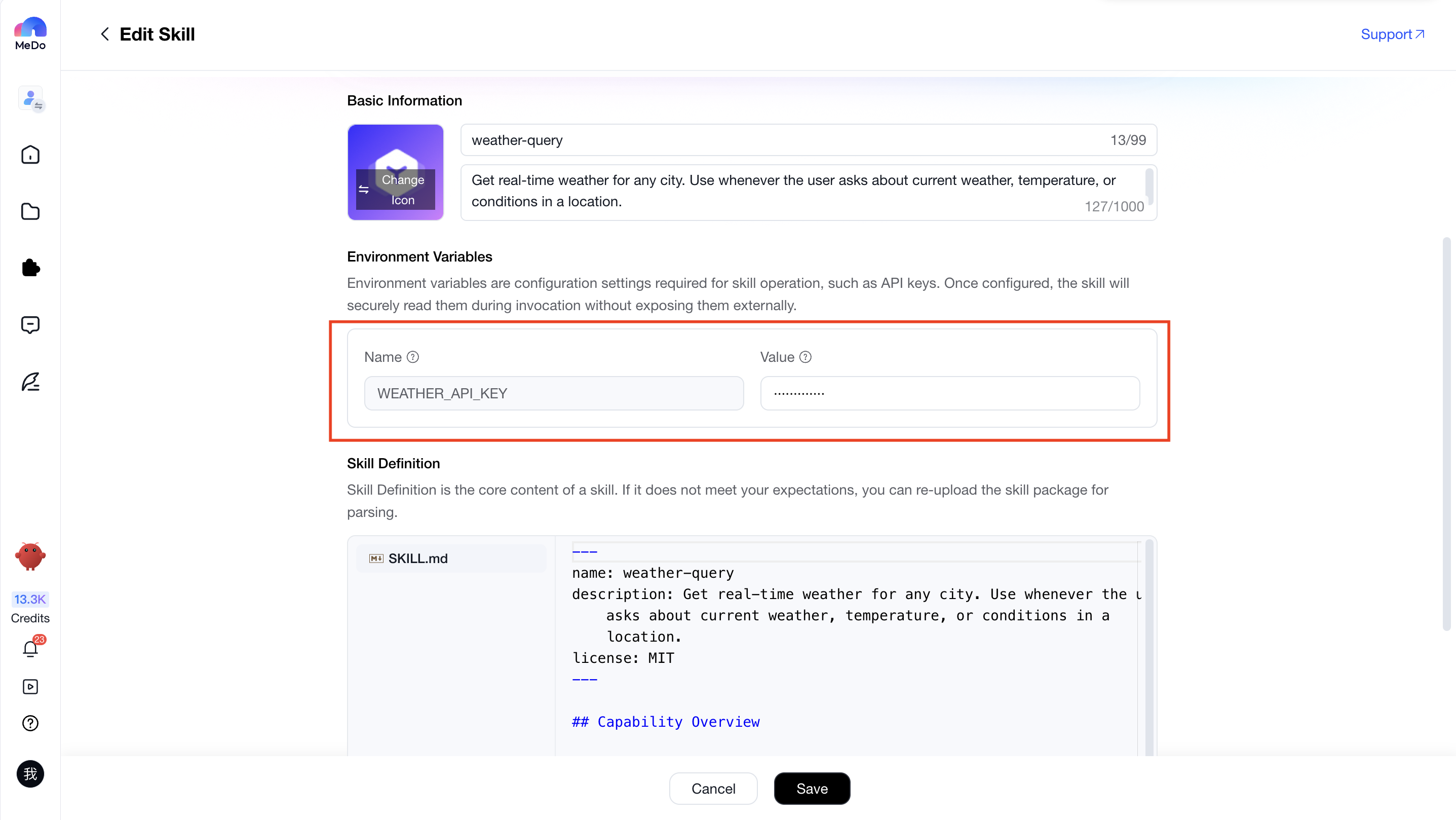
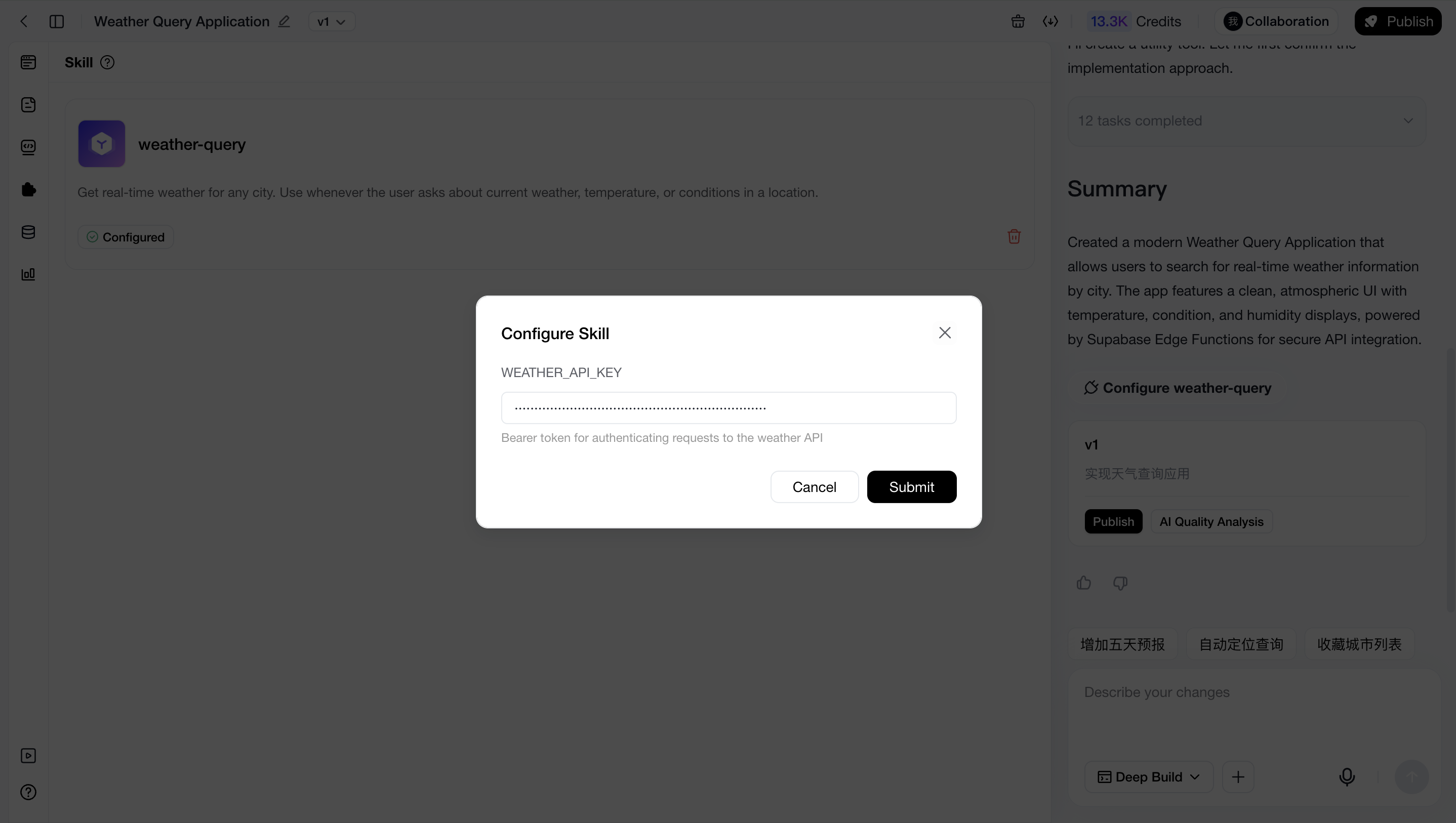
If the skill contains environment variables, the Environment Variables module will appear. Environment variables are configuration values required for the skill to run, such as API Keys. After configuration, the skill will securely read these values during execution without exposing them externally.
| Item | Description | Illustration |
| Name | The environment variable name used when invoking the skill. This value is automatically generated by MeDo and cannot be modified |
|
| Value | The value corresponding to the Name. Once filled in, the skill will automatically use this configuration during invocation. If left empty, you will need to manually configure it when using the skill in a project |
|
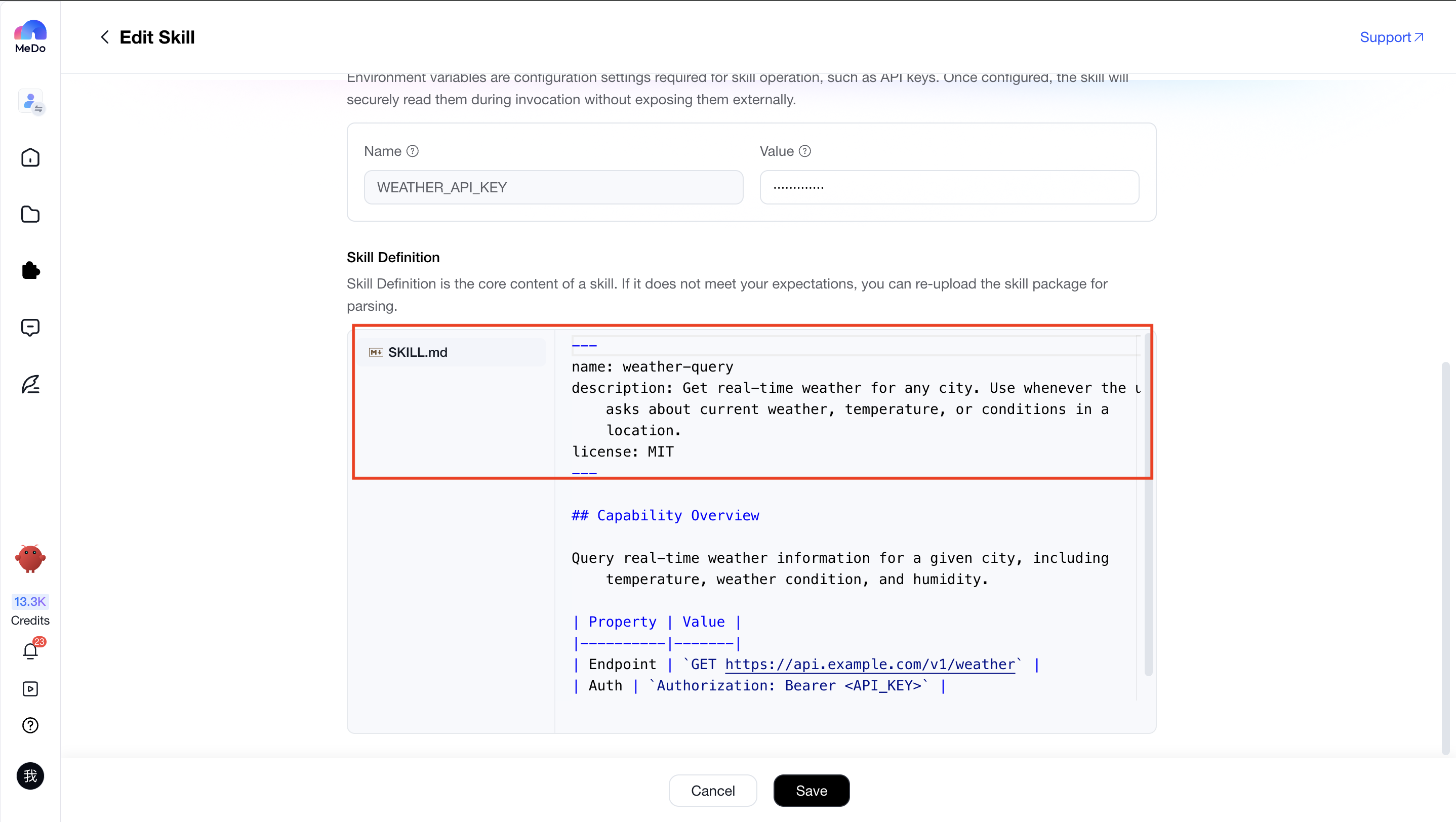
Skill Definition
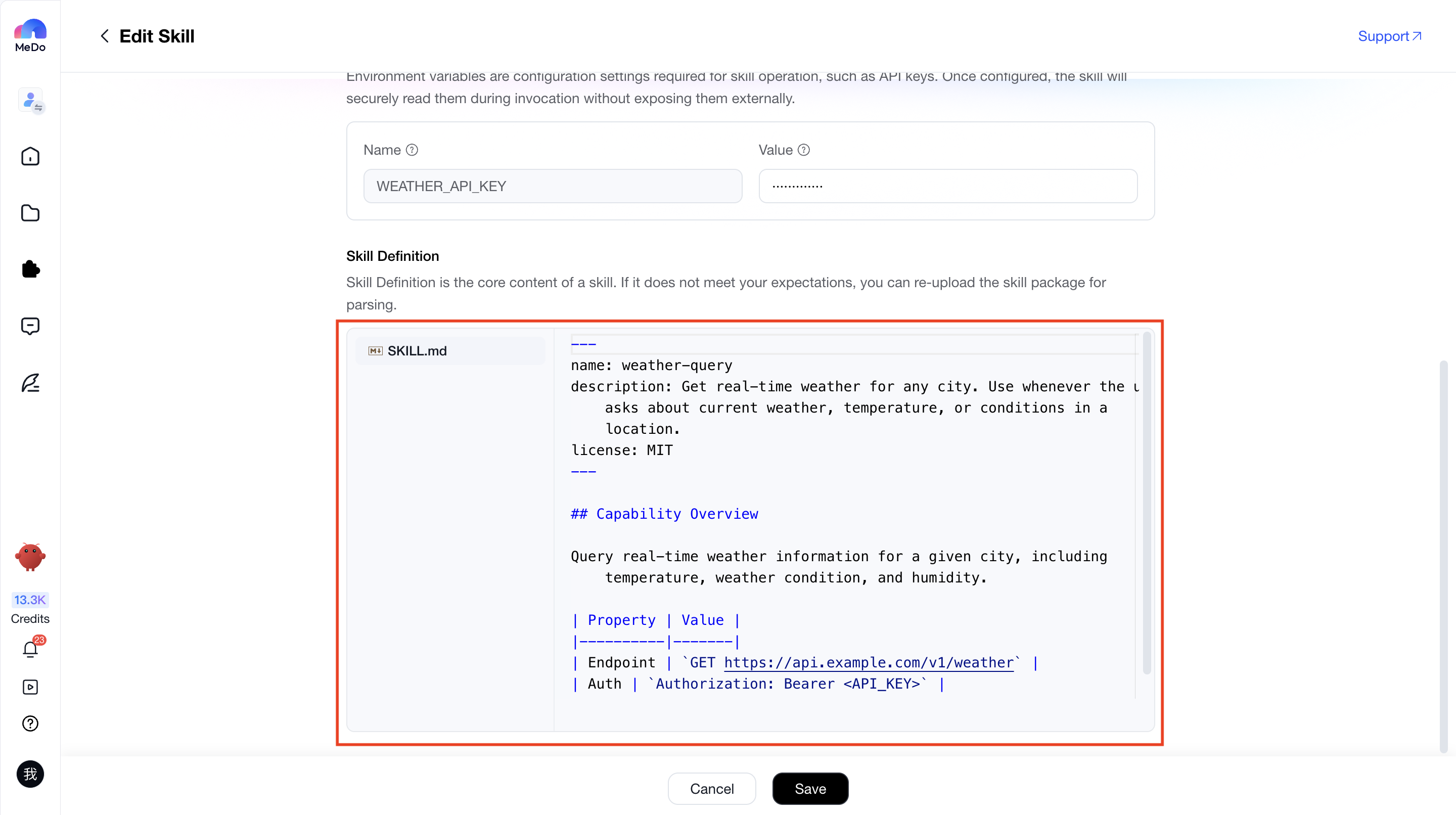
Skill Definition is the core basis for MeDo to integrate this skill into applications. It is automatically generated based on the uploaded skill package and cannot be manually modified.
After generation, you can verify whether the content meets expectations, including whether all required files are included and whether the file contents are accurate. For API-based skills, you should also verify whether all required endpoints, endpoint descriptions, and examples are complete.
If the generated result does not meet expectations, you can modify the corresponding skill files and re-upload them for parsing.
Complete Creation
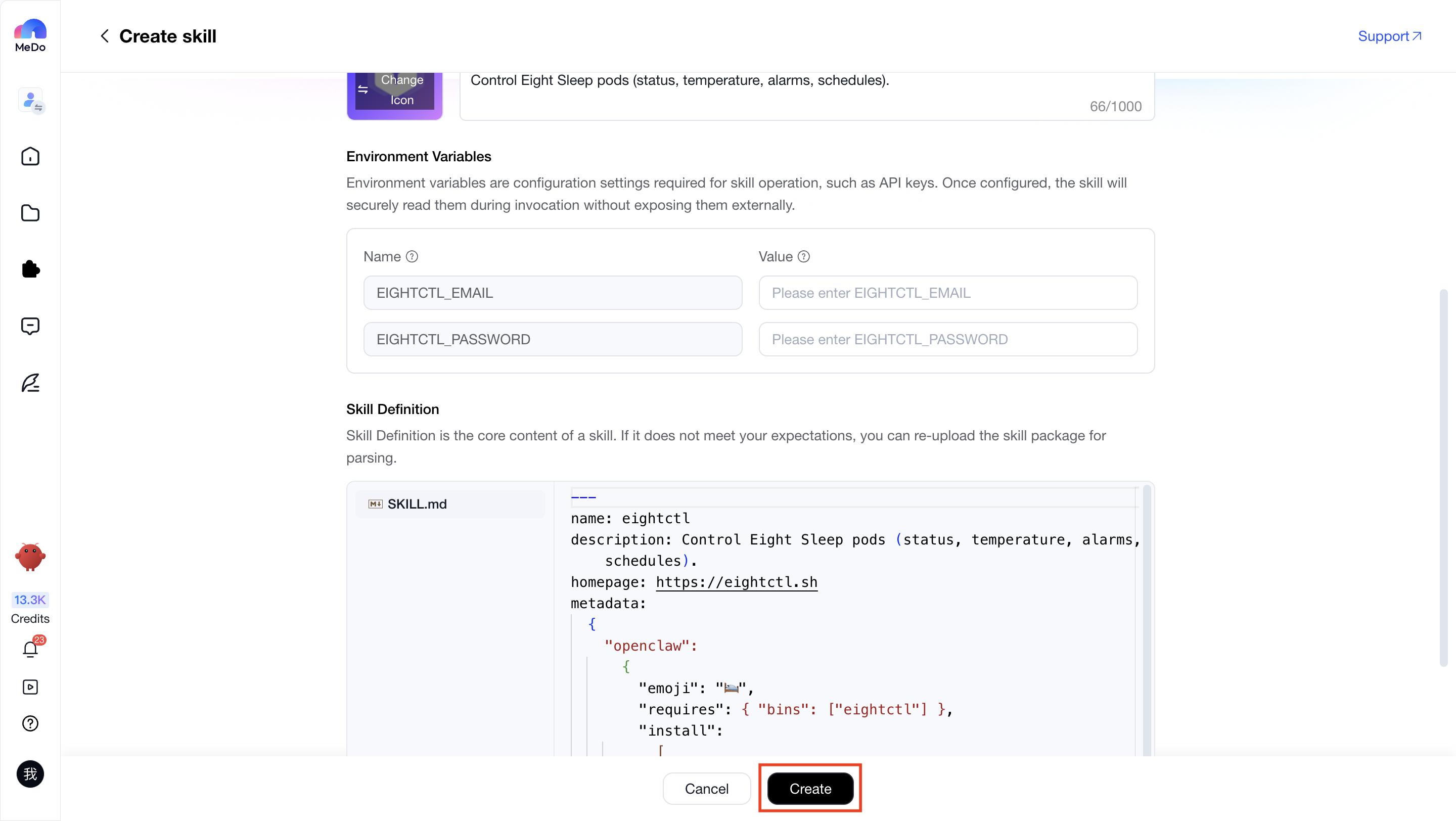
After all information has been configured, click Create to complete the custom skill creation process.
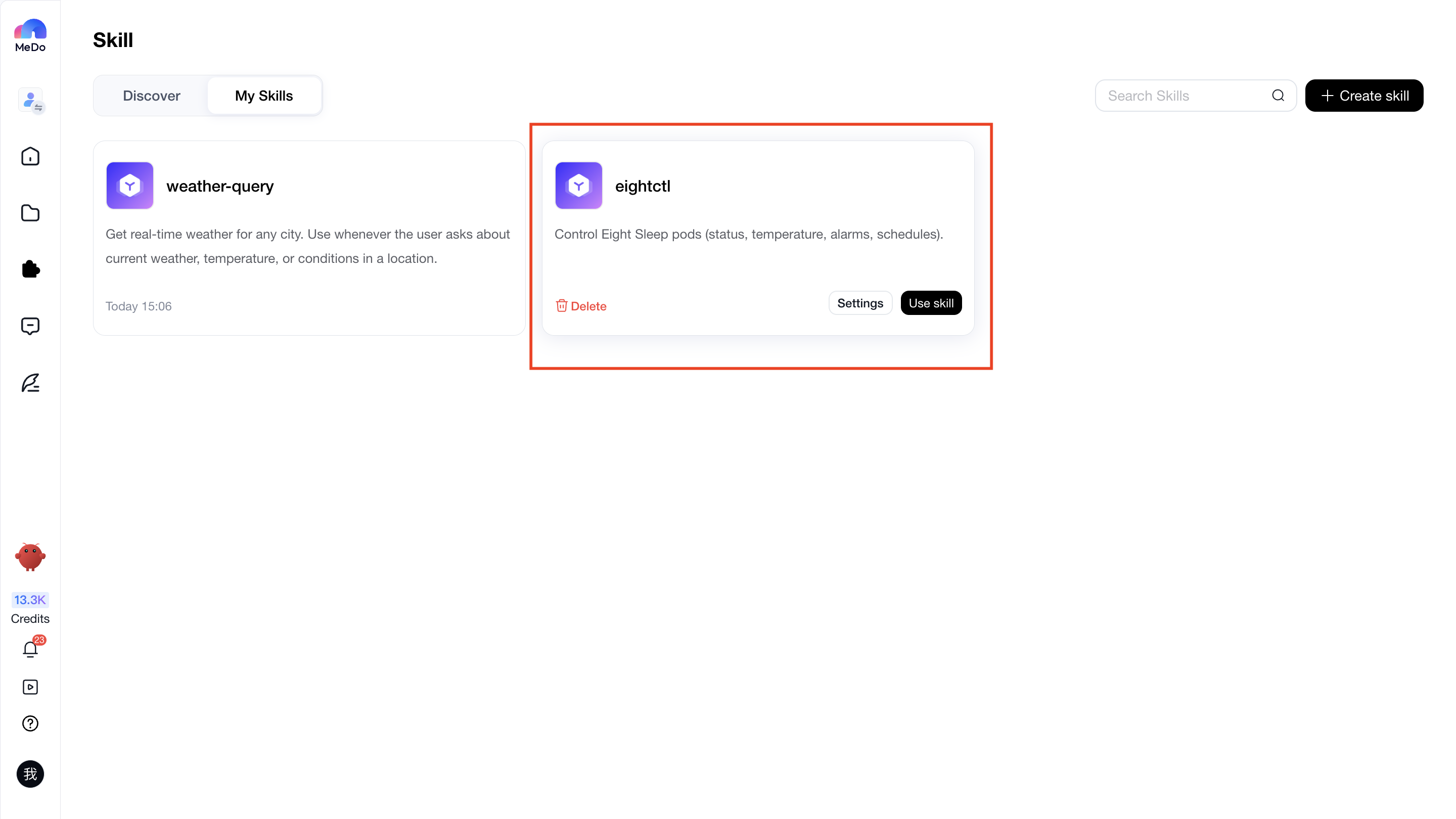
Use Custom Skills
Test Skills
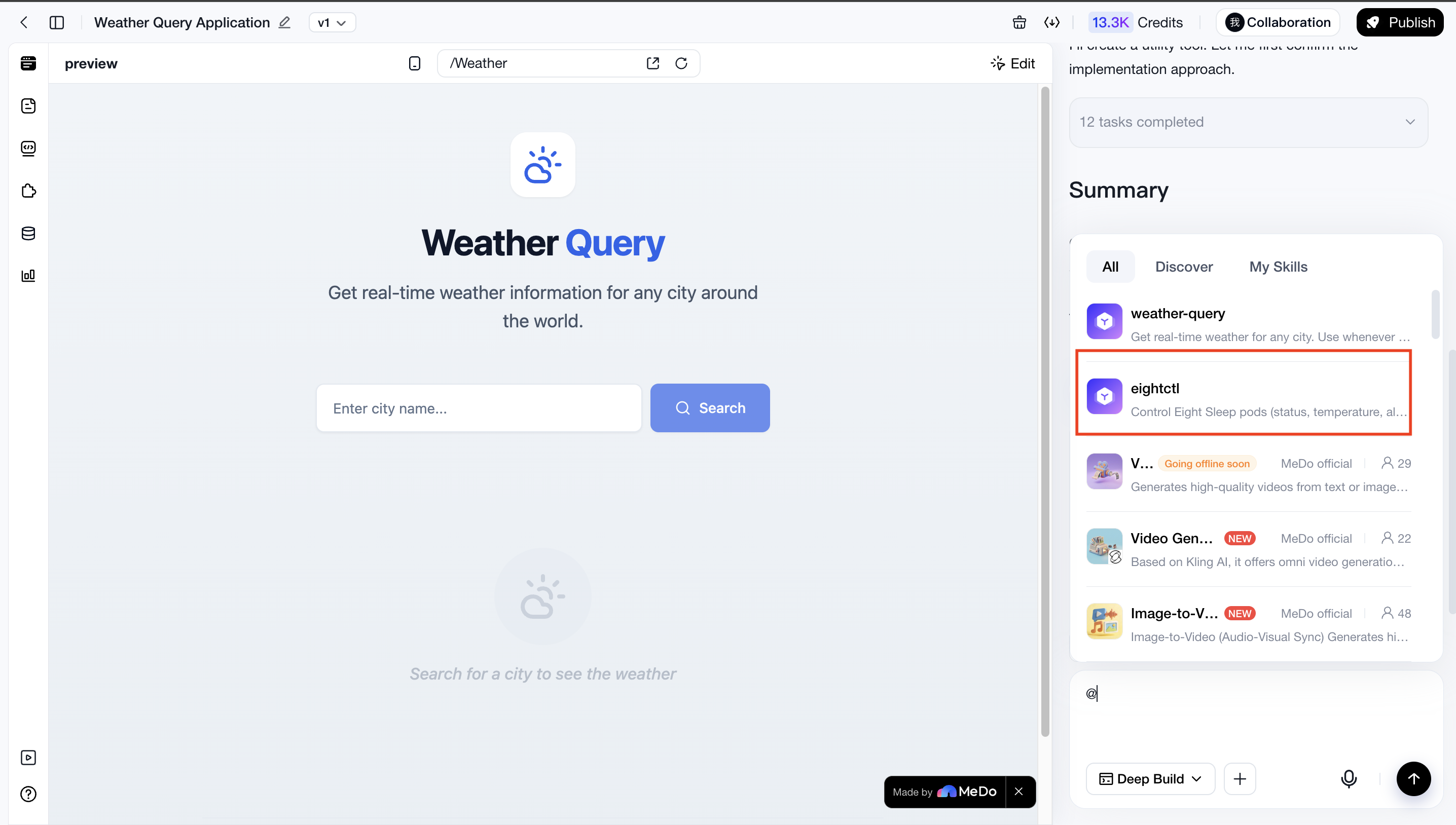
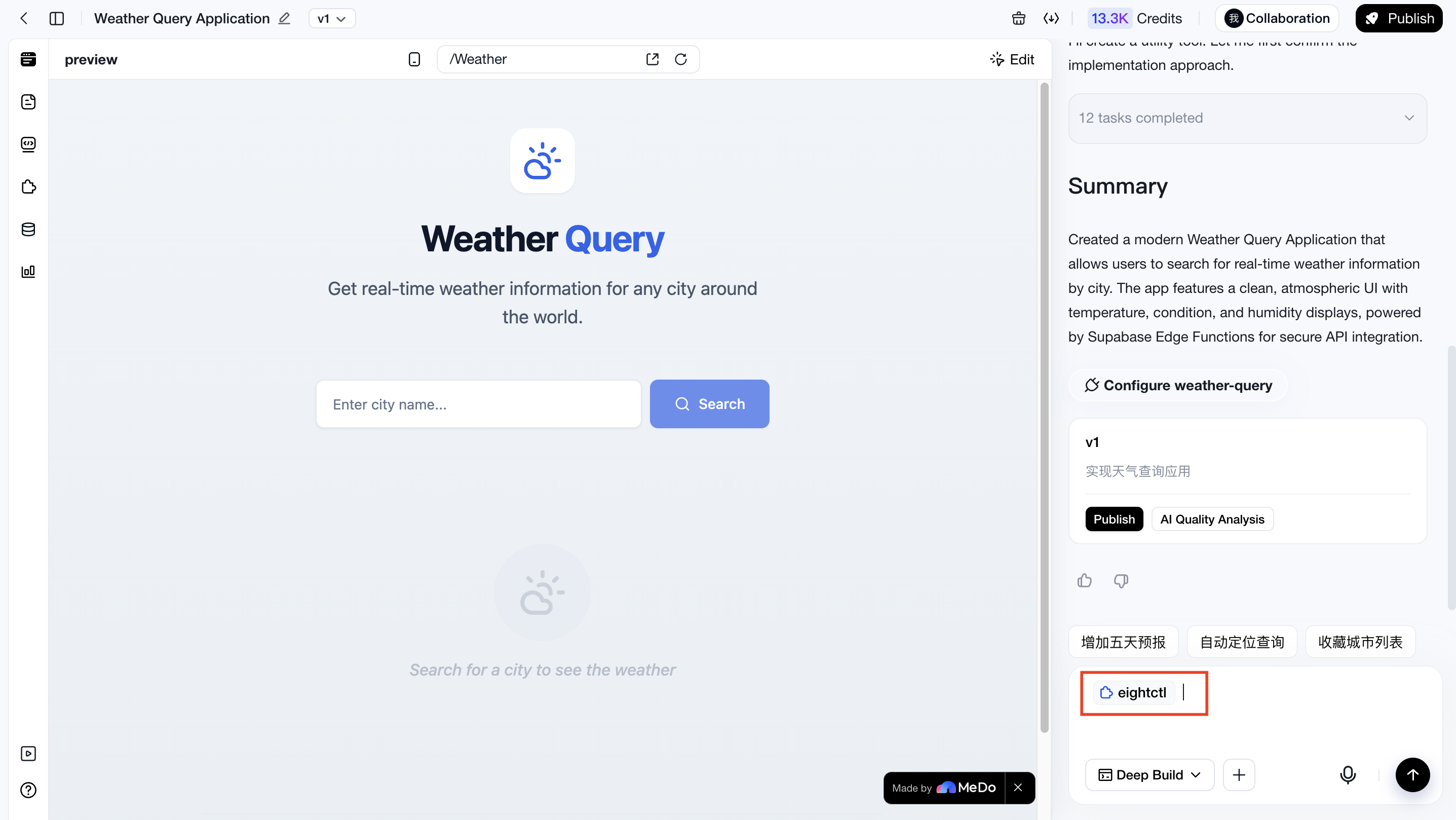
After creation is complete, you can invoke the skill within an application for testing. You can use "@" to locate your custom skills and invoke them directly.
Test Whether the Custom Skill Can Be Invoked Correctly
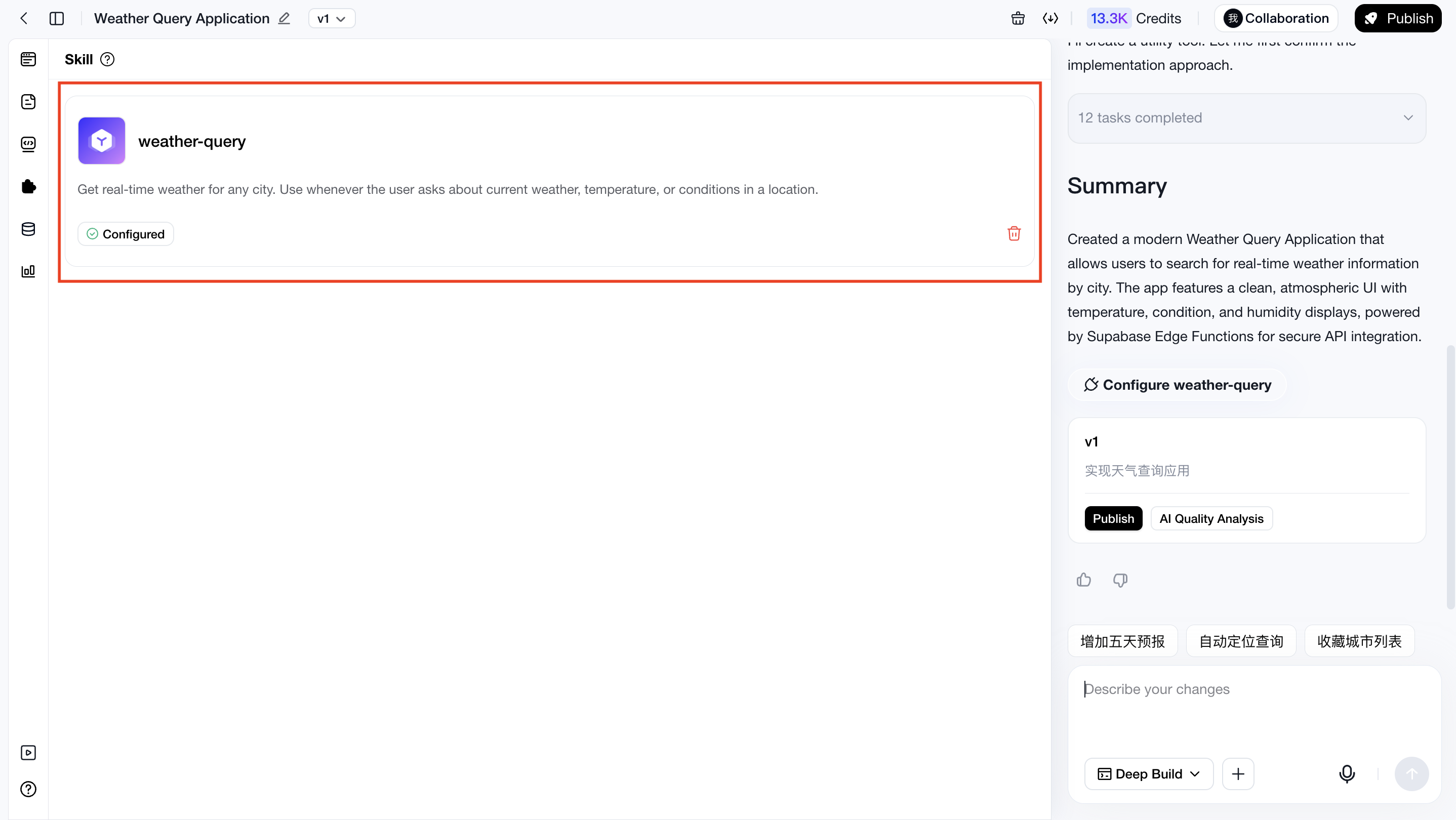
After invoking the skill to generate applications or features, you can check whether the skill has been used in the Used Skills list from the left sidebar.
| Situation | Description | Illustration |
| Used | If the skill appears in the Used Skills list, you can proceed to functionality testing |
|
| Not Used | If the skill was not used, try invoking it again to regenerate the feature or application. If the skill still cannot be invoked, return to the skill configuration page and check whether the endpoint names and descriptions in the Skill Definition properly match the intended usage scenarios. If not, improve the descriptions in the top input field and regenerate the Skill Definition |
|
Test the Availability of Custom Skills
If the custom skill can be successfully invoked, the next step is to test whether the generated functionality works properly.
For example, if you created a custom fuel price query skill, you should test whether it can actually retrieve fuel prices correctly.
| Situation | Description | Illustration |
| Function works properly | This means you have successfully created a usable custom skill, which can now be used across your applications | / |
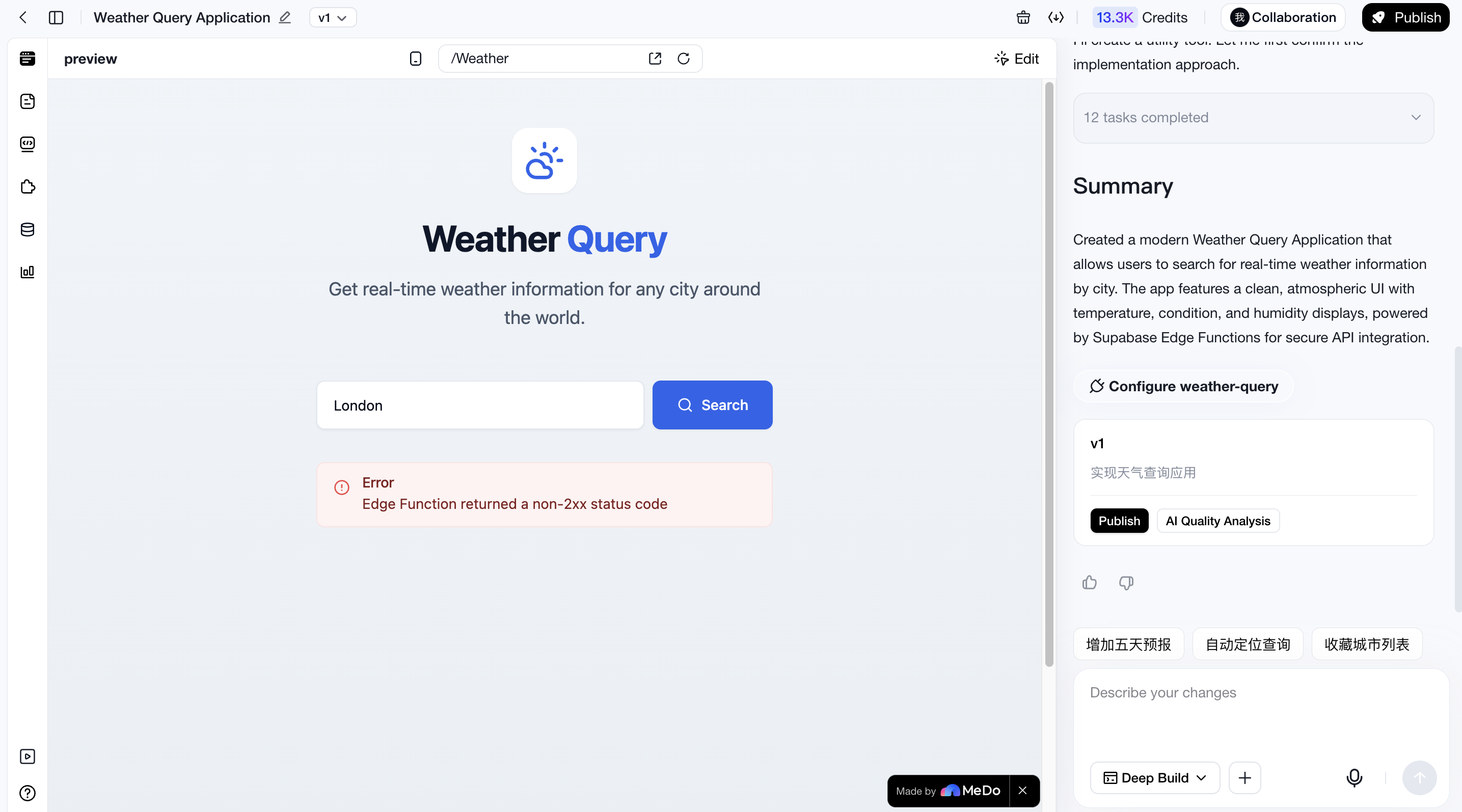
| Function does not work properly |
This may be caused by incorrect credentials or generation quality issues. First confirm whether the provided credentials are correct. If the problem persists, try fixing it through conversation. If the issue can be fixed through conversation, the custom skill itself is likely usable. If multiple rounds of conversation still cannot resolve the issue, the problem may lie in the custom skill definition itself. Please return to the skill configuration page and verify whether the API documentation is complete, including endpoint definitions, endpoint paths and methods, request parameters, request examples, response examples, error codes, and descriptions. If any information is missing, update the description and regenerate the skill definition. |
|
Official Usage
After the skill passes testing, it can be officially used across applications.
However, actual usage may still be affected by factors such as unclear requirement descriptions, which may prevent the generated functionality from reaching a highly usable state in a single attempt. Therefore, even after successful testing, some skill-related functionality may occasionally fail to work as expected. In such cases, you can simply fix the issue through conversation.
Manage Custom Skills
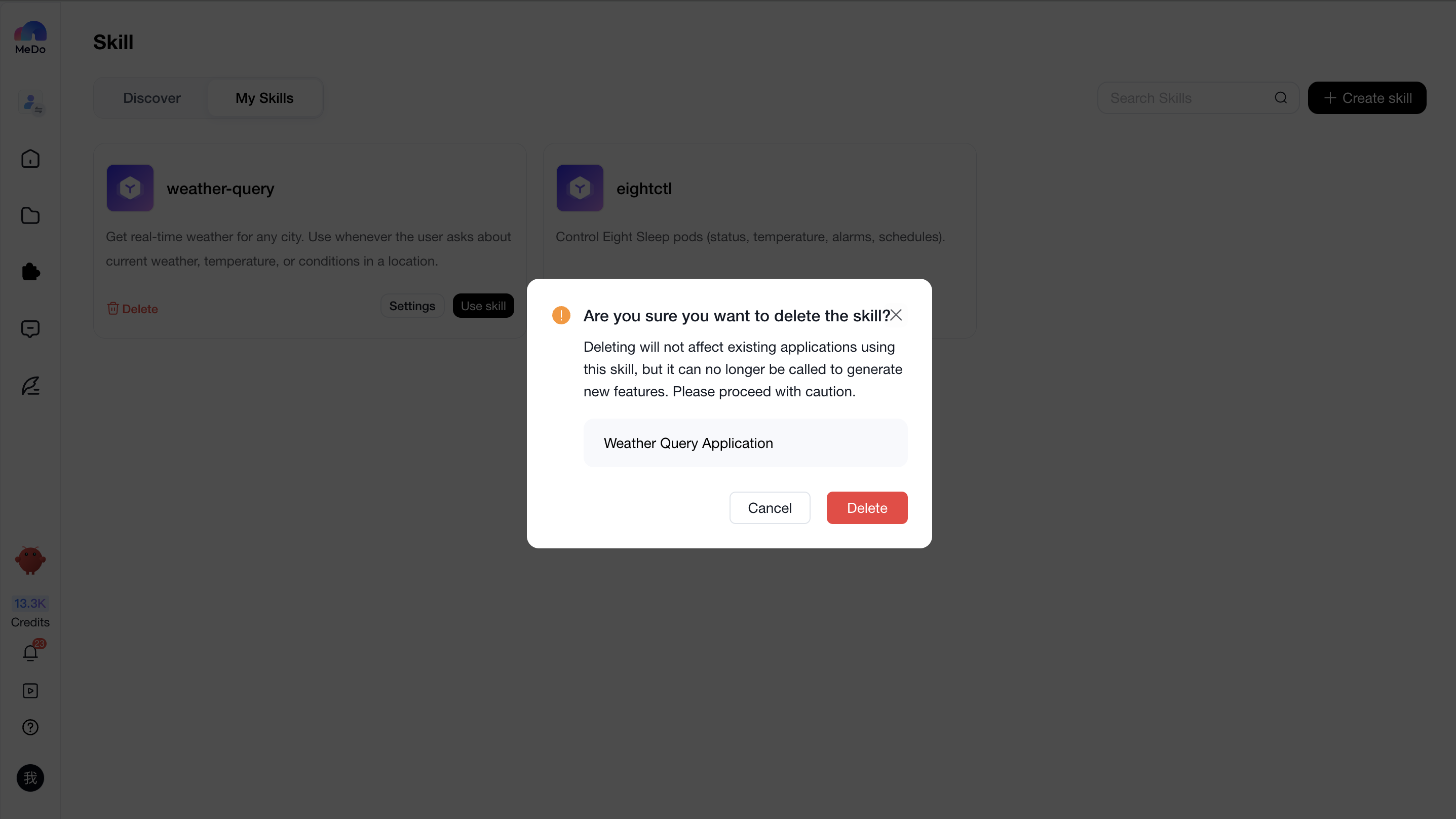
You can manage your created skills through:
【Skills > My Skills > Target Skill】
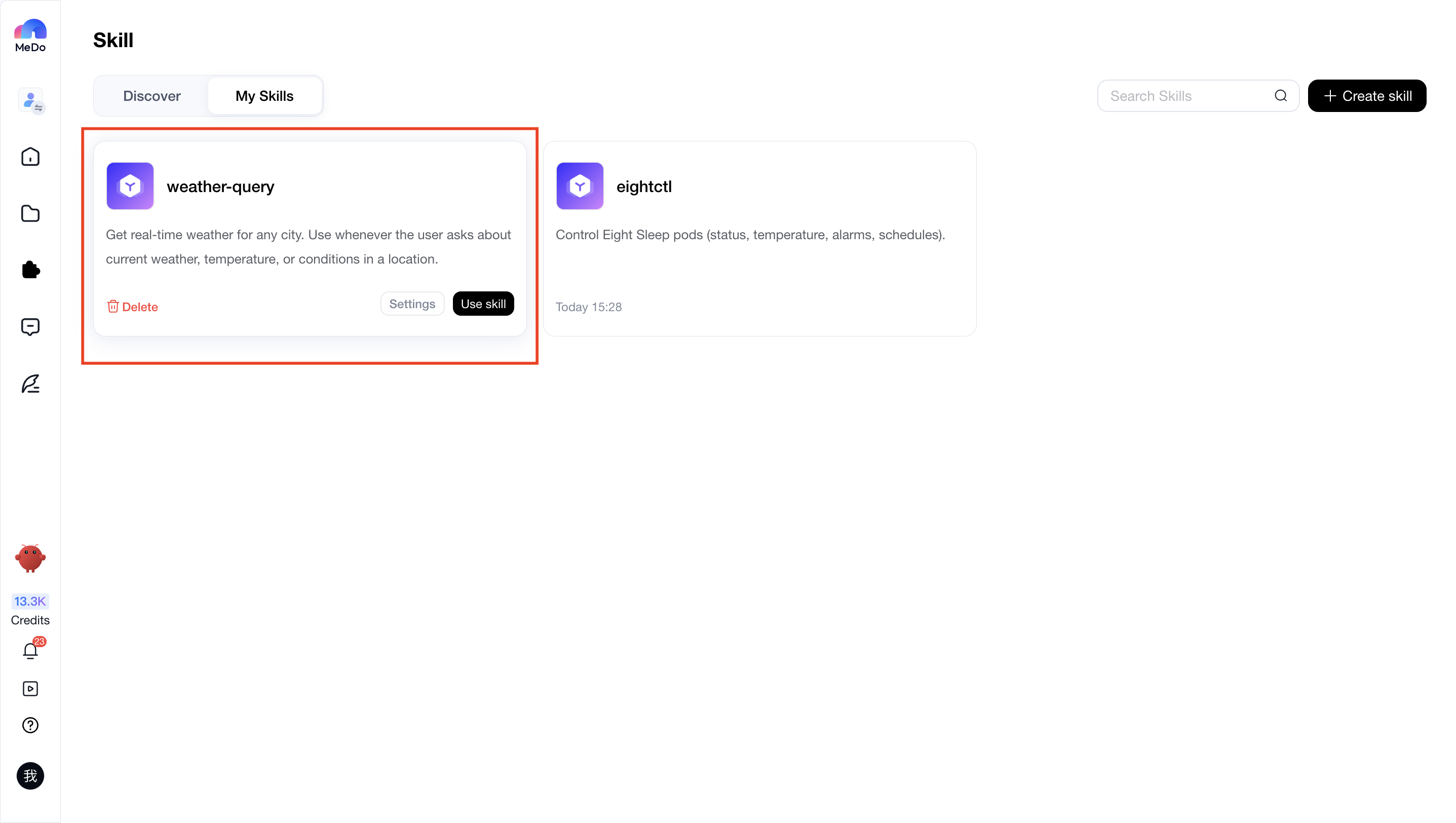
You can configure or delete custom skills here.
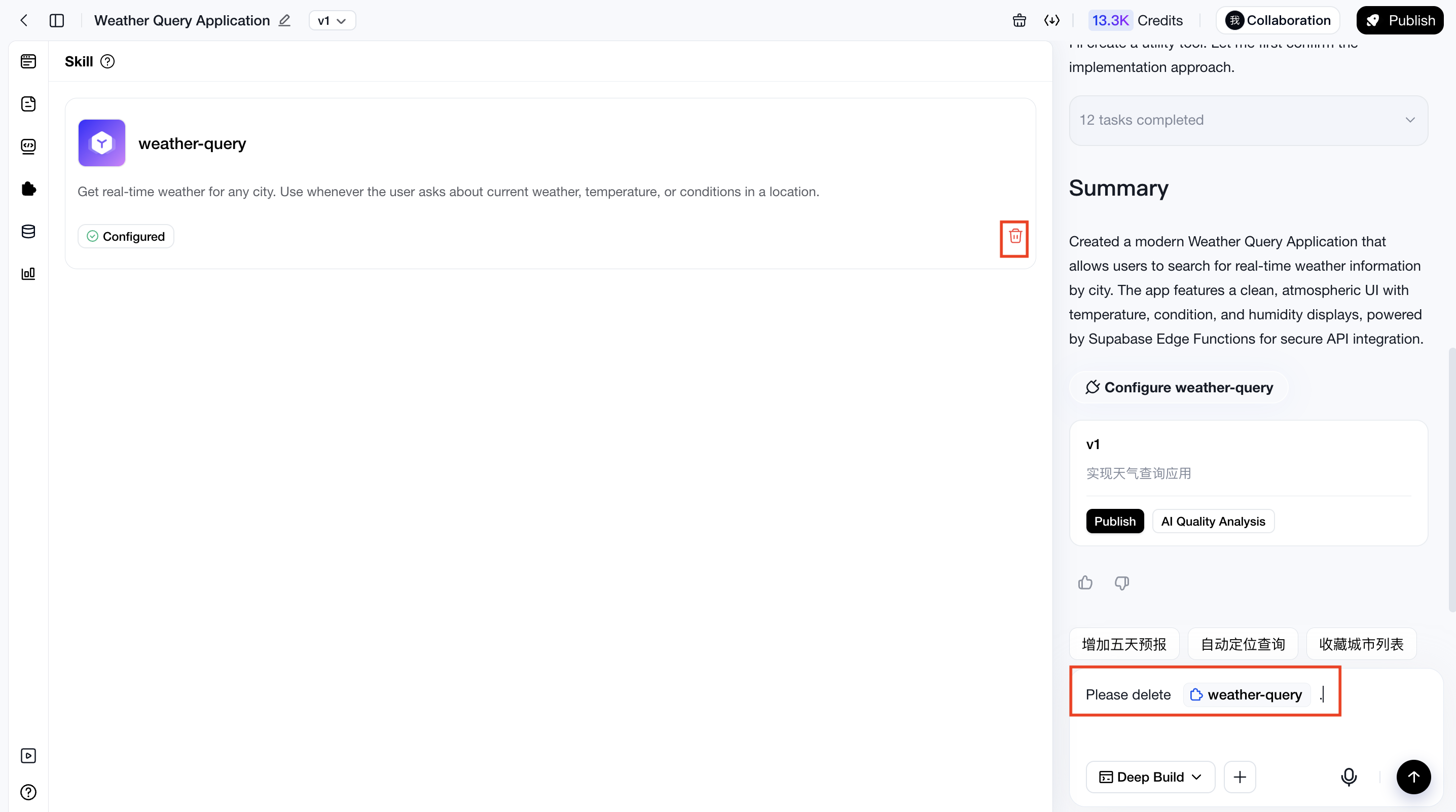
After deleting a skill from Skill > My Skills, the skill can no longer be used to generate new applications or features. However, applications that are already using the skill will not be affected.
If you also want existing applications to stop using the skill, please remove the skill from the corresponding application. Once removed, the application will no longer use that skill.