How to Perform Image Scanning
Updated at:2025-11-03
Automatic trigger
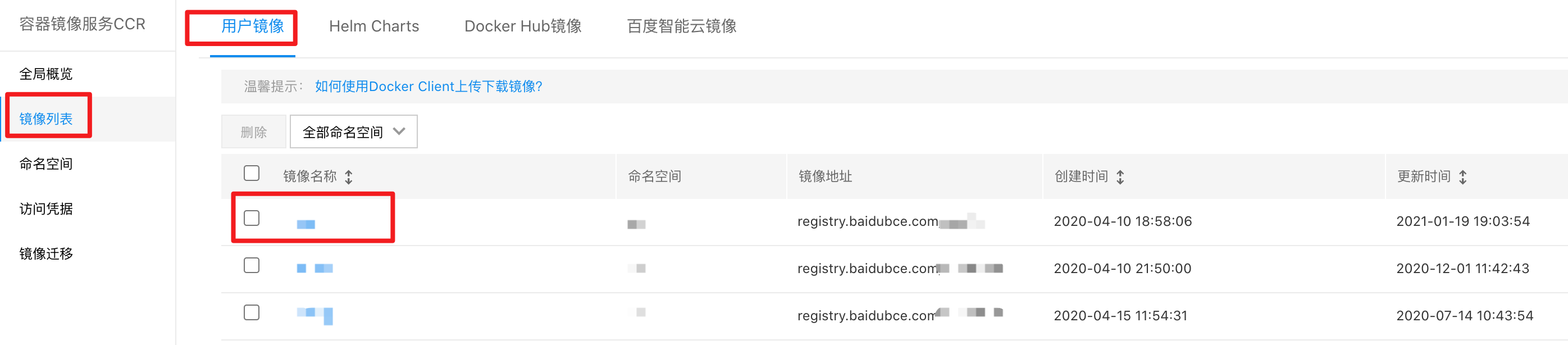
In the CCR console, click "Image List" in the left navigation bar to open the image list page. Then, click on the target image name to view the image details page.
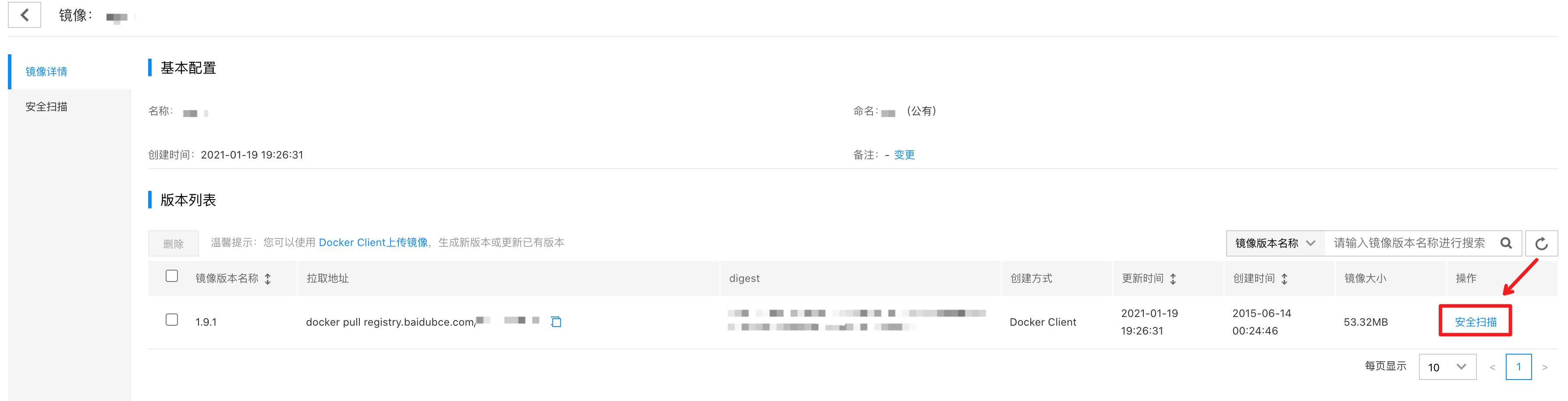
Select a version, click the "Security Scan" button next to the version entry, and you will be directed to the security scanning page, where the scanning will automatically start.
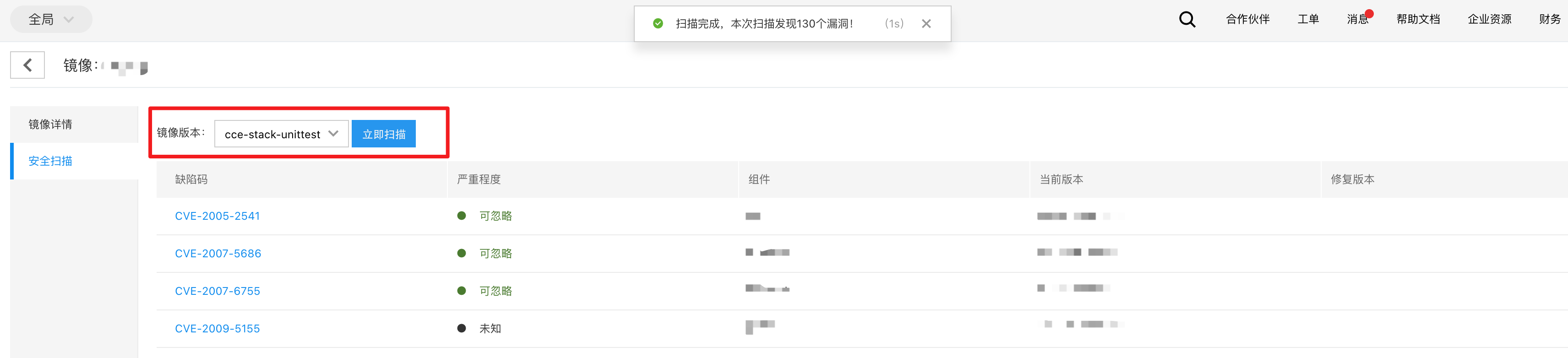
The initial scan of an image may take some time. Please be patient for a few minutes, and the results will be displayed.

Manual trigger
Choose a version from the image version dropdown menu and click "Scan Now" to manually start the scan.